On a small content team, the question "is anyone writing that topic?" gets answered in a chat thread, and "did that one go out?" depends on somebody's memory.
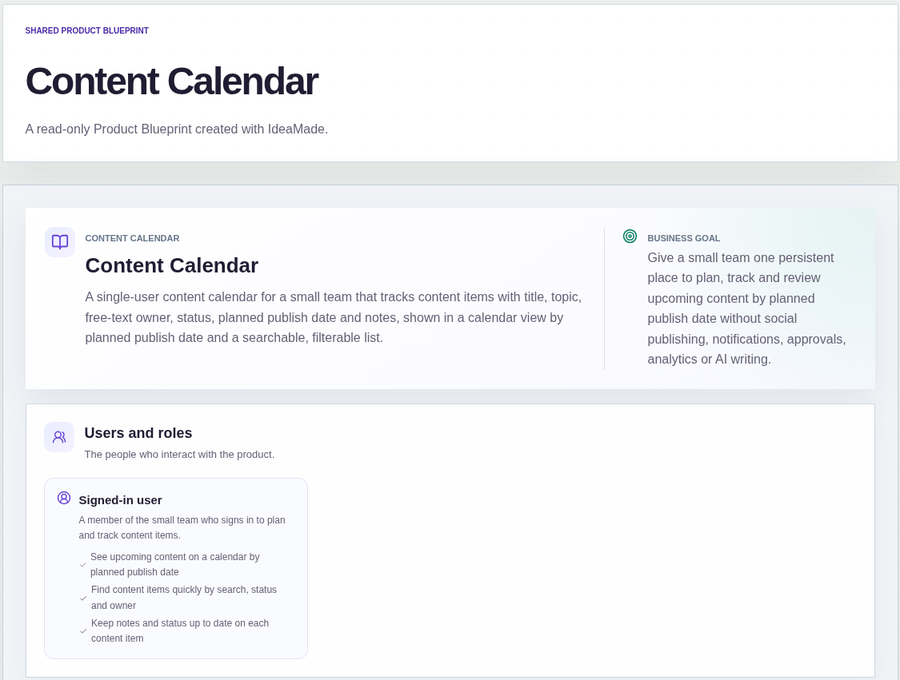
This sample blueprint is a content calendar for a small team: every topic is a content item with an owner and a status, so you can see at a glance whether it has a writer and whether it has been published.
Who this is for
- Small marketing or content teams that plan blog posts, newsletters or videos
- Founders who run content themselves and want to see what is coming up
- Anyone whose editorial plan has outgrown a spreadsheet but does not need a publishing tool
Sample blueprint, read-only. Open it with no sign-in. Select "Build this app with IdeaMade" at the bottom to open it in the blueprint editor, where you can change it and continue.
Building the app requires signing in.
The sample is a content calendar for one signed-in user, on behalf of a small team.
That person adds each topic, records who is writing it, keeps its status up to date and writes notes on it.
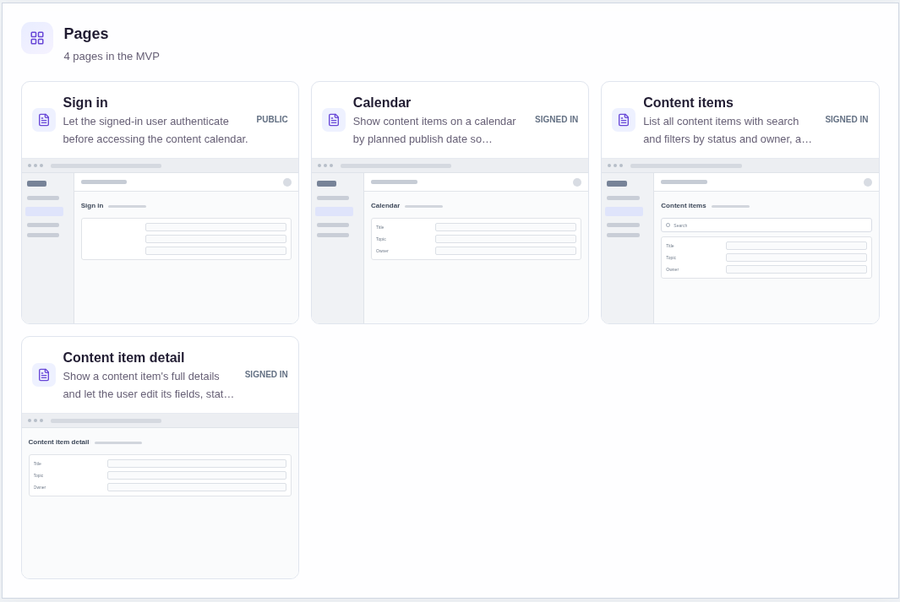
It has four pages:
- Sign in: so the plan stays private
- Calendar: content items shown on their planned publish date, with a way to create the first item when the calendar is empty
- Content items: every item in a list, with search and filters by status and owner, and a way to add a new one
- Content item detail: one item's full details, where you edit its fields, status and notes
A content item has a title, a topic, an owner written as free text, a status, a planned publish date and notes.
The sample uses five statuses: Idea, Drafting, Review, Scheduled and Published.
Sample data.
Without one place to track topics, a small team usually runs into the same problems.
Two people start the same topic without knowing it.
Nobody can say which topics are only ideas, which are being written and which are already out.
A good draft is forgotten because it has no owner or date.
The rules below keep every topic owned, dated and easy to check.
Example scenario: a team wants a post about how it onboards new clients. Someone adds a content item with that title, the topic "Onboarding", the status Idea and a planned publish date three weeks away. It appears on the calendar on that date. When a teammate starts writing it, they are entered as the owner and the status becomes Drafting. When it is out, the status becomes Published.
Here is how the app is set up.
Every content item has a planned publish date.
Items appear on the calendar on their planned publish date.
That makes the next few weeks visible at a glance, and an empty week stands out.
Every item has a status.
The status tells the team where each topic stands, from Idea through to Published.
The list can be filtered by status, so you can pull up every topic that nobody has started, everything still in Drafting or Review, or what has been published.
Status can move to any other status.
This was a confirmed product decision in the sample.
A piece can go back from Review to Drafting, or an old Idea can jump straight to Scheduled.
Nothing forces an item through every step in order.
An owner shows who is writing it.
The owner is free text, such as a name.
An item with no owner is a topic nobody has picked up yet.
The owner is not a team member account, so the sample does not need other people to sign in.
The list can be filtered by owner to see what one person is holding.
Search finds an item before you duplicate it.
The content list can be searched by text.
Checking the list first helps avoid two items on the same topic.
Notes live on the item.
The detail page holds the notes for one item, so the outline, links and reminders sit next to its status and date.
One signed-in user runs the calendar.
The sample is single-user, with persistent data.
It does not include sharing or multi-user roles.
The calendar records; it does not publish.
The status Published is something the team sets by hand to show that a topic has gone out.
The sample has no social publishing, notifications, approvals, analytics or AI writing.
What should a content calendar include?
A content calendar should include each item's title, topic, owner, status and planned publish date, plus a place for notes.
The owner and status show whether a topic has a writer and whether it has gone out.
A calendar view by publish date shows what is coming up, and a filterable list shows what is still in progress.
How do I track which topics are being written and which are published?
Give every topic one content item with an owner and a status such as Idea, Drafting, Review, Scheduled or Published.
An item with no owner is not yet taken, and the Published status shows what has gone out.
Filtering the list by status and owner shows what needs a writer or a push.
Does this content calendar publish my content?
No.
This sample only records where each topic stands, and the team sets the status by hand.
It does not publish to or connect any platform, and it leaves out notifications, approvals, analytics and AI writing.
Can I build my own content calendar app without coding?
Yes, for a simple internal calendar.
With IdeaMade, you describe your content fields, statuses and how items move in plain language.
IdeaMade turns that into a blueprint you can review and change before anything is built.
Then you build the app, preview it, and check the rules before your team relies on it.
Copy this prompt, change the parts in brackets, and paste it into the blueprint generator:
Build a content calendar for [a small team]. Each content item has a title, topic, owner (free text), status (Idea, Drafting, Review, Scheduled, Published) and a planned publish date. Include a calendar view by planned publish date, a list of content items with search and filters by status and owner, and a content item detail page with notes. Statuses can move from any status to any other. One signed-in user with persistent data. Do not publish to social media, send notifications, or add approvals, analytics or AI writing.