In a two-person shop, the stock sheet says twelve candles, the shelf holds seven, and nobody can say where the other five went.
Someone fixed a number by hand weeks ago, and the history behind it is gone.
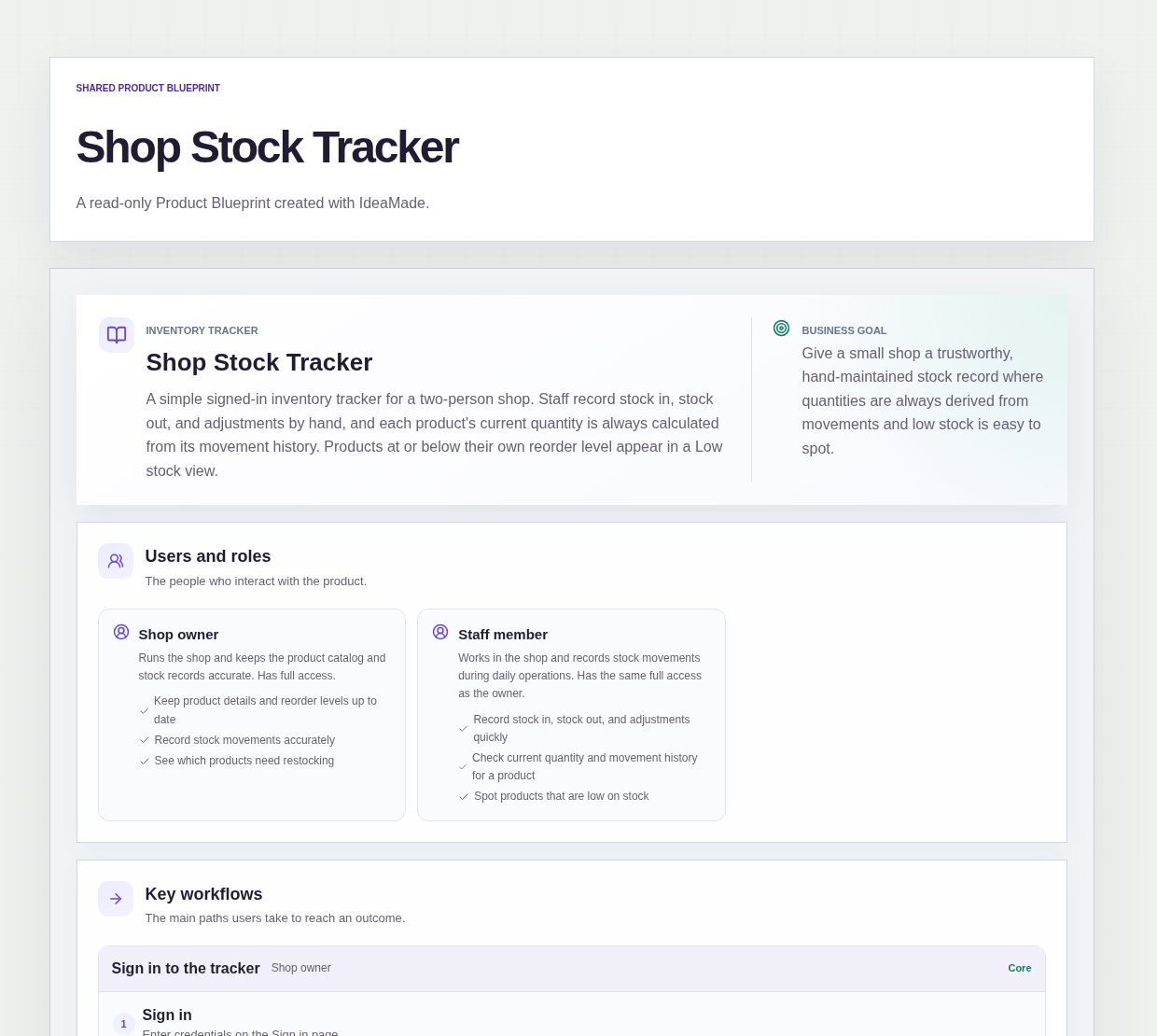
This sample blueprint is a simple inventory tracker for a small shop: every change is recorded as a stock movement, and each product's current quantity is always calculated from that movement history.
Who this is for
- Gift shop owners who keep stock records themselves
- Handmade sellers who keep a small catalog of their own products
- The second person in a two-person shop who records stock in and out day to day
- Anyone whose stock spreadsheet no longer matches the shelf
Sample blueprint, read-only. Open it with no sign-in. Select "Build this app with IdeaMade" at the bottom to open it in the blueprint editor, where you can change it and continue.
Building the app requires signing in.
The sample is a signed-in stock tracker for a shop owner and a staff member.
Both have the same full access.
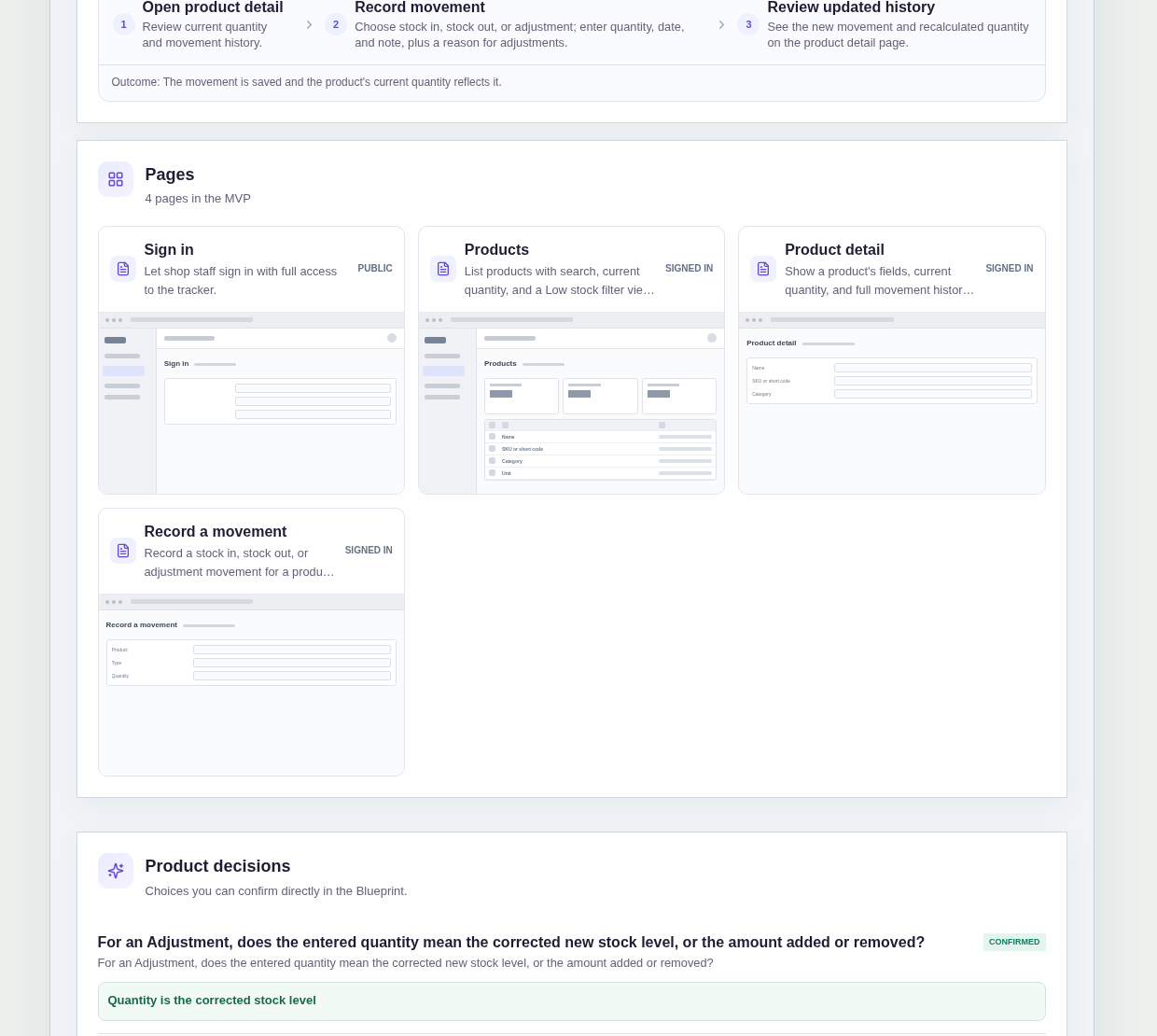
It has four pages:
- Sign in: so shop staff can sign in with full access
- Products: every product with its current quantity, search by name or SKU, a Low stock view, and a way to add products when the catalog is empty
- Product detail: one product's fields, its current quantity and its full movement history, with a way to start a movement
- Record a movement: a stock in, stock out or adjustment for a product
A product has a name, an optional SKU or short code, a category, a unit and a reorder level.
A stock movement has a product, a type (stock in, stock out or adjustment), a quantity, a date and a note, plus a reason for adjustments.
Sample data.
A small shop usually loses track of stock in the same few ways.
A number gets overwritten and nobody knows why it changed.
A best-seller runs out because no one noticed it was getting low.
A count after a stocktake fixes the total but leaves no record of the difference.
The rules below keep every quantity traceable to the movements behind it.
Example scenario: a gift shop adds a scented candle with the unit "piece" and a reorder level of 5. A delivery of 20 is recorded as a stock in, and sales over the week are recorded as stock outs. The candle drops to 5 and appears in the Low stock view. At the next count the shelf holds 4, so the owner records an adjustment with the quantity 4 and the reason "one broken in the back room".
Here is how the app is set up.
Quantity is always calculated from movement history.
Current quantity is not a field you type over.
It comes from the stock in, stock out and adjustment movements recorded for that product.
That prevents a silent edit: every change to a product's quantity has a movement with a date and a note behind it.
Every product starts with an empty history.
When you add a product, it gets its reorder level and an empty movement history.
Its quantity only changes once a movement is recorded.
Each product has its own reorder level.
The reorder level is set per product, because a shop might want ten of one item on the shelf and two of another.
Any product at or below its own reorder level appears in the Low stock view.
That prevents one shared threshold from hiding a slow item or flagging a fast one too late.
Low stock is a view, not an alert.
The Low stock view is a filter on the Products page.
You open it when you plan an order and see which products need restocking.
The sample has no alerts, reminders, email or SMS.
An adjustment's quantity is the corrected stock level.
This was a confirmed product decision in the sample.
When you count the shelf and record an adjustment, you enter the quantity you counted, not the amount added or removed.
The difference from the current quantity is derived by the app, which prevents arithmetic mistakes during a stocktake.
Every adjustment needs a reason.
Stock in and stock out record a quantity, a date and a note.
An adjustment also requires a reason, such as breakage or a miscount.
That prevents a correction from passing without any explanation of why the count was off.
The full history sits on each product.
The product detail page shows the product's full movement history next to its current quantity.
When a number looks wrong, you can read back through every movement that produced it.
Owner and staff share the same full access.
The sample has no per-role restrictions.
Both people can keep product details and reorder levels up to date and record movements.
What is the simplest way to track inventory for a small shop?
The simplest way is to record every change as a stock movement and let the app calculate each product's quantity from that history.
In this sample, a movement is a stock in, a stock out or an adjustment, with a quantity, a date and a note.
A reorder level on each product and a Low stock view show what needs restocking at a glance.
Why calculate stock quantity from movements instead of editing it directly?
Calculating quantity from movements means every change has a record behind it.
If a number is typed over, the old value and the reason for the change are lost.
In this sample, current quantity comes from the movement history, and adjustments require a reason.
When a count looks wrong, you can open the product and read back through every movement that produced it.
How do I record a stock count that does not match the system?
Record an adjustment and enter the quantity you actually counted.
In this sample, an adjustment's quantity means the corrected stock level, not the amount added or removed, and the app derives the difference from the current quantity.
Every adjustment requires a reason, such as breakage or a miscount, so the correction stays explained in the product's movement history.
Can I build my own inventory tracker app without coding?
Yes, for a simple stock record for a small shop.
With IdeaMade, you describe your products, stock movements, reorder levels and rules in plain language.
IdeaMade turns that into a blueprint you can review and change before anything is built.
Then you build the app, preview it with test data, and check the rules before you rely on it.
Copy this prompt, change the parts in brackets, and paste it into the blueprint generator:
Build a simple inventory tracker for [a two-person gift shop]. Each product has a name, optional SKU, [category], unit and its own reorder level. Staff record stock movements by hand: stock in, stock out and adjustment, each with a quantity, date and note, plus a required reason for adjustments. Current quantity is always calculated from the movement history. For an adjustment, the quantity is the corrected stock level. Include a product list with search and a Low stock view for products at or below their reorder level, a product detail page with full movement history, and a page to record a movement. [Owner and staff] share the same full access. The Low stock view is a filter only, with no alerts, reminders, email or SMS.