A new hire starts on Monday and needs a laptop.
You open the shared spreadsheet, find three rows for the same serial number, and still cannot tell who holds the spare monitor from last quarter.
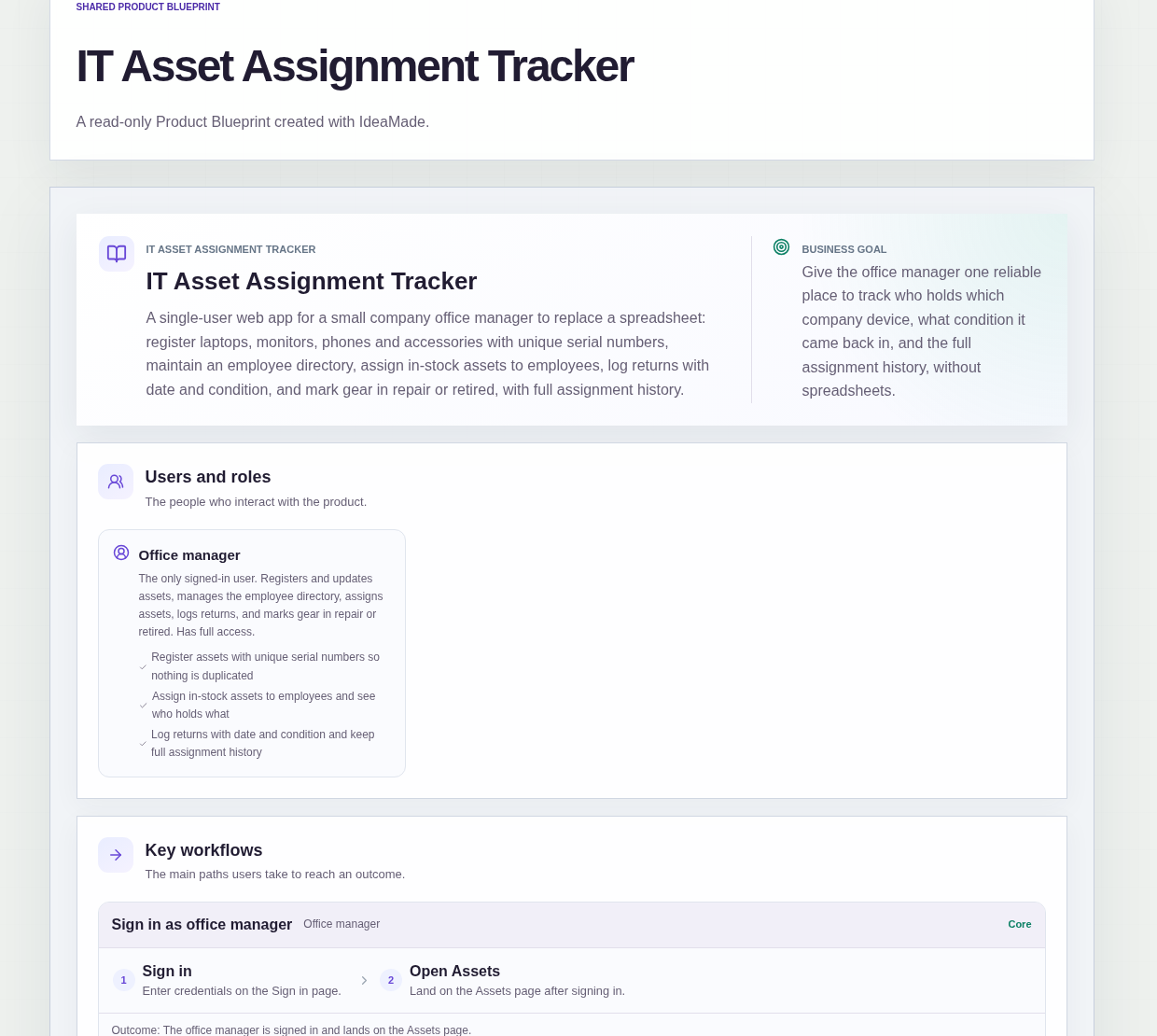
This sample blueprint is an IT asset tracker app for a small-company office manager: each device has one record with a unique serial number, only in-stock gear can be assigned, and every return is logged with a date and condition.
Who this is for
- Office managers who keep company laptops, monitors, phones and accessories in a spreadsheet
- Small teams of about ten to forty people where one person handles IT gear
- Admins who assign a laptop to an employee for ongoing use and need a clear hand-back record
- Anyone who has lost track of who holds which device after a departure or a swap
Sample blueprint, read-only. Open it with no sign-in. Select "Build this app with IdeaMade" at the bottom to open it in the blueprint editor, where you can change it and continue.
Building the app requires signing in.
The sample is a single-user web app for the office manager, who signs in to use it.
Employees do not have accounts or self-service access.
There is one role:
- Office manager: the only signed-in user, who registers and updates assets, manages the employee directory, assigns assets, logs returns, and marks gear in repair or retired
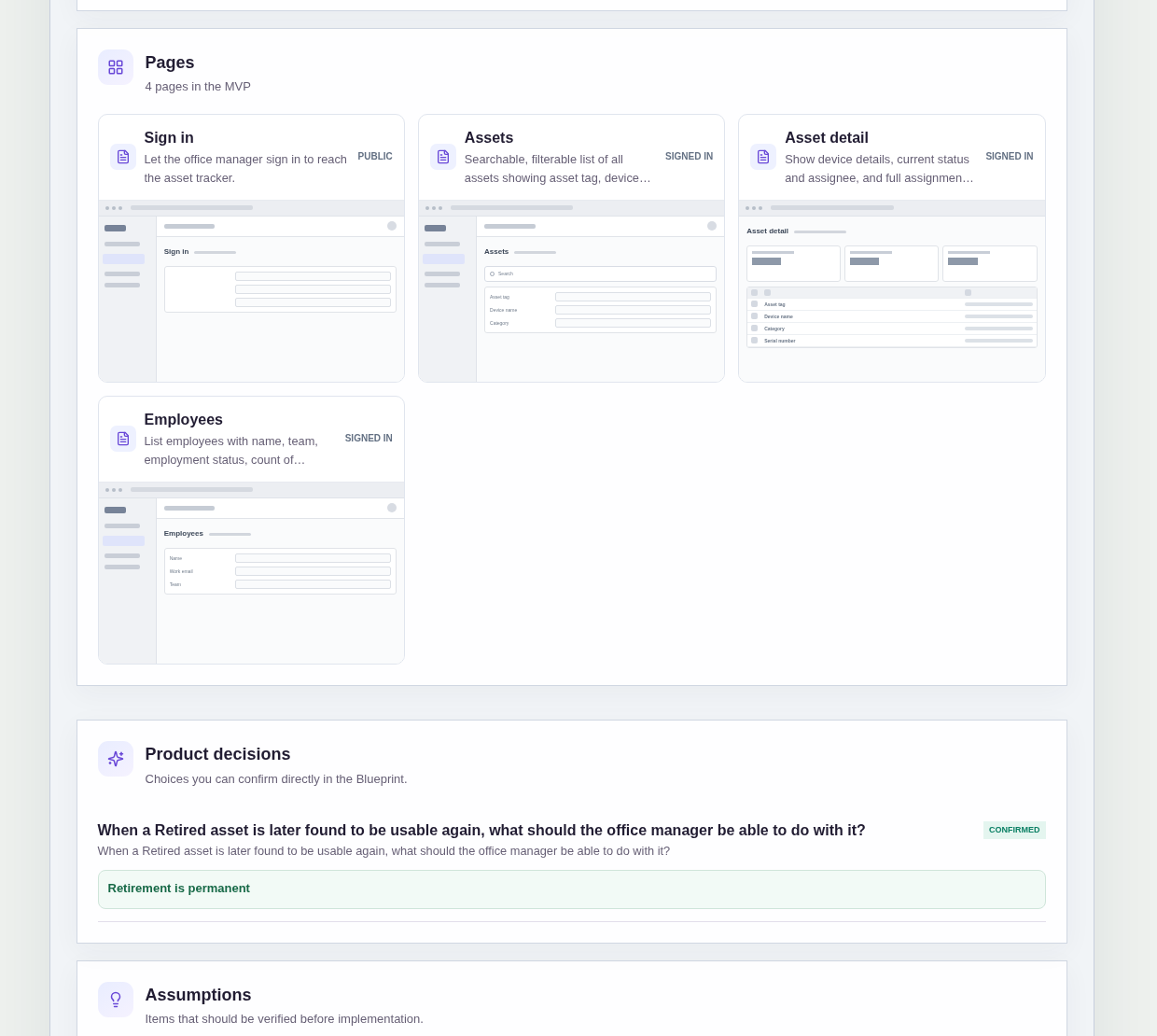
It has four pages:
- Sign in: so the office manager can reach the asset tracker
- Assets: a searchable, filterable list of all assets showing asset tag, device name, category, serial number, status and current assignee, with filters by status and category, and a way to register a new asset
- Asset detail: device details, current status and assignee, full assignment history, assign to an employee, log a return with date and condition, or mark the asset in repair or retired
- Employees: employees with name, team, employment status, count of currently held assets and each employee's assigned devices, plus a way to add or update employees
An asset has an asset tag, device name, category, unique serial number, purchase date, status, current assignee and notes.
Statuses are In stock, Assigned, In repair and Retired.
An employee has a name, work email, team and employment status.
When the Assets list is empty, it invites registering the first asset.
Sample data.
When company gear lives in a spreadsheet, the same problems come back every month.
The same laptop gets registered twice under two serial numbers that look alike.
A device comes back damaged and goes straight back into the available pool.
Someone leaves, and nobody notices they still hold an assigned laptop.
The rules below give each device one record, one status and a history you can trust.
Example scenario: the office manager registers a laptop with its serial number and it appears as In stock. On day one, they assign it to a new hire and the status becomes Assigned. Months later the employee returns it; the manager logs the return date and marks the condition Needs repair, so the asset moves to In repair instead of back into the available pool.
Here is how the app is set up.
Unique serial numbers prevent registering the same device twice.
Every asset must have a unique serial number.
That stops the same laptop or monitor from appearing as two rows with different assignees and different notes.
Only In stock assets can be assigned to an employee.
An asset can be assigned only when its status is In stock.
Assigning it sets the status to Assigned.
Assets marked In repair or Retired cannot be assigned, so broken or end-of-life gear never goes out as if it were ready.
Logging a return records the date and condition.
When an Assigned asset comes back, the office manager enters the return date and condition.
Choosing Good moves the asset back to In stock.
Choosing Needs repair or Damaged moves it to In repair, so hardware that is not ready does not go straight back into the available pool.
Retirement is permanent.
This was a confirmed product decision in the sample.
Once an asset is marked Retired, it cannot be assigned again or moved back to In stock.
End-of-life gear stays out of the assignable pool for good.
An employee cannot be marked Departed while they still hold assigned assets.
On the Employees page, marking someone Departed is blocked while that person still holds Assigned assets.
The directory can reflect current employees and people who have left only after their gear is returned or reassigned.
The Assets list filters by status and category.
The office manager can search or filter to see everything still In stock, everything Assigned, or gear that is In repair.
What should an IT asset tracker app include for a small business?
An IT asset tracker app for a small business should include each device's asset tag, device name, category, unique serial number, purchase date, status, current assignee and notes, plus an employee directory and full assignment history.
In this sample, statuses are In stock, Assigned, In repair and Retired, and returns are logged with a date and condition.
The office manager is the only signed-in user.
How do I assign a laptop to an employee without losing track of it?
Register the laptop with a unique serial number so it starts as In stock, then assign it from the asset detail page.
In this sample, only In stock assets can be assigned, and assigning sets the status to Assigned.
The Assets list shows the current assignee, and the detail page keeps the full assignment history.
What happens when an employee returns damaged company gear?
Log the return with a date and a condition that reflects the state of the device.
In this sample, Good moves the asset back to In stock, while Needs repair or Damaged moves it to In repair.
That keeps broken hardware out of the available pool until it is ready again.
Can I build an IT asset tracker app without coding?
Yes, for a simple tracker that only the office manager uses.
With IdeaMade, you describe your assets, employees, assignment rules and return conditions in plain language.
IdeaMade turns that into a blueprint you can review and change before anything is built.
Then you build the app, preview it with a few test devices and employees, and check the assignment and return rules before you rely on it.
Copy this prompt, change the parts in brackets, and paste it into the blueprint generator:
Build an IT asset assignment tracker for [a small company office manager] who replaces a spreadsheet. The office manager is the only user and signs in; employees do not have accounts. Pages: Sign in; Assets (asset tag, device name, category, serial number, status, current assignee, filters by status and category, register a new asset); Asset detail (device details, status, assignee, full assignment history, assign to employee, log return with date and condition, mark in repair or retired); Employees (name, work email, team, employment status, held-asset count, assigned devices). Register devices such as [laptops, monitors, phones and accessories] with unique serial numbers. Statuses: In stock, Assigned, In repair, Retired. Only In stock assets can be assigned; assigning sets status to Assigned. Logging a return with Good sets In stock; Needs repair or Damaged sets In repair. Retirement is permanent. An employee cannot be marked Departed while they still hold assigned assets. No barcode scanning, device management, warranty reminders, file uploads, employee logins, payments or AI.
Your idea, made real.