A member comes to the desk asking about a grey hoodie left in the changing room last week.
The colleague who took it in is off today, the notebook just says "hoodie", and nobody knows which box it went into.
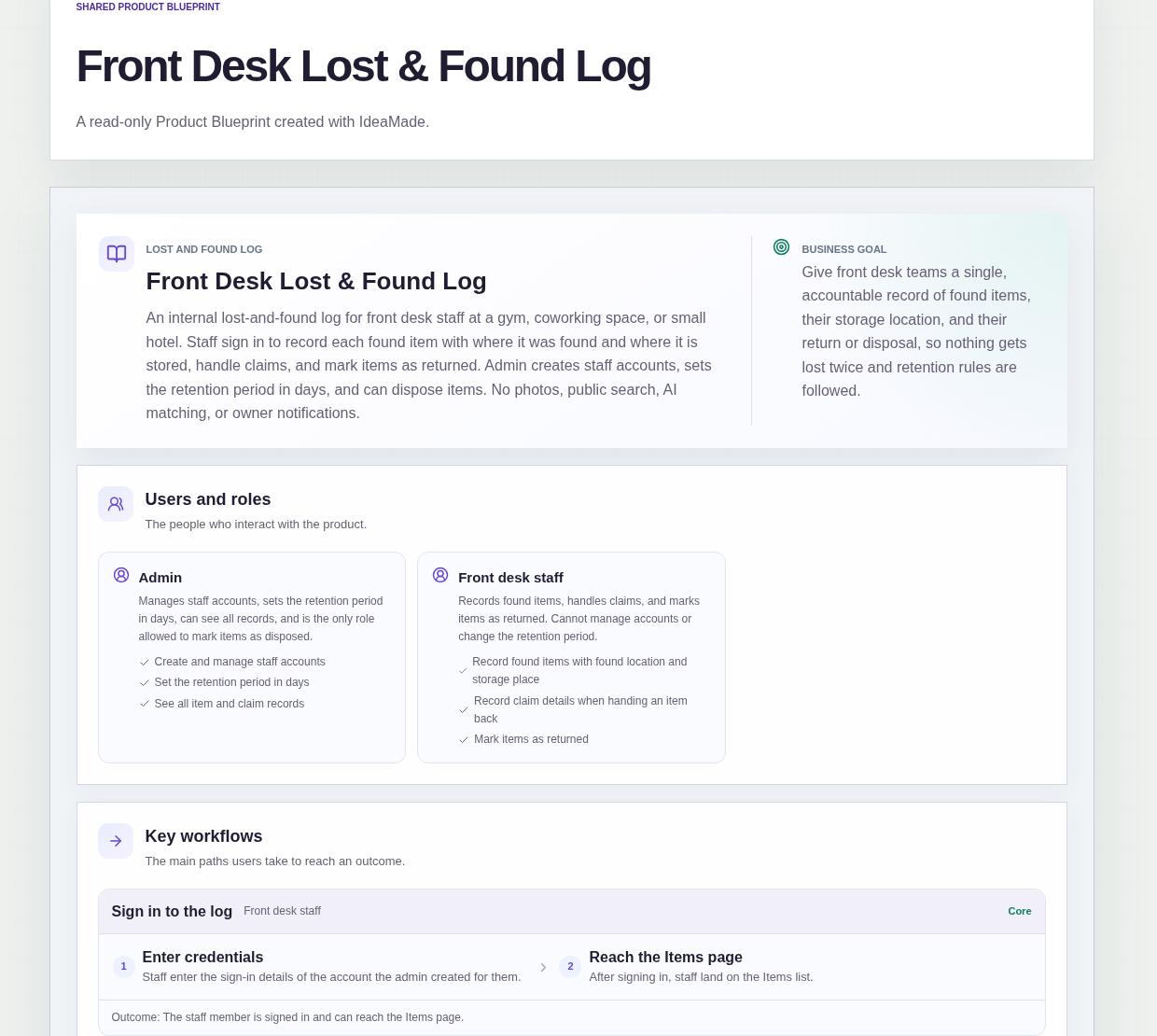
This sample blueprint is an internal lost and found log: each found item is recorded with where it was found and where it is stored, every handover is recorded, and unclaimed items past a set number of days are flagged for disposal.
Who this is for
- Gym front desk teams who collect bottles, towels, keys and clothing every day
- Coworking community managers who keep a shelf of chargers and forgotten bags
- Small hotel or guesthouse front desks that hold items guests leave behind
- Managers who need to know who handed an item back, and to whom
Sample blueprint, read-only. Open it with no sign-in. Select "Build this app with IdeaMade" at the bottom to open it in the blueprint editor, where you can change it and continue.
Building the app requires signing in.
The sample is an internal staff tool.
There is no public access and no public search page.
Staff sign in with accounts the admin creates for them.
There are two roles:
- Admin: creates and manages staff accounts, sets the retention period in days, sees all records, and is the only role that can mark an item Disposed
- Front desk staff: record found items, record claims and mark items Returned, and cannot open Settings
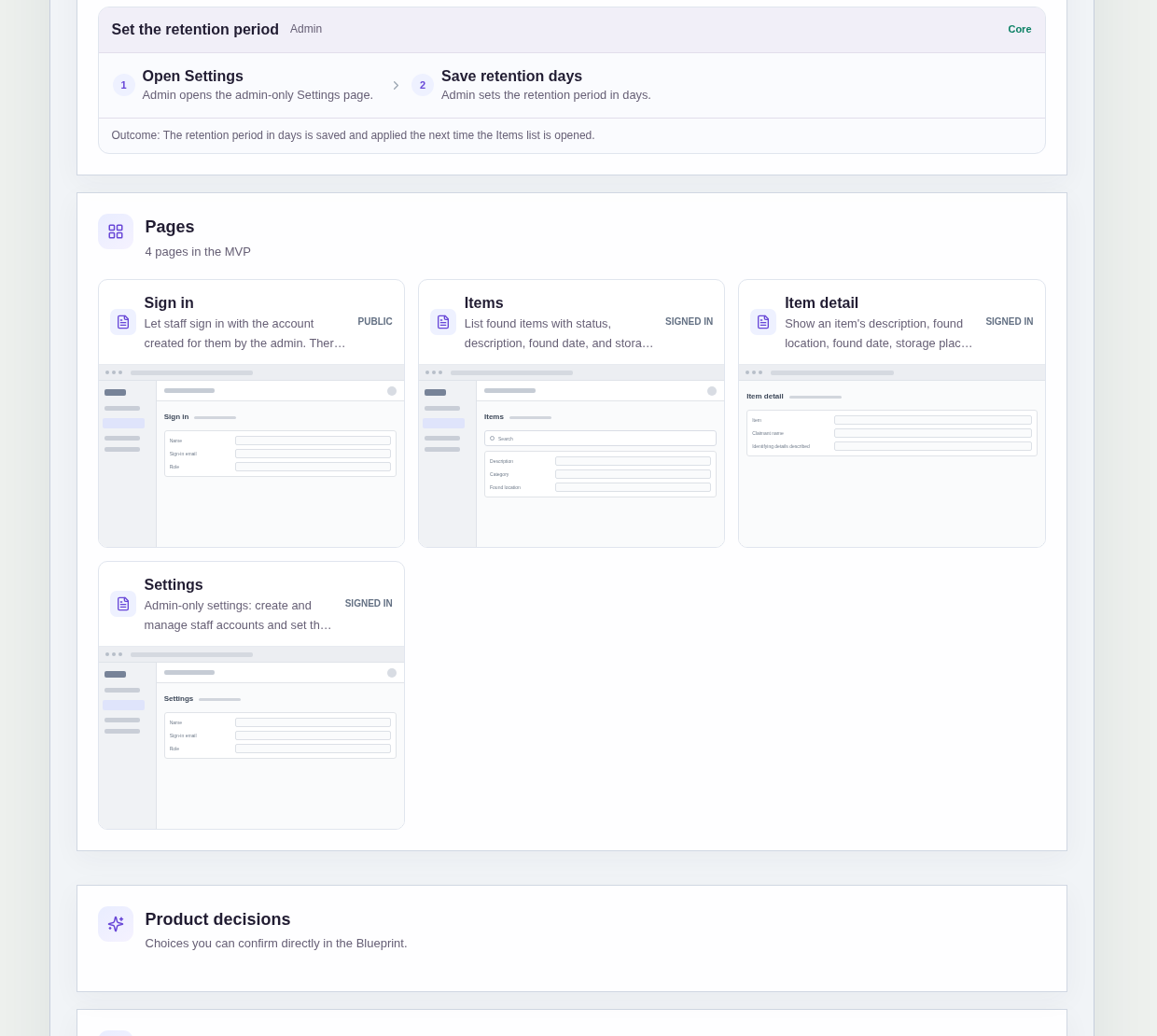
It has four pages:
- Sign in: staff sign in with the account the admin created for them
- Items: found items with status, description, found date and storage place, a filter by status, and a way to add a found item
- Item detail: description, found location, found date, storage place, status, claim details and history
- Settings: admin only, for staff accounts and the retention period in days
A found item has a description, category, found location, found date and storage place.
Items are recorded as text, so the description is what staff rely on to recognise them.
An item's status is Stored, Returned, Disposable or Disposed.
Sample data.
A lost and found shelf goes wrong in familiar ways.
An item is logged, but nobody wrote down where it was put.
Someone claims a phone, and later nobody can say who handed it over or how the owner proved it was theirs.
Boxes of unclaimed items pile up because nobody knows which ones have been held long enough.
The rules below give each item one record from the day it is found to the day it leaves.
Example scenario: a staff member finds a set of keys in the studio and records them with the found location and the drawer they go in. Three days later a member describes the key ring. The staff member records the claimant name, the details described and who handled the handover, then marks the keys Returned.
Here is how the app is set up.
An item cannot be saved without a found location and a storage place.
Saving a found item requires both fields.
That prevents the most common dead end: a record that says an item exists but not where to look for it.
New items appear in the Items list with status Stored.
A return is recorded with the claimant and the identifying details they gave.
To mark an item Returned, staff enter the claimant name, the identifying details the claimant described and the staff member handling the handover.
If a dispute comes up later, the record shows who took the item, what they said to prove it was theirs and who gave it to them.
Returned and Disposed items are locked.
Once an item is marked Returned or Disposed, it can no longer be edited.
A finished record cannot be quietly changed afterwards, and the item detail keeps its history.
Unclaimed items past the retention period show as Disposable.
The admin sets the retention period in days in Settings.
The sample does not set a starting value, so the admin sets it before the rule has any effect.
When the Items list is opened, items still Stored beyond that period are shown as Disposable.
It is calculated when the list opens, not by a scheduled job, and no one is notified.
Only the admin can mark an item Disposed.
Front desk staff can see that an item is Disposable, but only the admin can mark it Disposed.
That keeps one accountable person behind every item that leaves without its owner.
Staff accounts are managed by the admin.
The admin creates and updates staff accounts in Settings, and front desk staff cannot open that page.
The first admin account is set up outside this flow.
What should a lost and found log record?
At minimum, a description, where the item was found, when it was found and where it is stored.
In this sample, saving an item requires both a found location and a storage place.
When an item goes back to its owner, the log also records the claimant name, the identifying details they described and the staff member who handled the handover.
How long should a gym keep lost and found items?
That is your policy, so the log lets you set it.
In this sample, the admin sets a retention period in days in Settings.
Items still Stored beyond that period are shown as Disposable when the Items list is opened.
Only the admin can then mark an item Disposed, and the record is locked.
Nothing happens automatically until the admin has set the period.
How do I make sure lost items go back to the right person?
Ask the claimant to describe the item and record what they said.
In this sample, staff cannot mark an item Returned without entering the claimant name, the identifying details the claimant described and the staff member handling the handover.
The item is then locked, so the record of who took it and why stays intact if questions come up later.
Is a lost and found log the same as an inventory tracker?
No.
An inventory tracker counts stock you own and reorder.
A lost and found log tracks single items that belong to someone else, from the day they are found until they are returned or disposed.
This sample has statuses for that journey, a claim record at handover and a retention rule for unclaimed items, rather than stock counts or equipment checkouts.
Copy this prompt, change the parts in brackets, and paste it into the blueprint generator:
Build an internal lost and found log for the front desk of [a gym]. Staff sign in with accounts the admin creates; no public access or public search. Roles: Admin (manages staff accounts and the retention period in days in Settings, sees all records, is the only role that can mark an item Disposed) and Front desk staff (record found items, record claims, mark items Returned). Pages: Sign in; Items (status, description, found date, storage place, filter by status, add item); Item detail (description, [category], found location, found date, storage place, status, claim details, history); Settings (admin only). Saving an item requires a found location and a storage place. New items are Stored. To mark Returned, record the claimant name, the identifying details they described and the staff member handling the handover. Items still Stored after [the retention period] show as Disposable when the list opens. Returned and Disposed items are locked. No photos, notifications or AI matching.
Your idea, made real.