Answer clarification questions and update your Blueprint
On this page
Clarification questions help you make choices that affect the product structure. Read the options, choose answers for your business, and select “Update this Blueprint.” Your choices are saved as product decisions that you can adjust later.
Before you begin
Create a project from the projects list and submit your app idea to open the Blueprint page. If you have not entered a request yet, start with Describe your app idea.
The number of questions and their options depend on your description. They may differ from the screenshots. If there are no questions, go straight to reviewing the generated Blueprint.
Read the question and options
Read each clarification question and identify the business choice it asks you to make. This example did not specify follow-up statuses, so IdeaMade asks which states a client should move through.
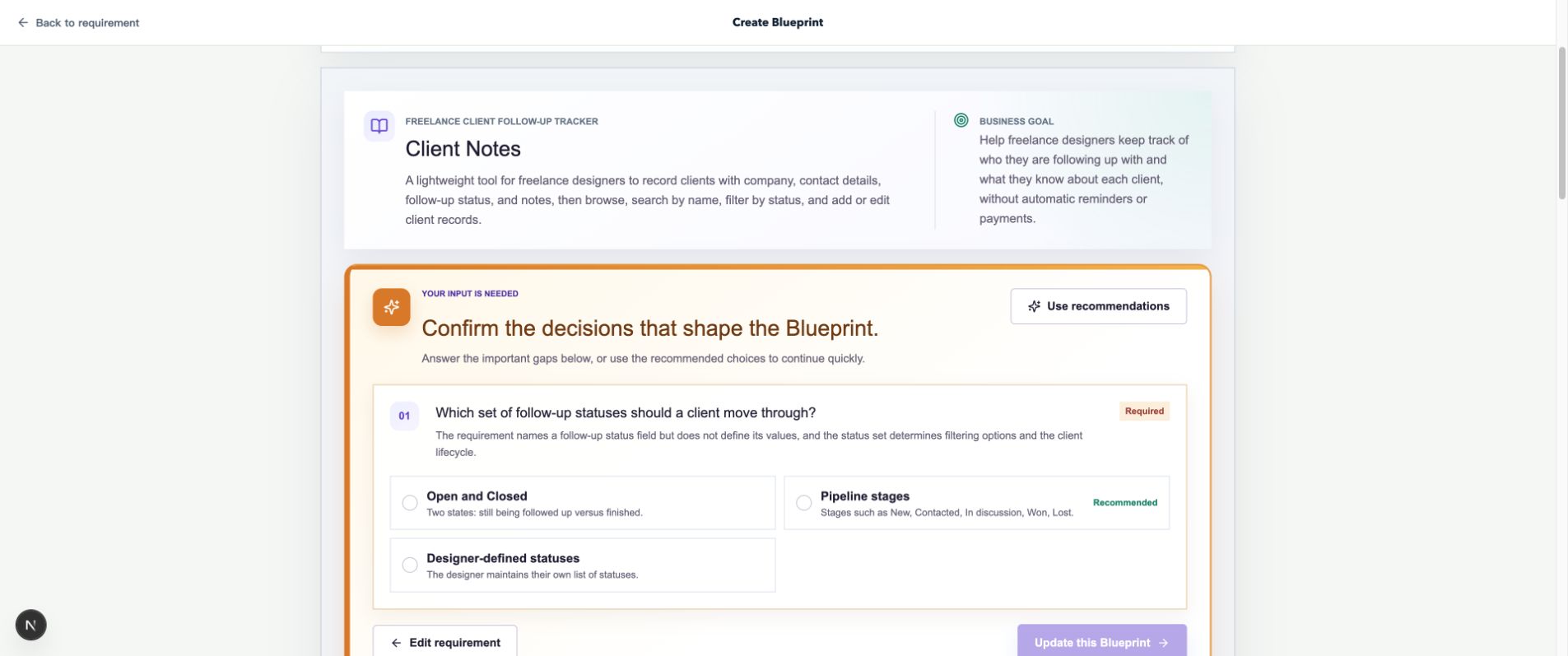
Read the options and choose the answer that fits your first version’s scope.
Choose answers and update
- Select an option that fits your business. You can also select Use recommendations, then review and adjust each answer.
- In this example, change the recommended Pipeline stages to Open and Closed for a simpler first version.
- Once the questions have answers, select Update this Blueprint and wait for the update to finish.
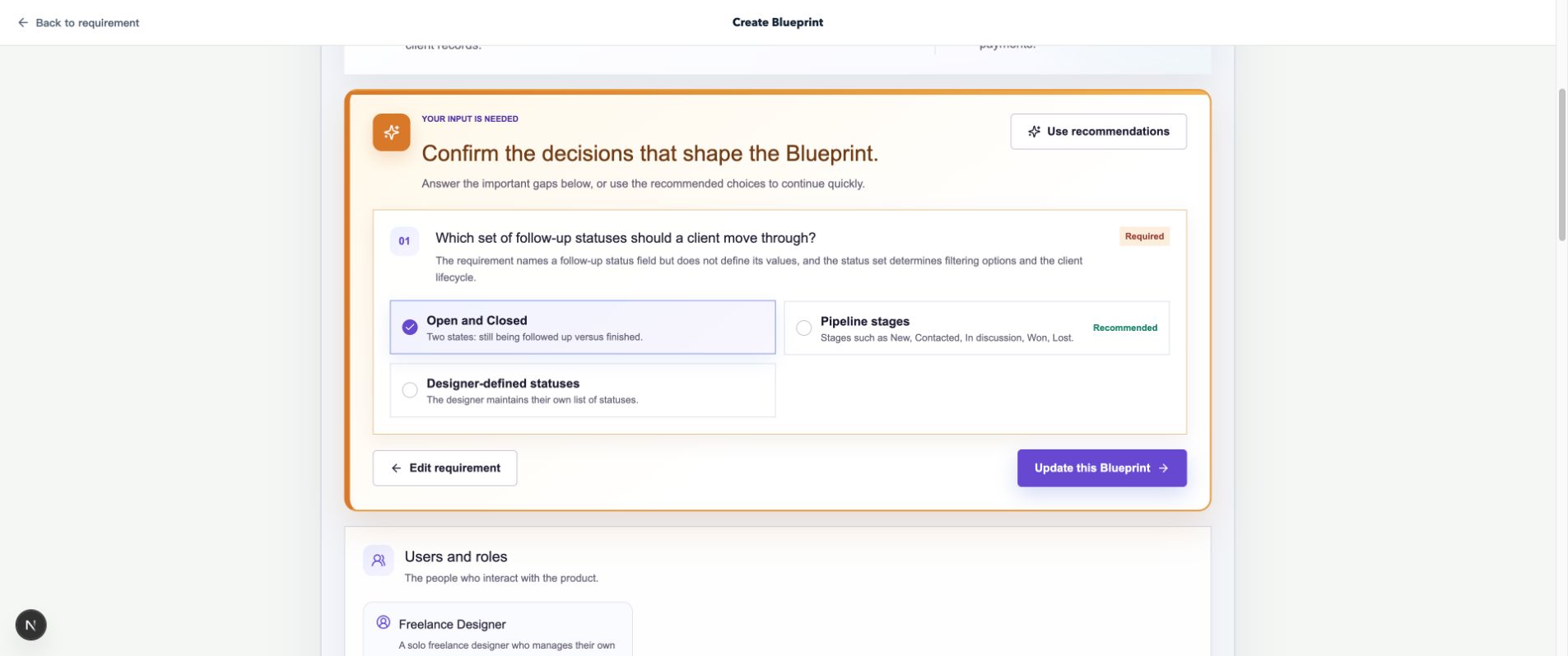
After choosing answers, select Update this Blueprint to submit your choices.
If the update button is unavailable, complete any unanswered questions or wait for the current operation to finish. Once updated, find the saved choices in Product decisions.
Check the updated product decisions
After the update, find Product decisions. Check the confirmed answer and whether the related pages and workflows reflect your choice.
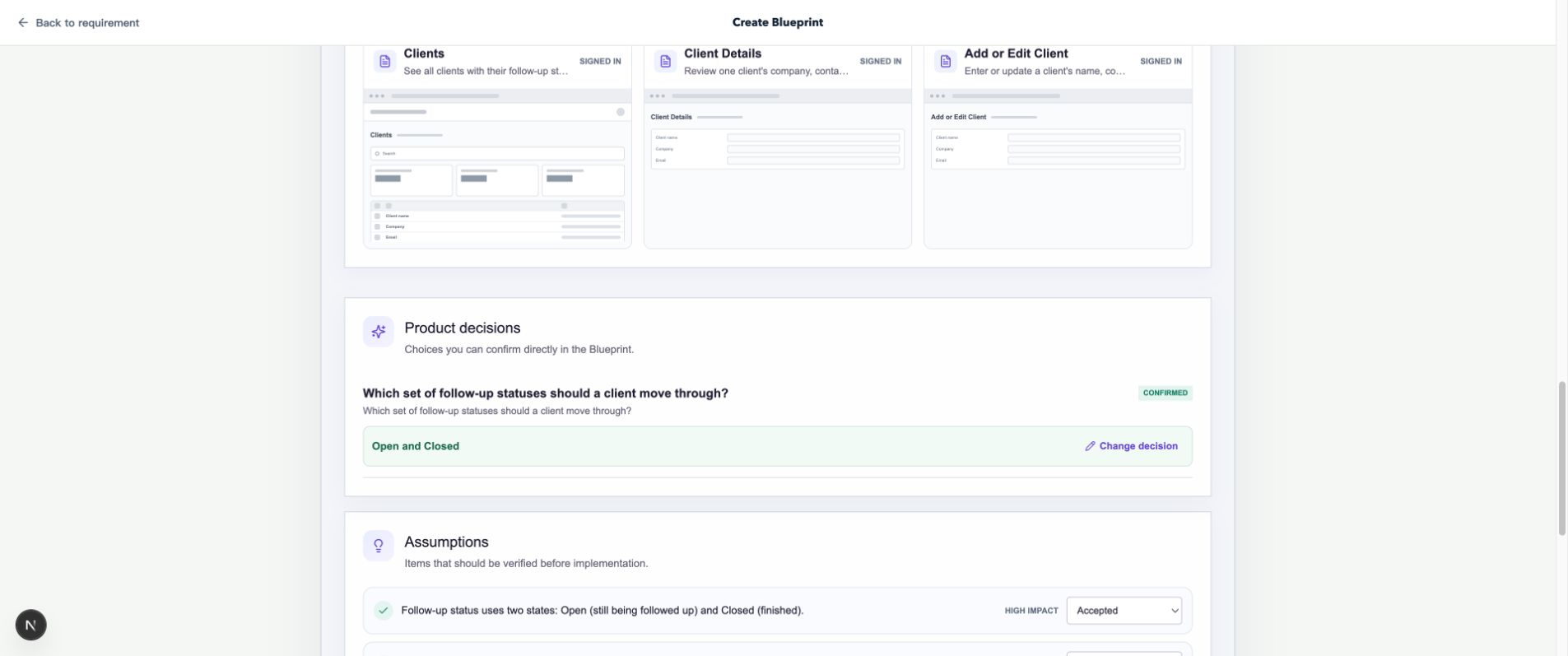
Product decisions records your choice. Read the related assumptions as well.
Change a confirmed decision
You can revisit a choice in the same Blueprint.
- Select Change decision beside the relevant product decision.
- Choose a new answer. This example switches to Pipeline stages.
- Select Review impact and update and wait for the proposal.
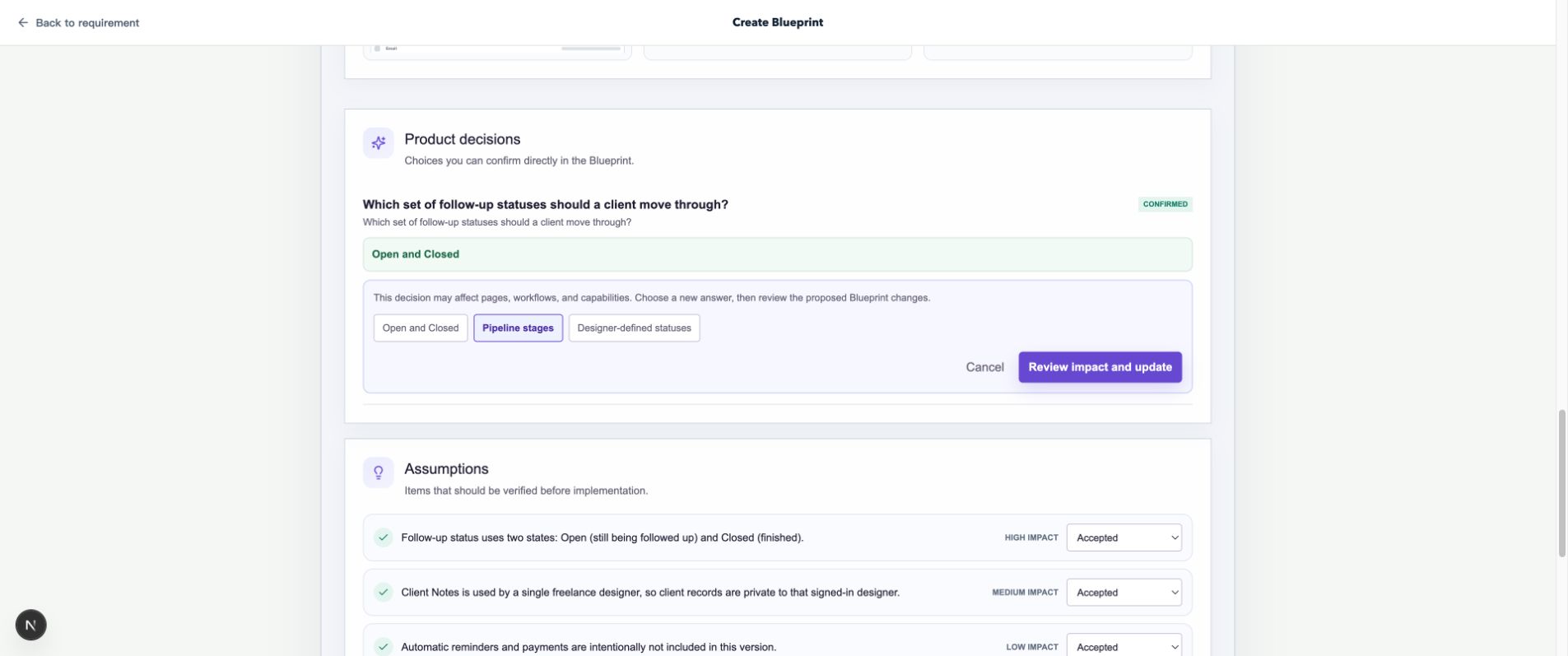
Choose the new answer before reviewing the product changes it would require.
- Expand the relevant items to compare the proposed changes. In this example, check that the statuses, filtering, and editing requirements are updated together.
- Select Confirm change if the proposal is right, or Not now to leave it unapplied.
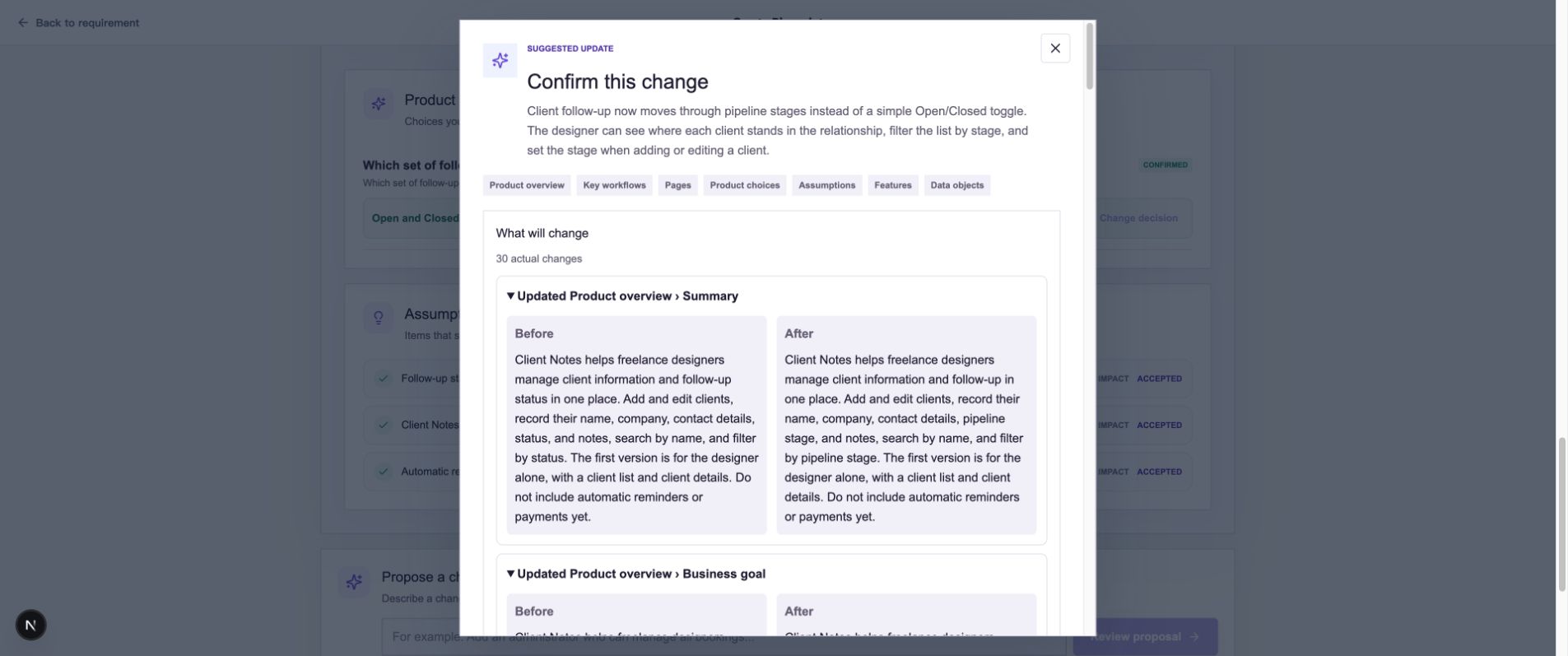
Expand related changes to review updates to workflows, pages, and product decisions.
- Back in the Blueprint, check the new confirmed answer and the affected content.
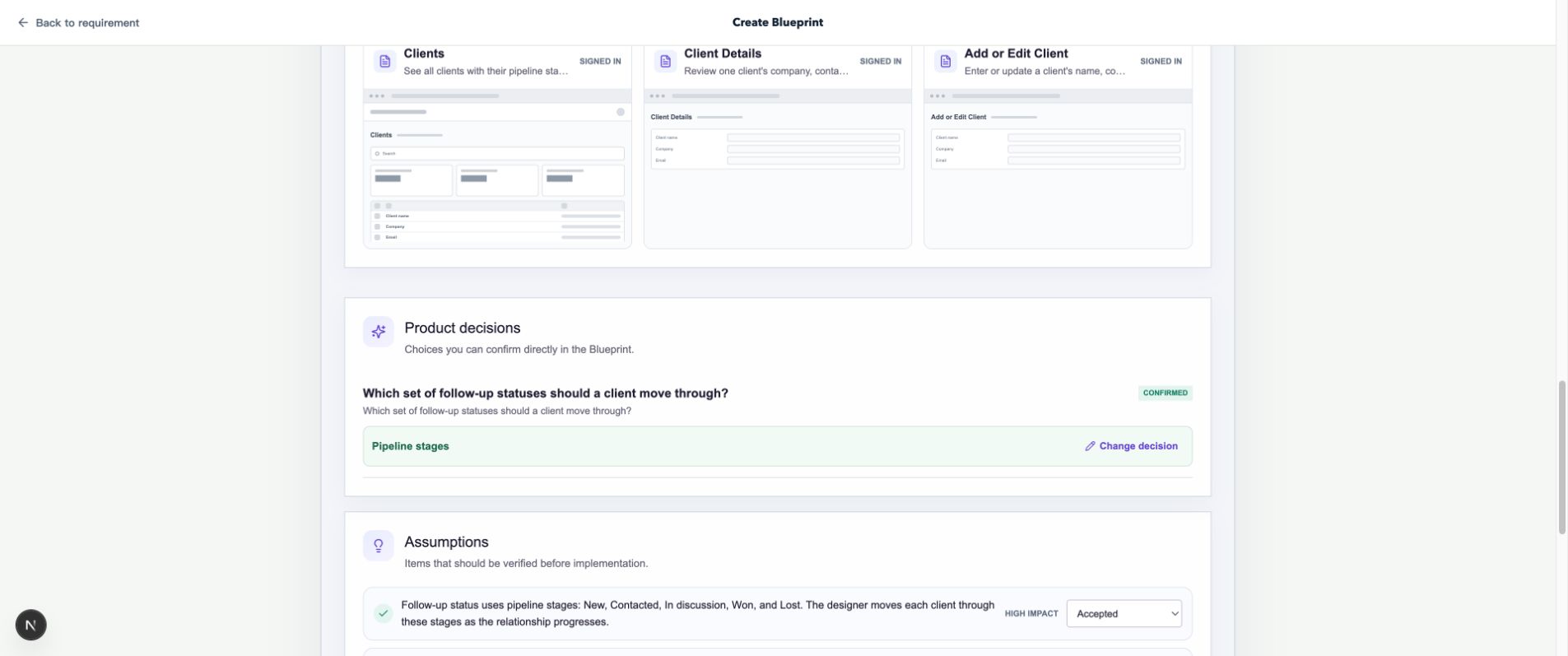
Confirmation applies the change and adds a local revision.
Common questions
What if an option does not describe everything I need?
After answering the required questions, edit the Blueprint manually or request an AI proposal to add details and explain what should stay the same.
How do I return to the Blueprint before a decision change?
Open local revisions, find the Blueprint from before the change, and restore it.