
Add reference images to a conversation
On this page
Paste a screenshot into Builder’s AI composer and add an explanation to help the AI understand a layout, visual detail, or problem. This guide covers preparing, sending, and reopening images, then reviewing a change plan based on them.
Prepare the image and context
Open the project and relevant page, and prepare a clear PNG, JPEG, or WebP image. This article demonstrates pasting a screenshot of the current app from the clipboard.
Each message accepts up to 4 images, at most 10 MB each. Choose images with clear text and details. If an image is too large, crop or reduce it and try again.
Check the page and component labels above the composer. This example changes spacing across the list area, so no component is selected. For a local change, you can select a component before adding the image.
Paste and wait for preparation
- Click the AI composer’s input area.
- Paste the copied image with ⌘V on macOS or Ctrl+V on Windows.
- Wait for the thumbnail to appear and Preparing image… to finish. The image is then ready to send.
- Add your explanation, check the thumbnail and page context, and select Send request.
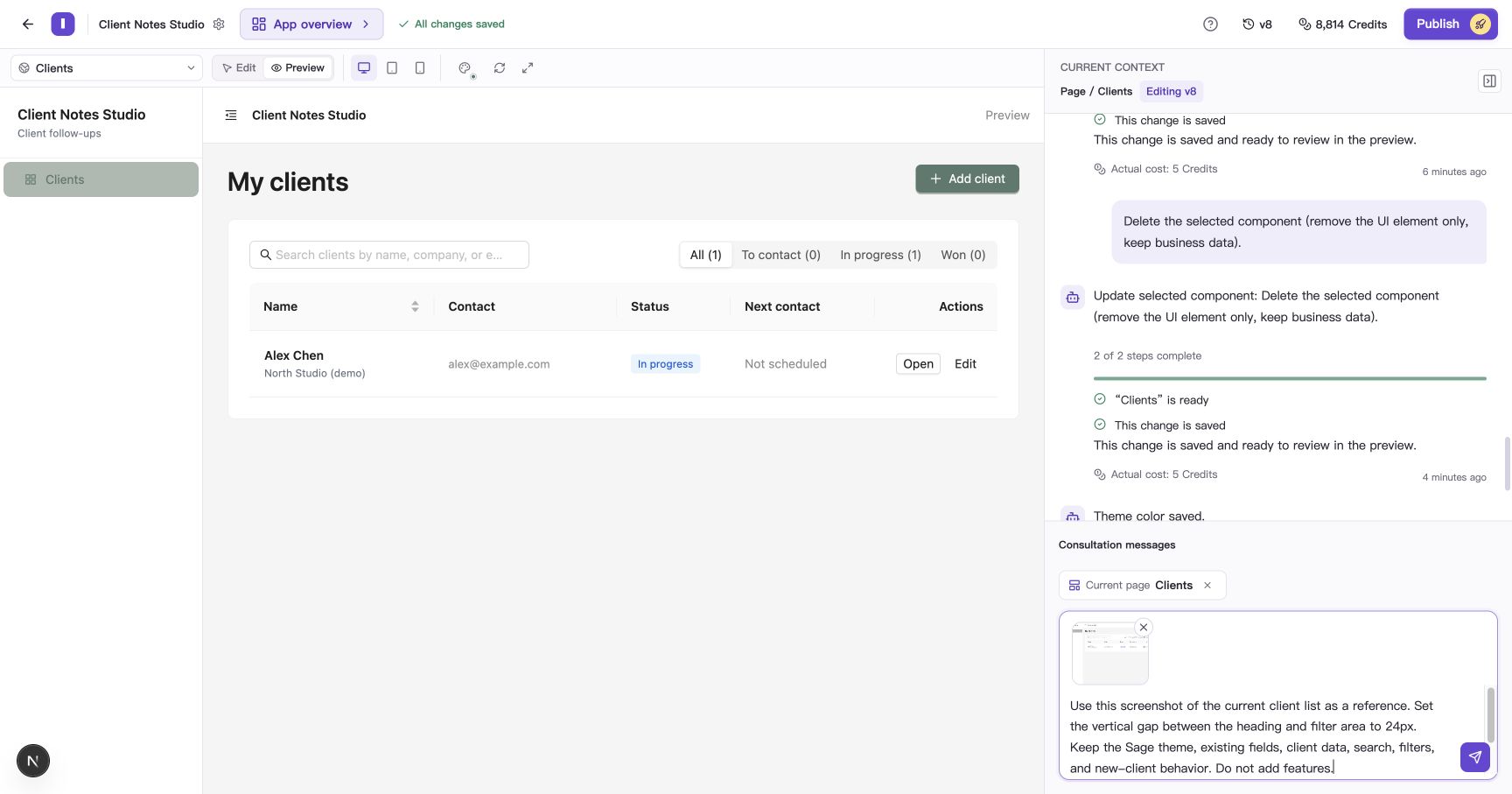
Keep the image and explanation in one message. This request identifies the region, spacing, theme, and behaviors to preserve.
View or remove an image before sending
Click the thumbnail to enlarge it and check that it is the right image and readable. Select Close image to return. To remove it from the draft, select Remove image beside the thumbnail.
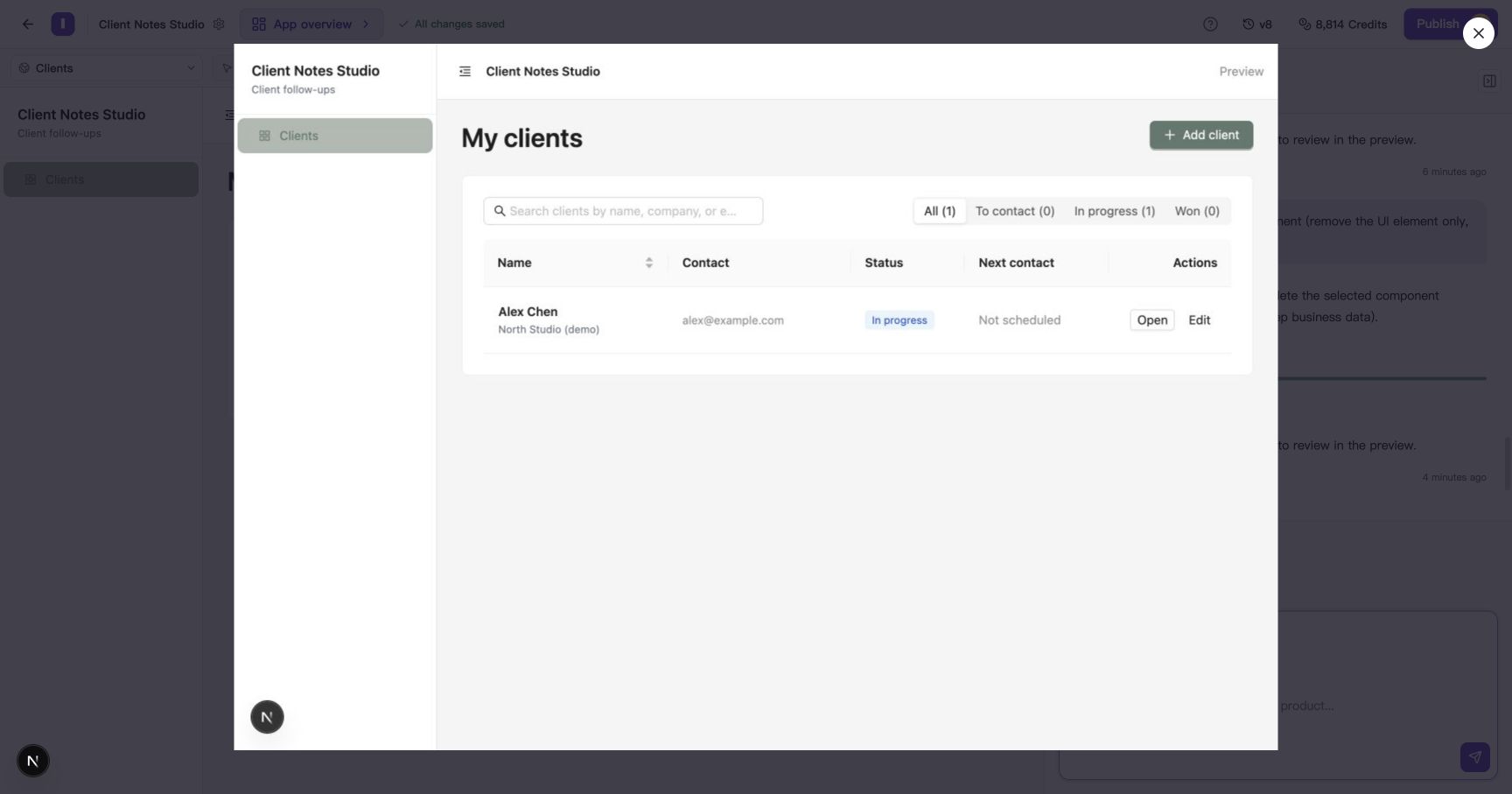
Enlarge the image to check that its text and relevant details are clear.
Explain what to use from the image
Identify the target page, the part of the image to reference, and the content to preserve so the intended change is clear. For example:
Use this screenshot of the current client list as a reference. Set the vertical gap between the heading and filter area to 24px. Keep the Sage theme, existing fields, client data, search, filters, and new-client behavior. Do not add features.
Other useful ways to describe images include:
| Purpose | What to explain |
|---|---|
| Layout reference | Whether to use its grouping, spacing, or content arrangement, and on which page |
| Visual reference | The colors or local styling to reference, and the brand elements to retain |
| Problem screenshot | The action before the problem, the visible result, and the expected result |
To display the image itself in your app, describe its target page, position, and expected presentation in the request.
Review the plan and check the app
This example targets the whole client list and returns a normal change plan. Follow these steps to review and apply it.
- Read the plan and select View full changes to check the target.
- Revise it if needed. In this example, the original 24px gap becomes 32px, followed by another review.
- Select Apply this plan when ready.
- Wait for the new version, switch to Preview, and check both the change and what should remain.
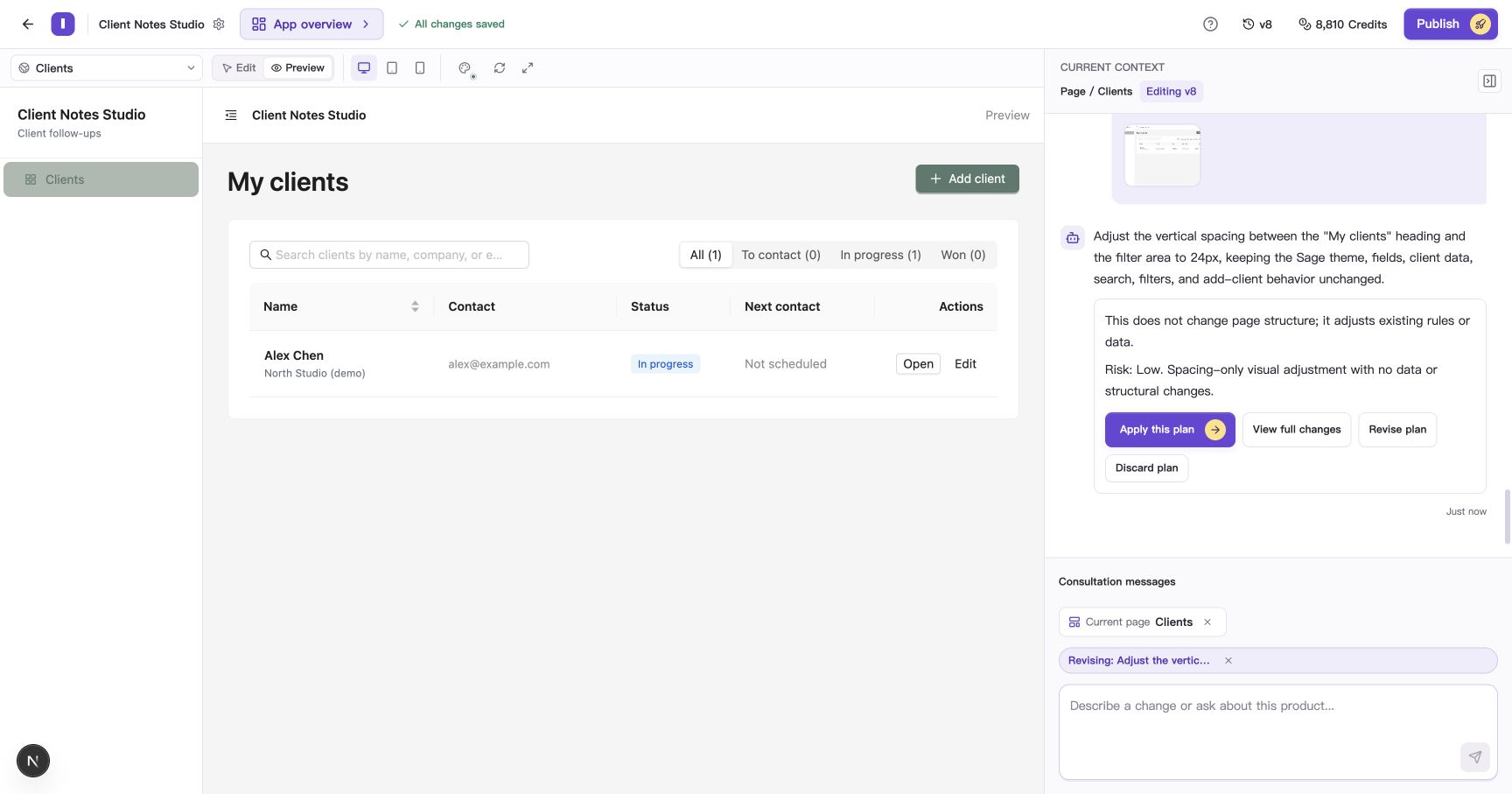
The plan describes the goal and affected scope for the image request. Review it before applying.
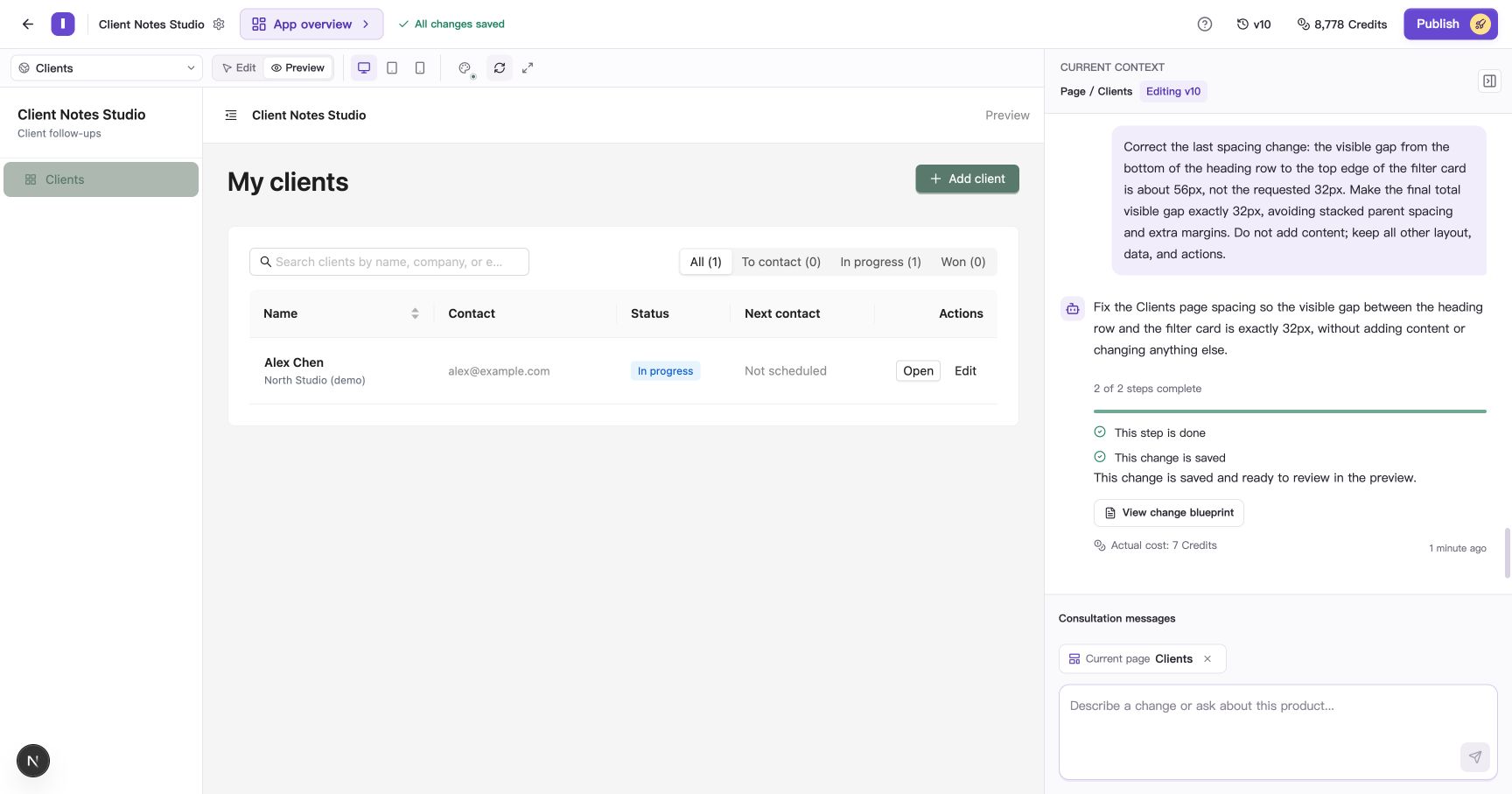
The updated list has the requested spacing, with search, filters, and the new-client form still available.
See Review, revise, and discard change plans for the full review flow. An image request with a selected component can enter targeted execution directly, so check the selection before sending.
Reopen a sent image
Sent messages retain their reference images. After refreshing Builder, use View reference image on the original message to enlarge it again.
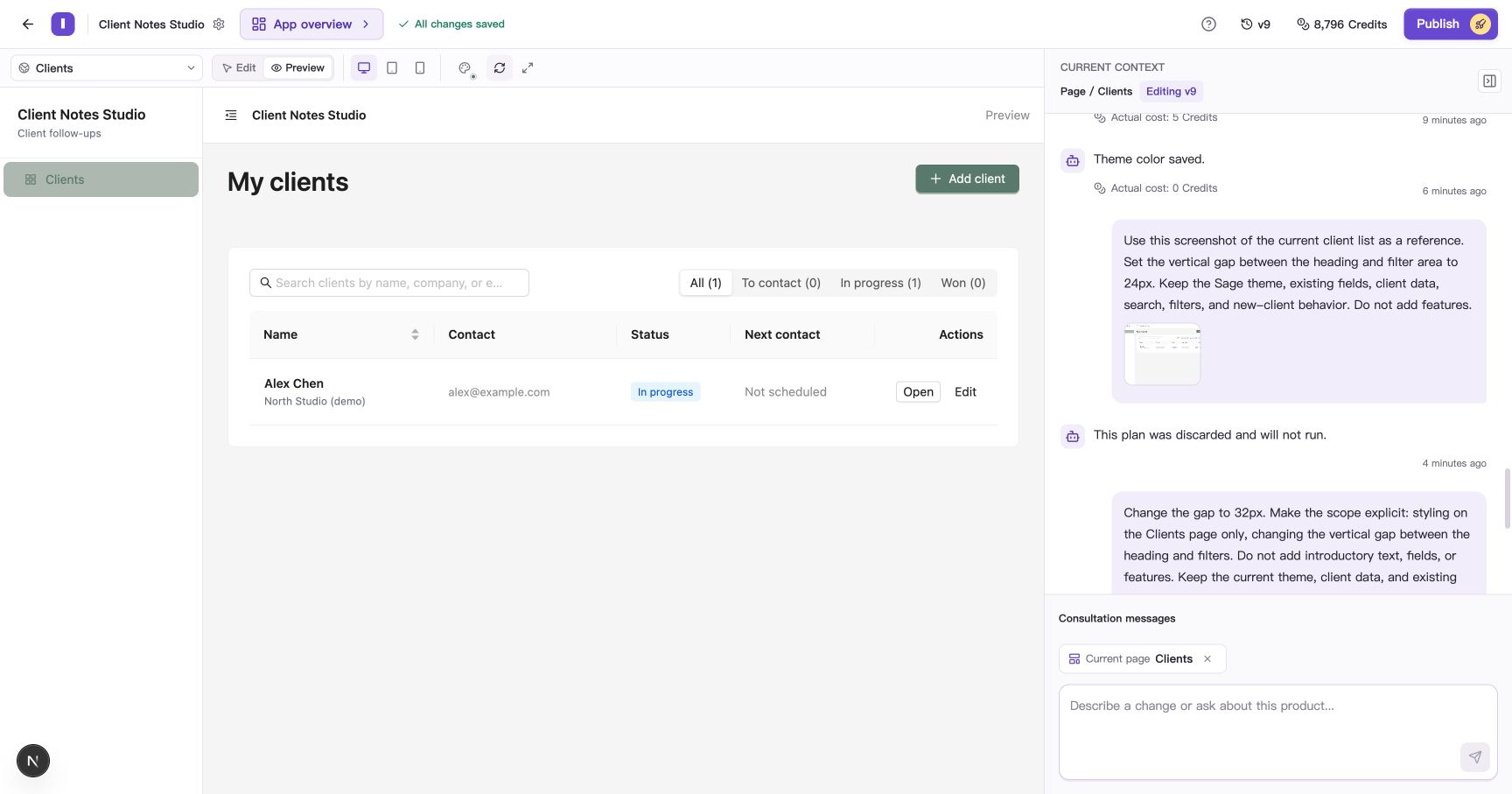
Sent images remain in their original messages, ready to reopen when needed.
Use an explicit reference such as “the client-list screenshot above” when continuing the discussion. When using a new image, attach it and explain the page and purpose it relates to.
Common questions
Why is Send request disabled?
Check whether an image is still preparing, preparation failed, or a task is running. Follow the displayed guidance before sending.
Can I send an image without text?
Yes. Adding the target page, expected result, and content to preserve helps the AI understand the image’s purpose.