
Edit your Blueprint manually or request an AI proposal
On this page
Once you have a Product Blueprint, edit its name and descriptions manually, or ask AI to propose changes across related pages and workflows.
This article covers the Blueprint review page before generating an app in Builder. To update an app that has already been generated, see Request changes to your app.
Choose an editing method
| Your goal | Suggested method |
|---|---|
| Change the product name, refine the goal, or update wording you have decided on | Edit manually. |
| Add a capability that may affect several pages, workflows, or pieces of information | Request an AI proposal, then review it before confirming. |
| Change a product choice you already answered | Select Change decision in Product decisions. See Clarification questions and decisions. |
Edit manually and save
- Select Edit Blueprint at the top of the Blueprint.
- Update Product name and What problem should this app solve? as needed. This example clarifies that the app is for the designer to record and follow up with clients.
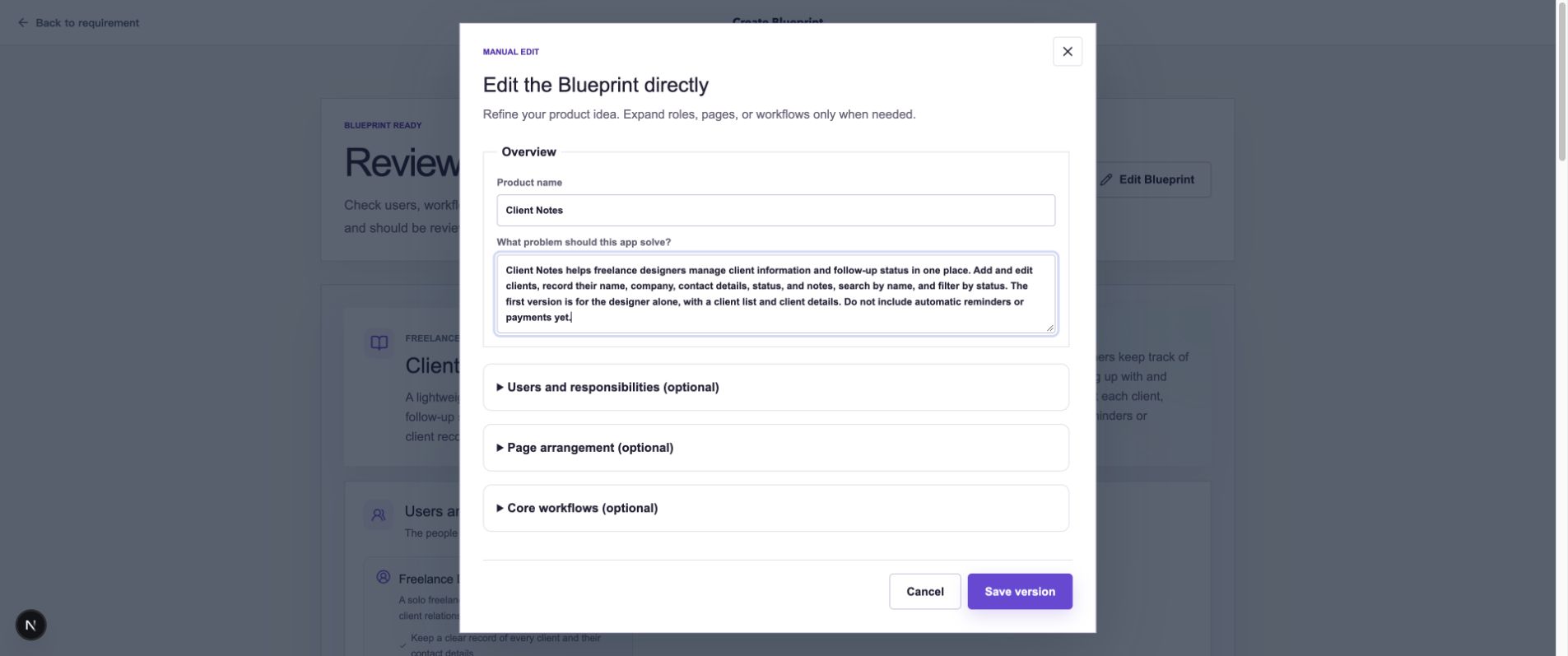
Start with the overview. Expand users and responsibilities, page arrangement, or core workflows when needed.
- For more specific changes, expand Users and responsibilities (optional), Page arrangement (optional), or Core workflows (optional).
- Select Save version. To leave your current input unsaved, select Cancel.
- Back in the Blueprint, check the name, overview, and edited sections. The version number at the top should increase.
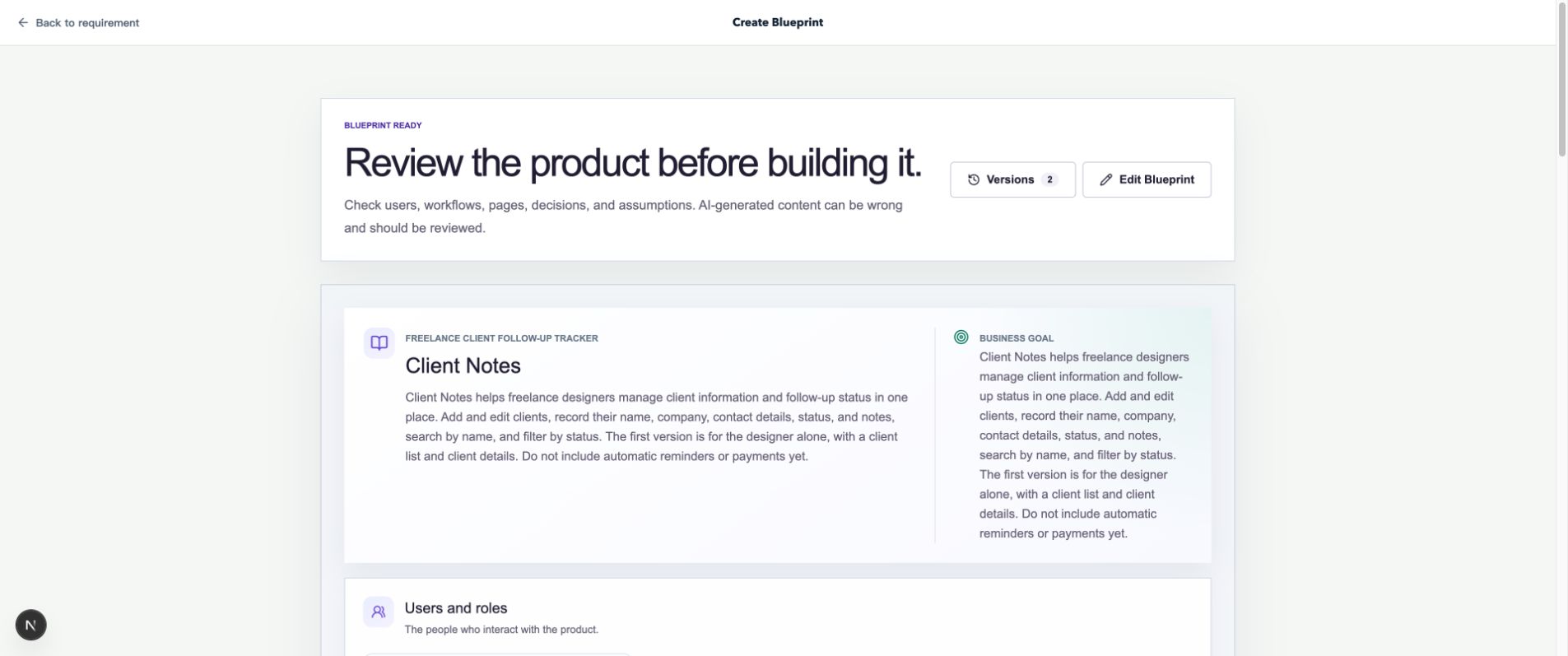
Saving the overview creates version 2 in this example. Your number depends on earlier edits.
Manual editing saves what you enter. If the change affects other sections, check the related pages and workflows or use an AI proposal as described below.
Describe the change you want AI to propose
Find Propose a change with AI near the bottom of the Blueprint. Explain what to add or change, where it belongs, which existing behavior to keep, and what remains out of scope.
This example uses:
Add an optional next contact date to client information. Let me enter it in client details and show it in the client list. Keep the existing fields, statuses, search, and filters. Do not send reminders yet.
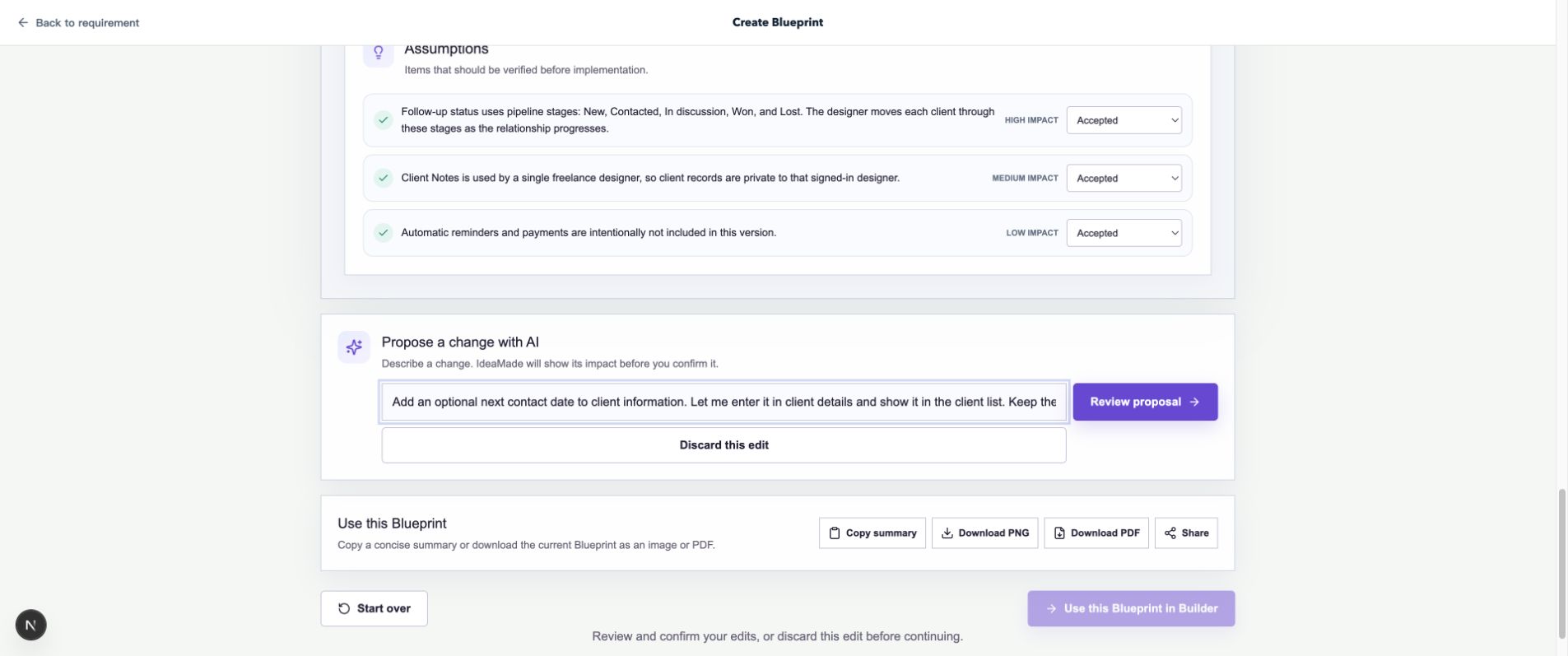
Describe a specific change together with what to preserve and what to exclude.
Select Review proposal and wait for the proposal, then follow the steps below to review and confirm it.
Review and confirm the changes
- Read the summary to check that the proposal understands your request.
- Under What will change, expand relevant items and compare before and after values.
- Read What to consider. In this example, check that the date is optional, appears in client details and the list, preserves search and filters, and does not send reminders.
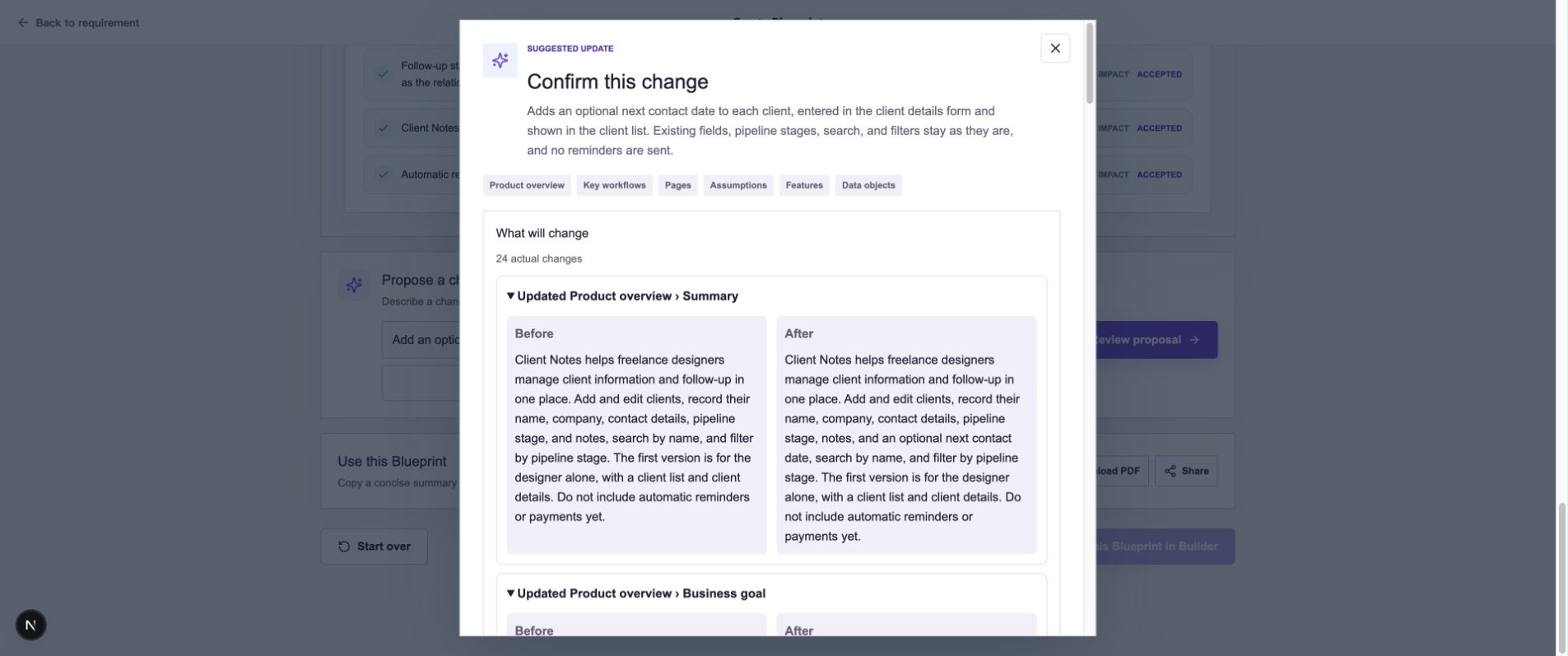
Review the affected pages, workflows, and data requirements against the goal of this change.
- Select Confirm change if it matches your intent. Otherwise, select Not now, refine the request, and submit it again.
- Back in the Blueprint, check the affected content and version history. The page descriptions in this example now include the next contact date.
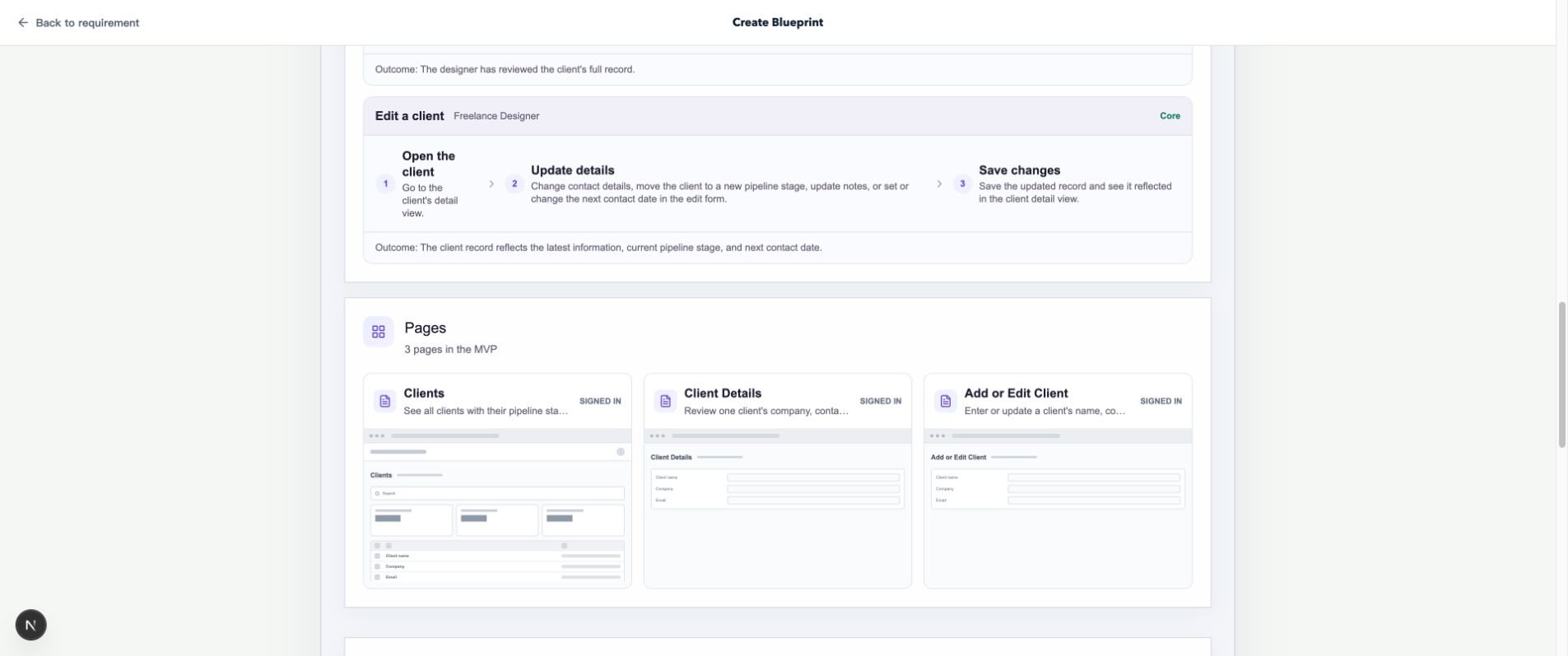
The Blueprint now includes the next contact date requirement, ready for the rest of your review.
To return to earlier content, use local revisions. When your review is complete, follow Create your first app for generation and preview.
Common questions
What remains after canceling a manual edit?
The saved Blueprint and revision history stay as they are. The current unsaved input is discarded.