
Change your app name and theme color
On this page
Change the app name in Project settings and choose its brand color from the canvas toolbar. Saving through either control creates a new editing version for a generated app, ready to inspect in Preview.
Before you start
Open a project you can edit, wait for running tasks to finish, and return to its current editing version. This example renames Client Notes to Client Notes Studio, then changes the primary color to Sage.
These two controls are free to use. Changes made through the AI conversation use Credits.
Change the app name
- Click the gear beside the app name in the Builder header to open Project settings.
- Under App details, choose Edit app details.
- Update App name. You can also add a description if needed.
- Check the text, select Save, and wait for saving to finish.
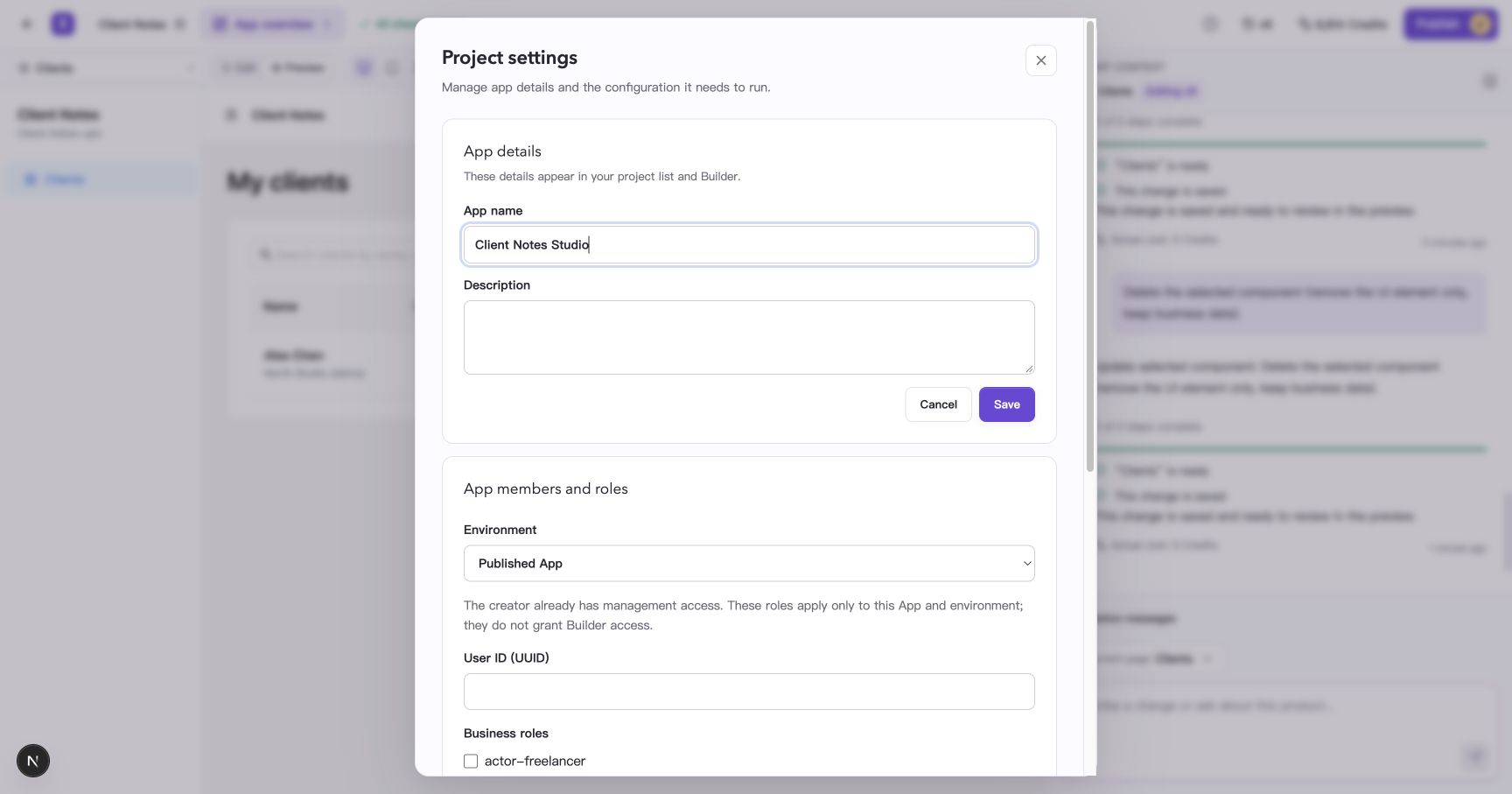
Edit the name in App details. You can cancel before saving.
- Close settings after the save finishes. Check the name in the Builder header and app preview.
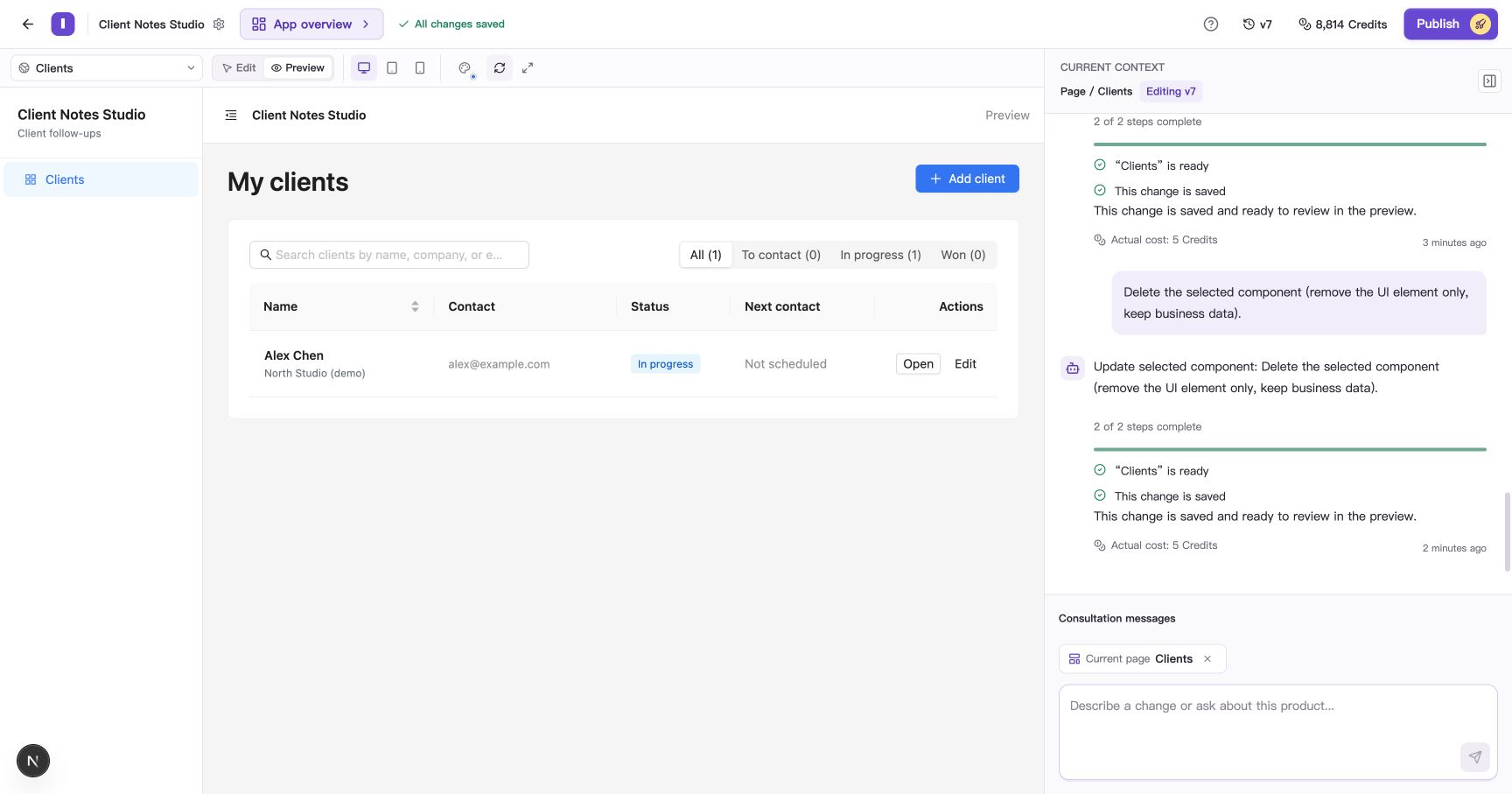
The saved name appears in the Builder header and app navigation.
If custom copy, such as a tagline, still uses the old name, ask for that text to be updated in the conversation.
Preview a theme color
- Select Set app theme color in the canvas toolbar.
- Choose a preset. This example uses Sage.
- Inspect the buttons, links, and selected states to compare the new color’s immediate preview.
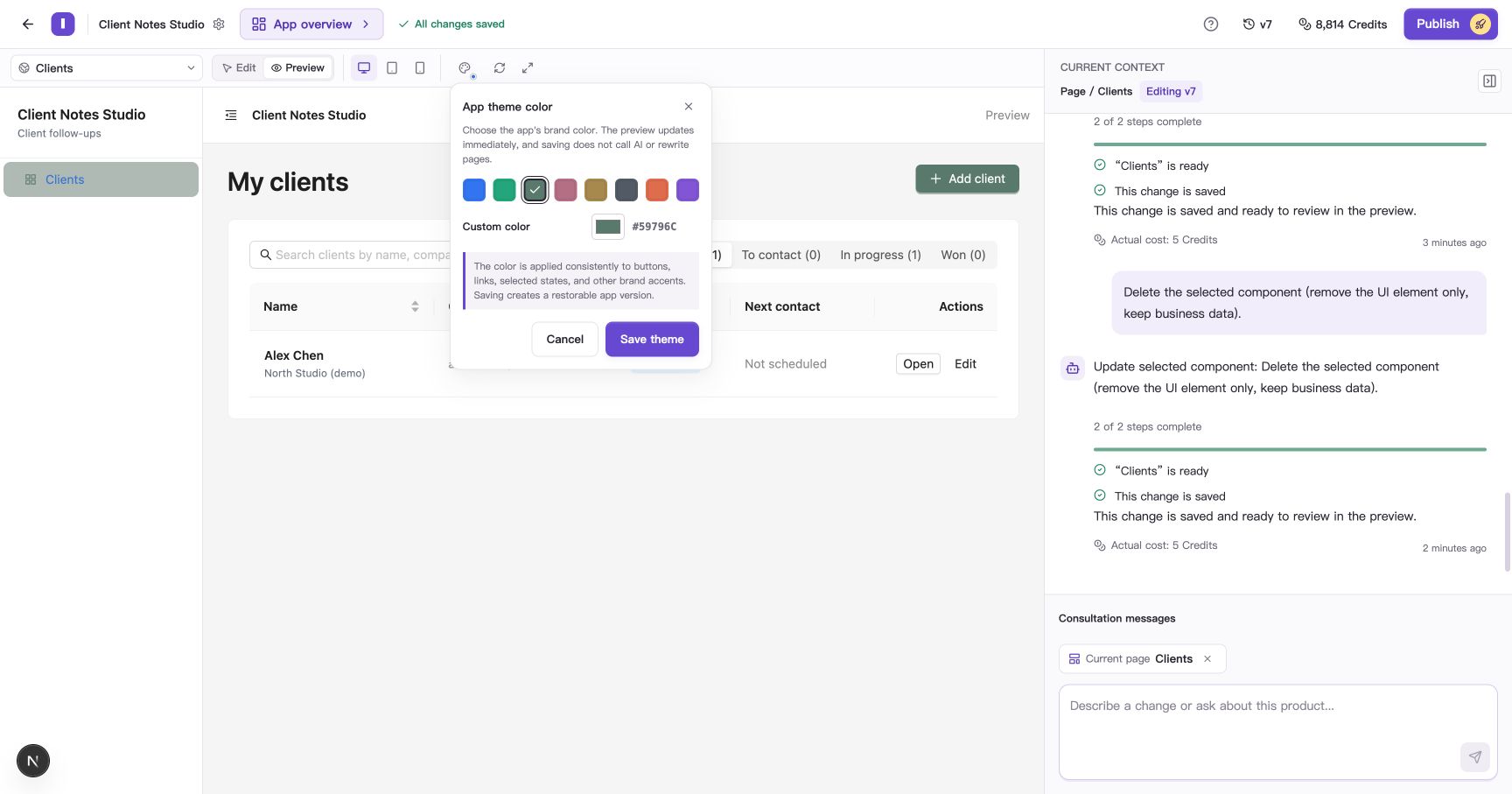
Compare the appearance before saving. The panel also includes a Custom color control.
Choose Cancel to return to the saved color. Opening the panel again shows the previously saved theme.
Save the theme and check it
- When you are happy with the color, choose Save theme.
- Wait for Theme color saved in the conversation and check that the editing version has advanced.
- Refresh the preview and reopen the theme panel to check the saved color.
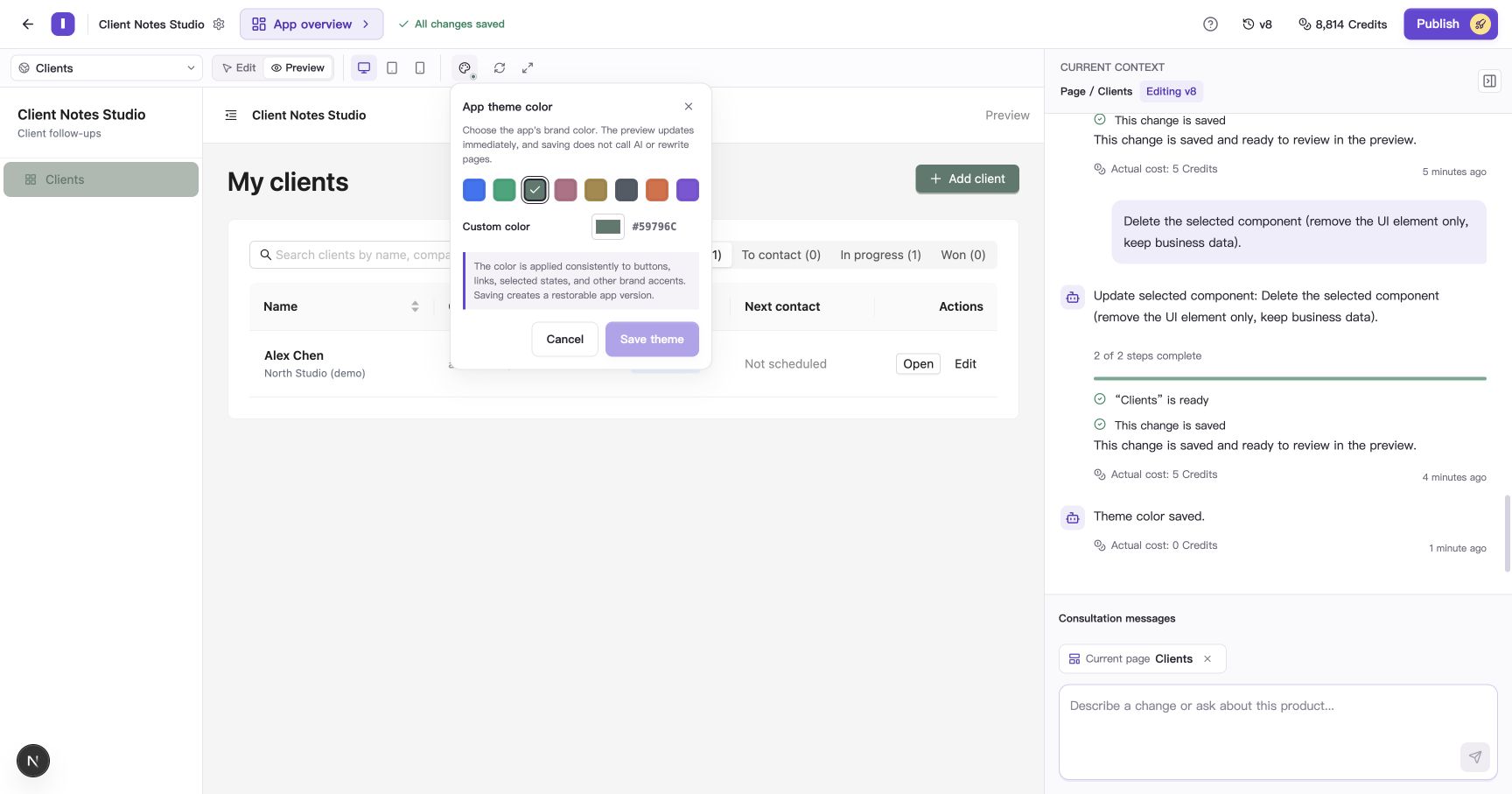
Refresh and reopen the theme panel to check the saved color.
Browse a few commonly used pages. Check that text is readable and that buttons and selected states are easy to recognize.
The theme affects brand elements that use the app’s primary color. Status colors, chart categories, and explicitly styled local elements may retain their own colors. To change one button, use component editing and specify that the change is local.
Update an app that is already live
After saving the name or theme, check the preview and follow Restore versions and publish your app to make the update available to live users.
To undo a saved change, preview an earlier app version and decide whether to restore it. Restoration affects the whole version, so check whether it also contains earlier interface or functionality changes.
Common questions
Why is Save theme disabled?
If your selection matches the saved color, there is nothing new to save. If a task is running, wait for it to finish and try again.