Understand preview data and production data
On this page
Builder previews and published apps use separate data. Preview is for trying pages and workflows; production stores the records users work with day to day. Each environment saves its own records, and publishing an update continues to use the existing production data.
This article uses a client-management example to show how to identify each environment and understand what publishing, restoring versions, and unpublishing affect.
Identify the environment by its entry point
| Entry point | Purpose | Where records are saved |
|---|---|---|
| Preview in Builder | Try pages, forms, and workflows | This app’s preview data |
| Open app in the Publish window | Use the app from its production address | This app’s production data |
Fullscreen preview also uses preview data.
Check a record in the preview
- Open your project in Builder and select Preview.
- Use the app’s create or edit form to save a recognizable fictional record.
- Refresh the preview and open the record again to check that your changes remain.
This example saves Alex Chen as a fictional preview client.
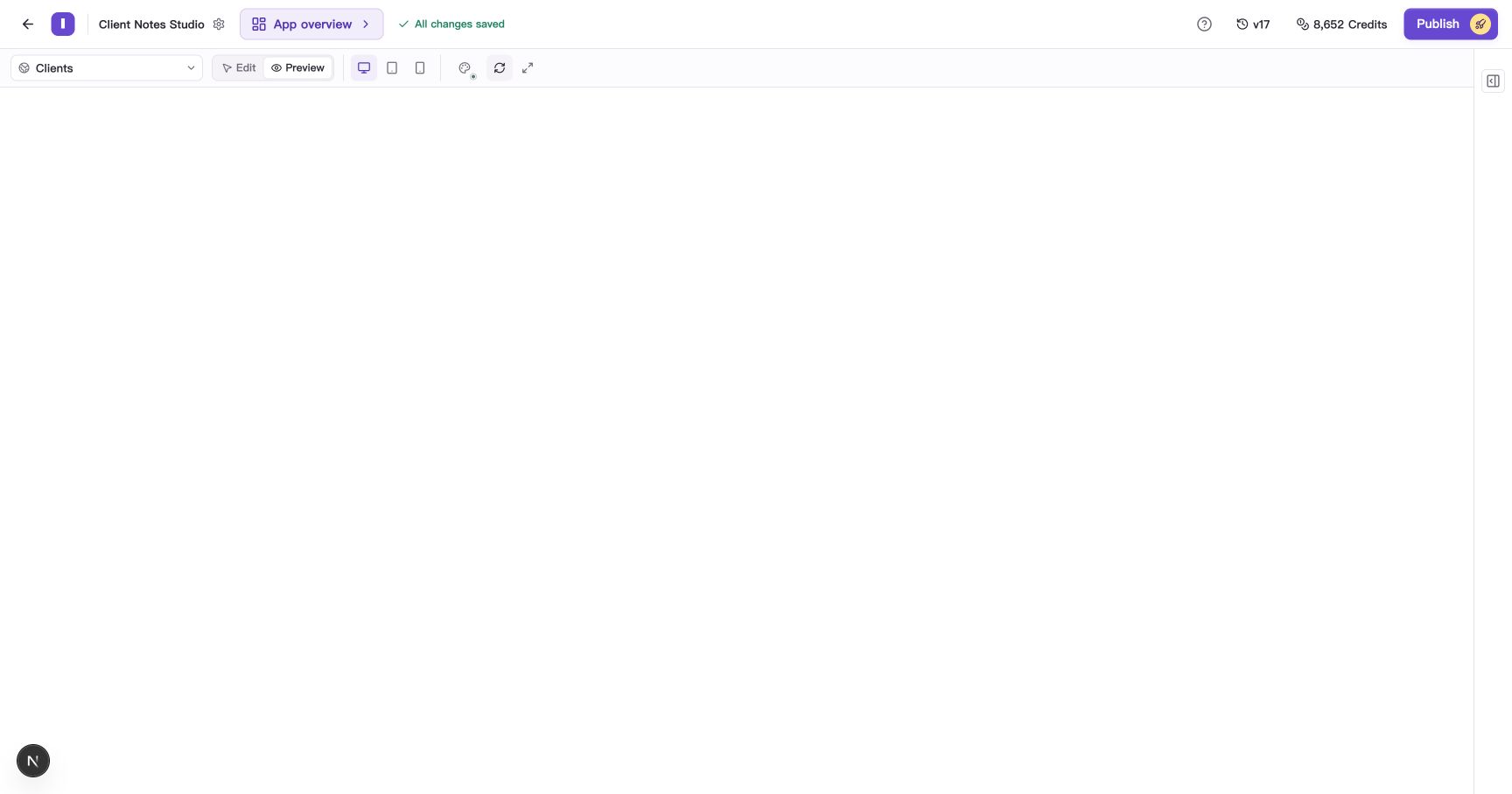
Figure: The client list opened through Builder. Its records are used to try the app.
Check the separate production data
- Select Publish in the top-right corner of Builder.
- Check the live version and address. If the app is published, select Open app.
- Sign in if required and inspect the records in the production list.
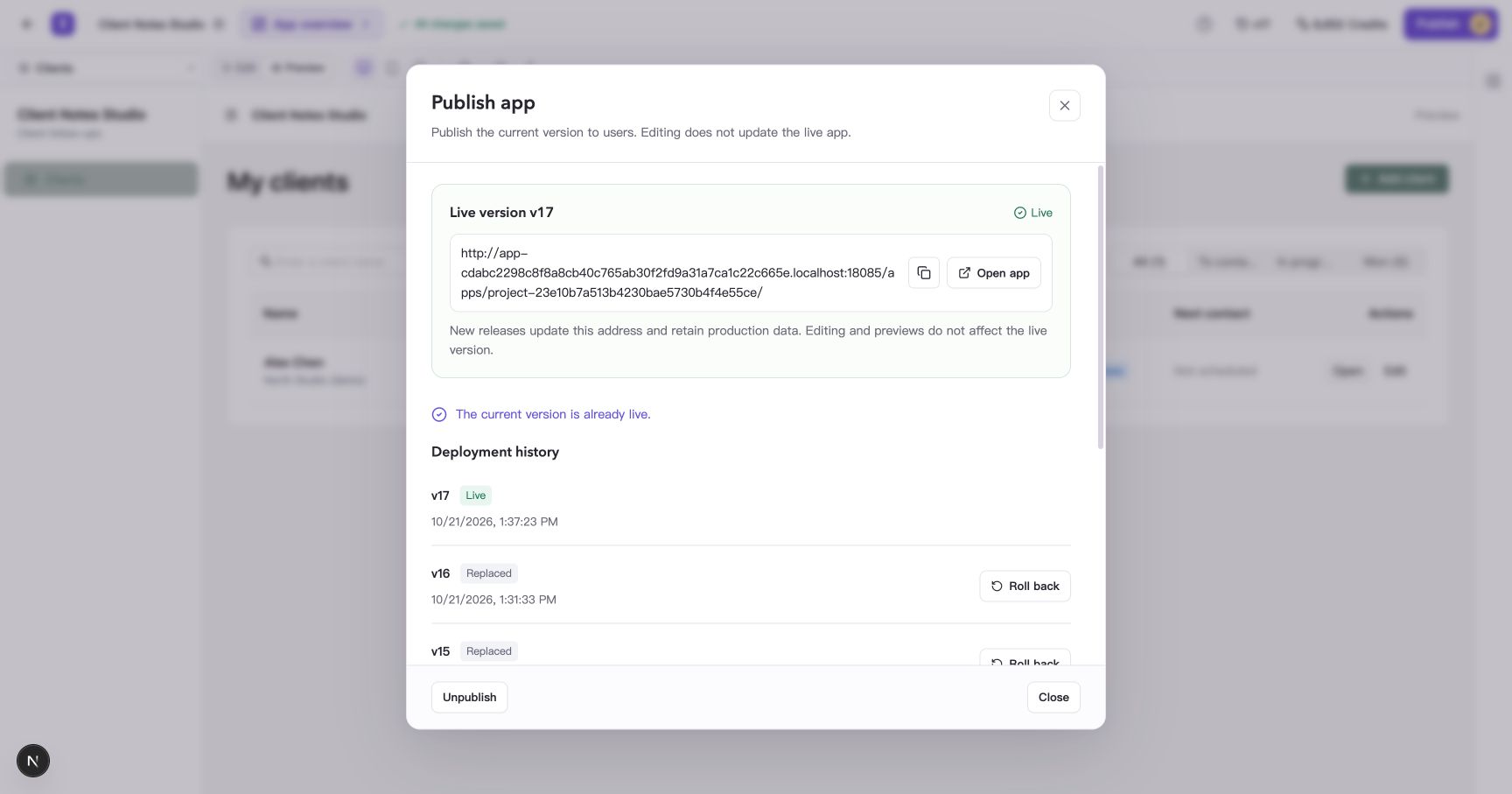
Figure: Select Open app in the Publish window to open the production address.
This production list starts empty, while the preview already contains Alex Chen. The next section adds a record separately in production. If your app supplies initial content, review it first and add records as needed for your work.
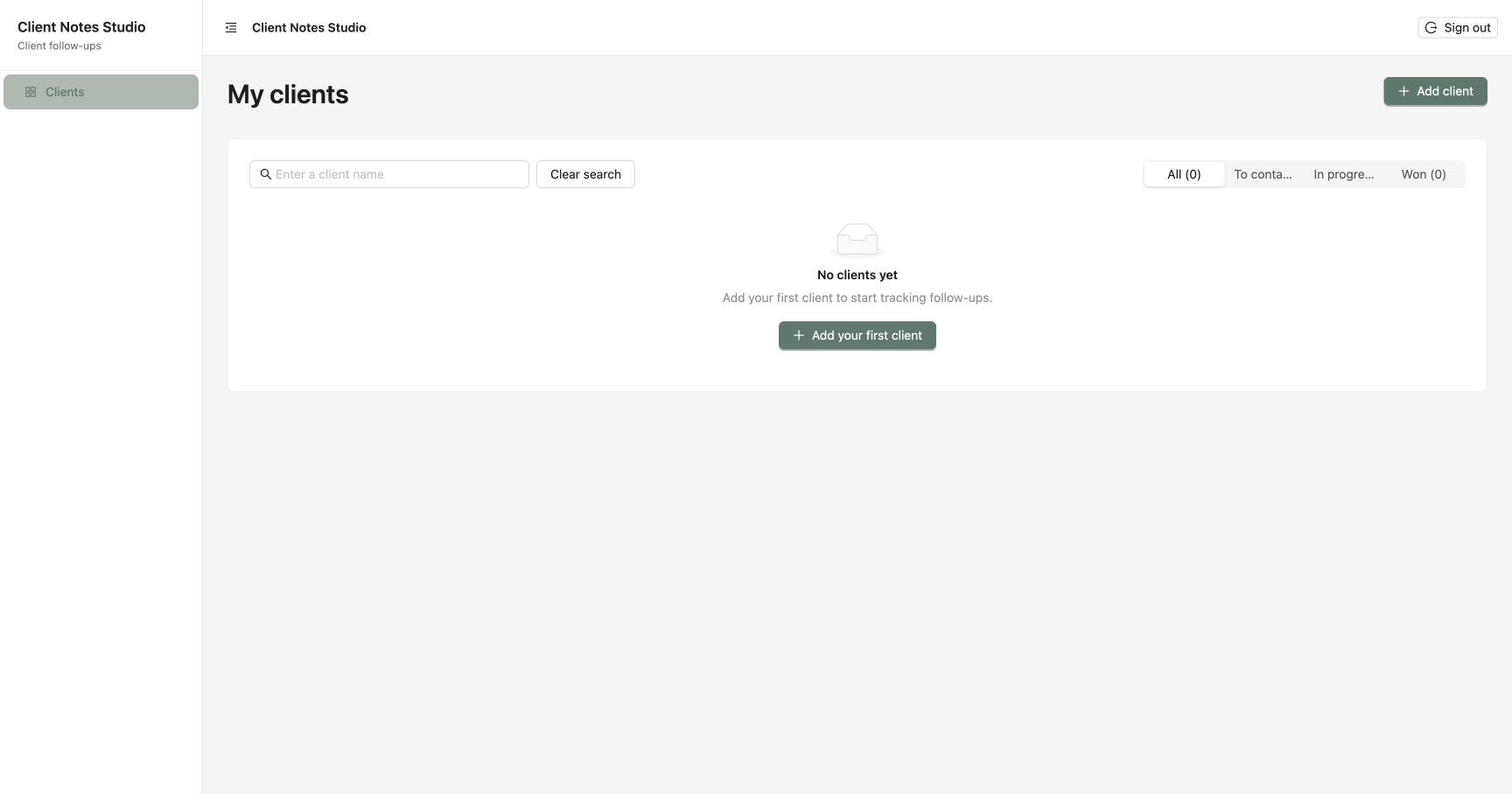
Figure: The production list is empty and ready for its first record.
Save separately and compare the results
Save a different recognizable record in the production app, then refresh to check it. This example uses Jamie Park (production demo), distinct from Alex Chen in the preview. Both are fictional records created for this guide.
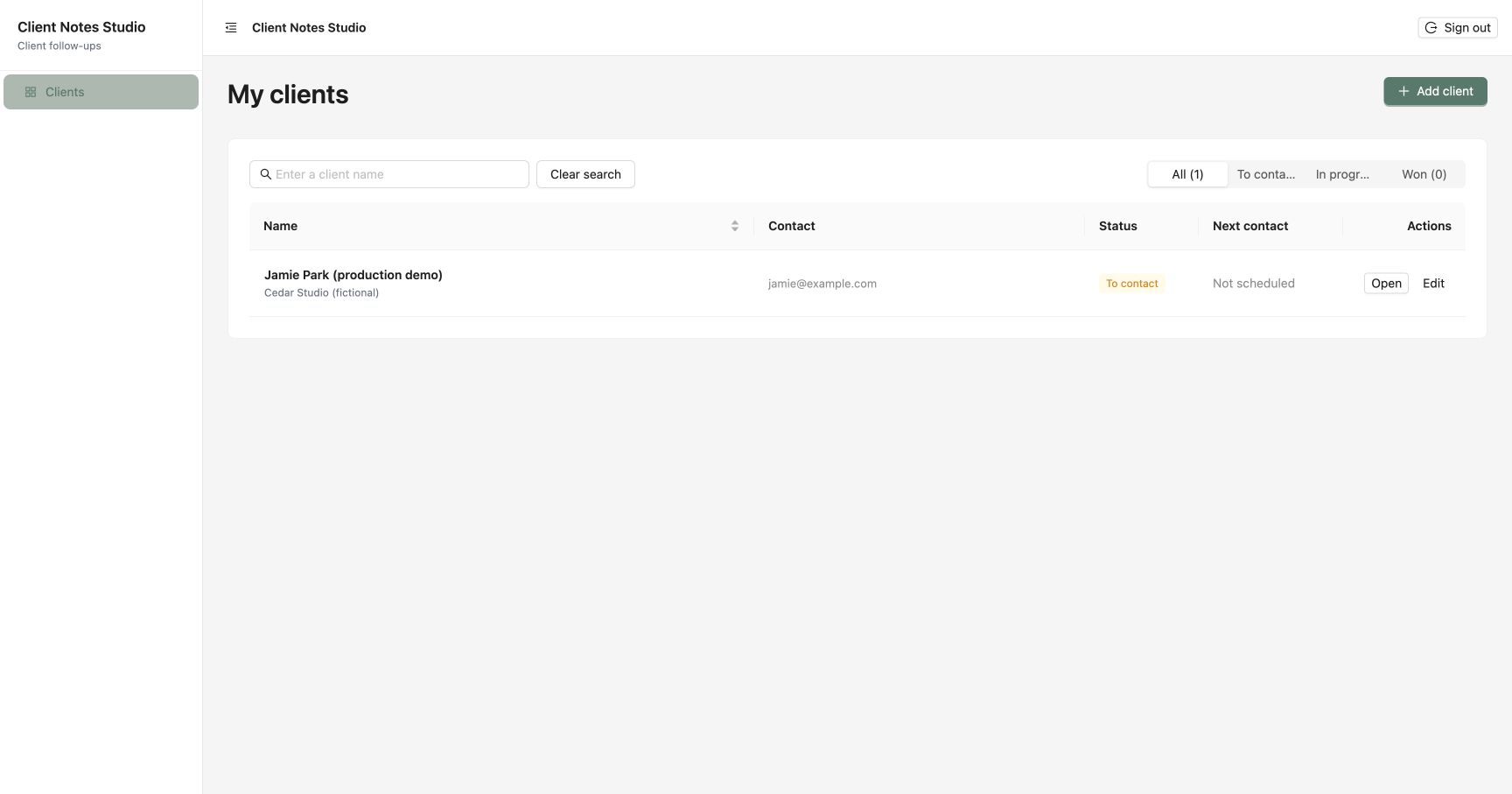
Figure: Production has its own saved record. Refreshing Builder still shows the original preview record.
If a saved record is missing, check the entry point, signed-in account, search text, and filters before investigating the save operation. The app’s business permissions also determine which records each account can see.
Understand how version actions affect data
| Action | Effect on the app or its availability | Meaning for business records |
|---|---|---|
| Continue editing or restore an editing version | Changes the app you are editing | Preview and production each retain their existing records |
| Publish an update | Changes the version served at the production address | Continues using the app’s production data |
| Roll back a live version | Serves a previously published version | Business records remain in their current state |
| Unpublish and republish | Pauses and restores production access | Retains production data and version history, then reuses that data |
If an update changes fields or business logic, open an existing record after publishing and check that it displays and edits correctly.
Frequently asked questions
Where do I configure production member roles and secrets?
Open Project settings and select the production environment under App members and roles or App secrets. Review the settings needed for your app; these configurations are managed separately by environment.