Configure secrets for external services
On this page
When your app calls an external service from its backend, you can store the required API key or token under “Project settings → App secrets.” For example, an email feature might use a credential named MAIL_API_KEY. Preview and production have separate configurations.
Prepare the credential and secret name
Identify the service and what the app will use it for, and check that the app has the backend integration it needs. You can ask in the AI conversation:
Which secrets does this app's email feature need? Tell me each secret's name and purpose, and where to try the feature after configuration.
Obtain a credential from the service provider's console and choose the permissions needed for the feature. Enter the credential in “Secret value.” When discussing the integration with AI, provide the service name, secret name, and requirements.
If the app does not yet have this feature, request the change first, then configure the secret once the integration is ready.
Add a secret for preview
- In Builder, select “Project settings” beside the app name.
- Find “App secrets” and set the environment within this section to “Preview.”
- Enter the required “Secret name” and the provider's credential in “Secret value.”
- Select “Save secret.”
Use the exact secret name expected by the app’s backend, such as MAIL_API_KEY.
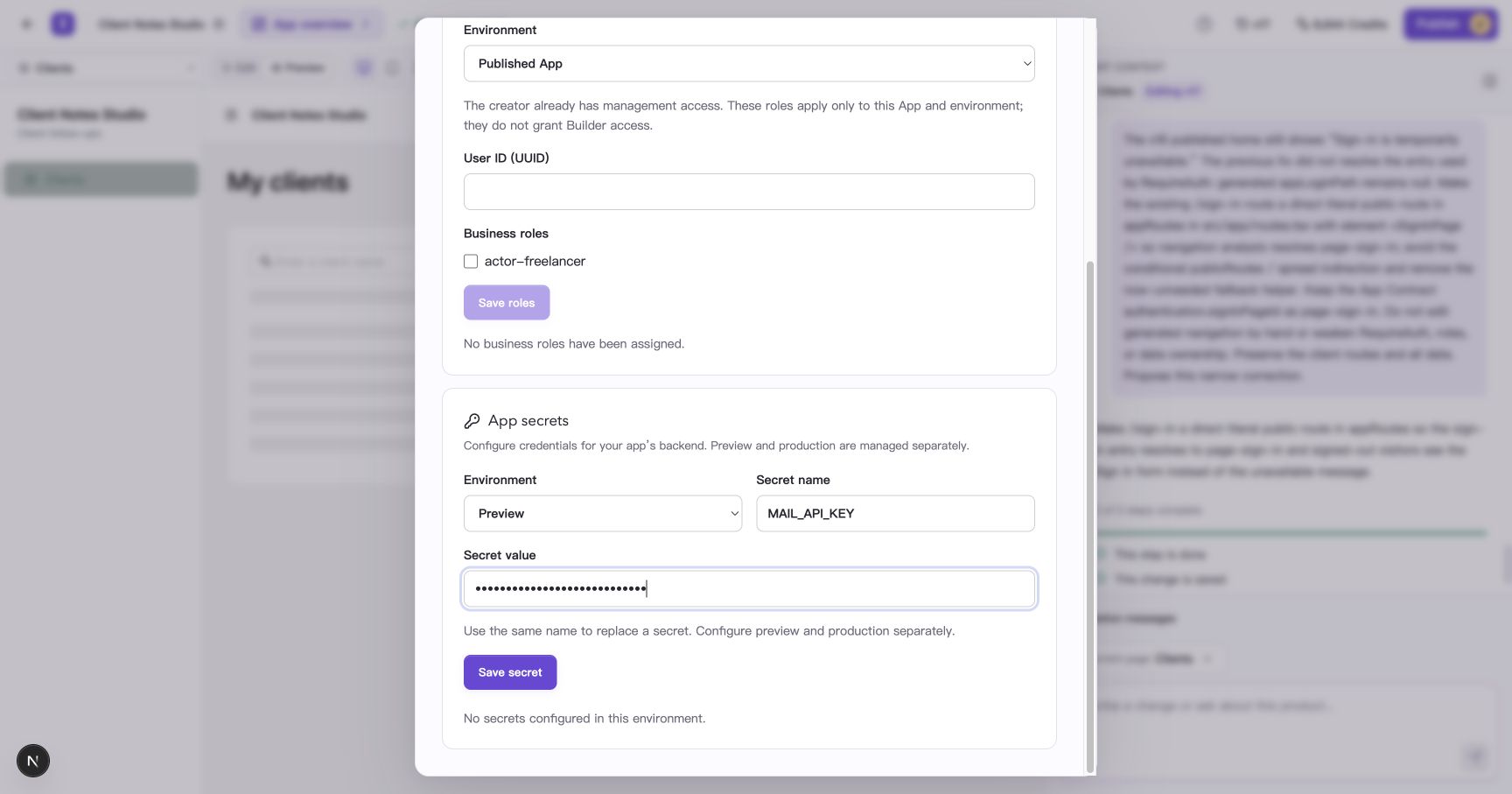
The screenshot uses an invalid demonstration value. Use the credential supplied by your service provider when configuring a real integration.
The page shows “Changes saved,” and the name appears in the list. The input fields clear, and the list displays names only.
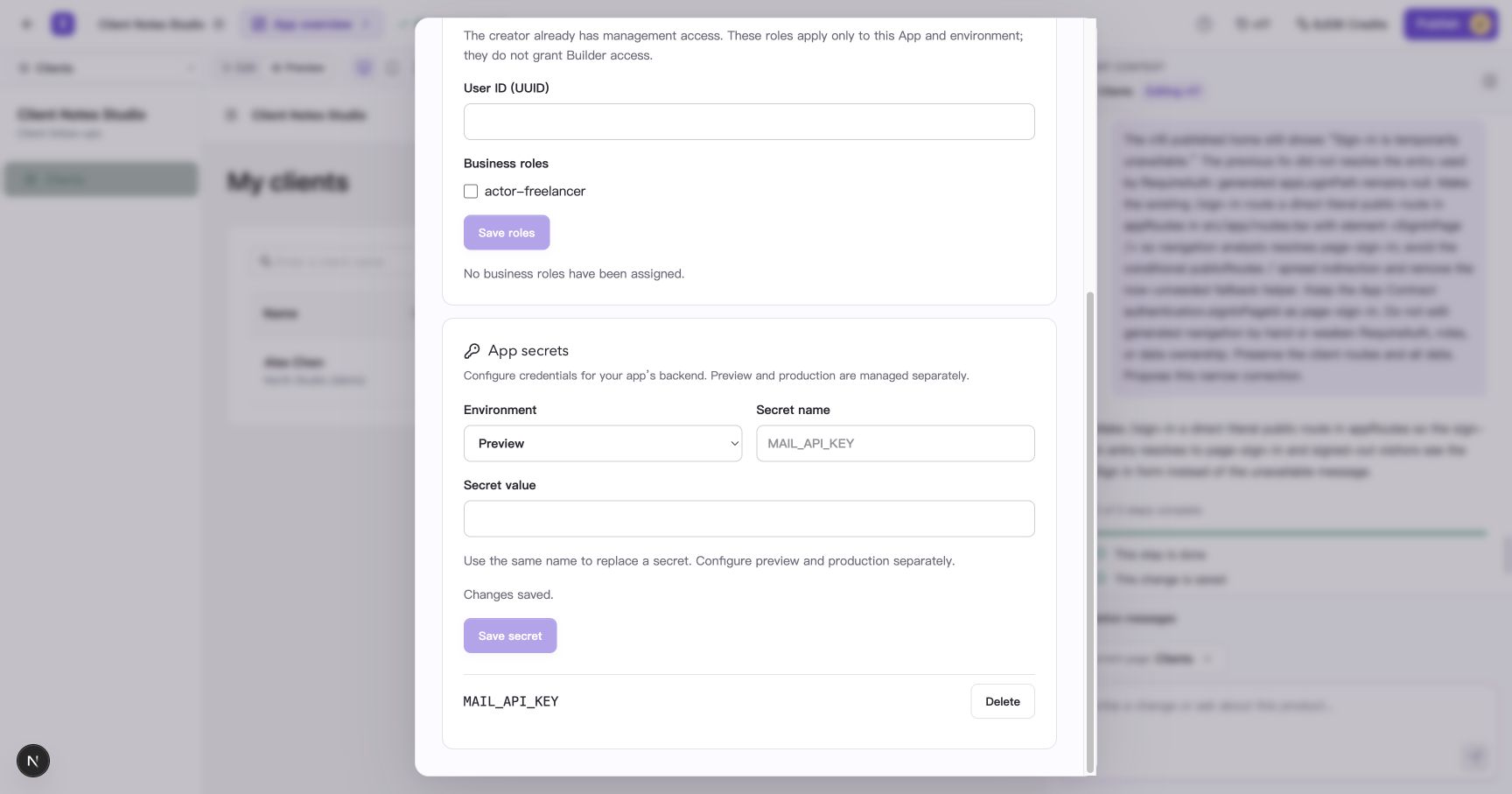
Reopen settings to check which secret names are configured.
Configure production and try the feature
In App secrets, switch the environment to “Production.” If nothing has been configured, its list is empty. Enter the secret name and the credential for your production service account, then save.
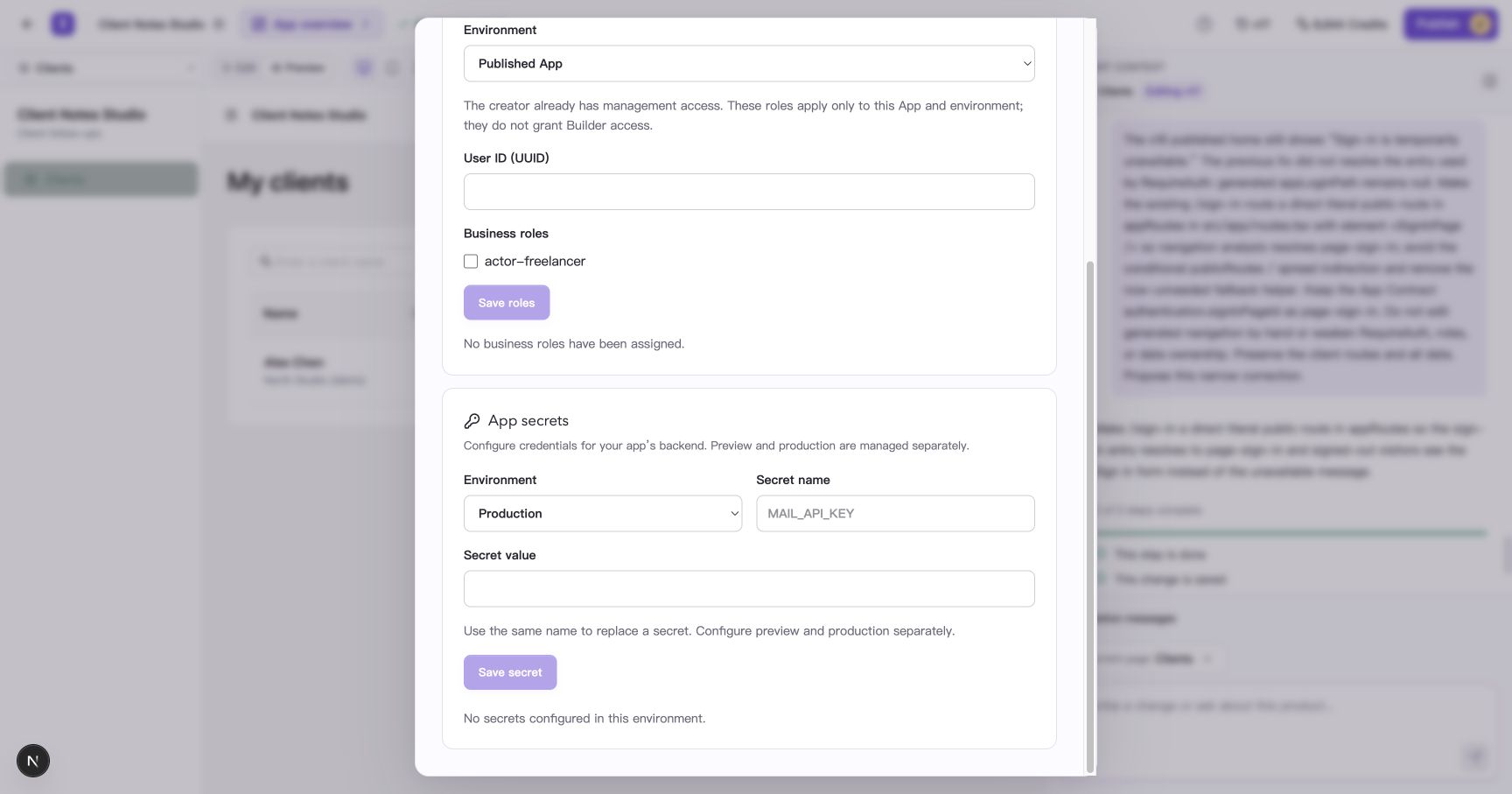
Preview and production keep separate secret configurations.
Try the feature in the environment you configured. For an email feature, send a test message to your own address and check that it arrives. The external service may charge a fee; check with its provider for details.
Replace or delete a secret
To update a credential, select its environment, enter the same secret name with the new value, and select “Save secret.” Saving an existing name replaces its value in that environment. Try the related feature again after saving.
To remove a credential, select “Delete” beside its name and check the name in the confirmation dialog before confirming.
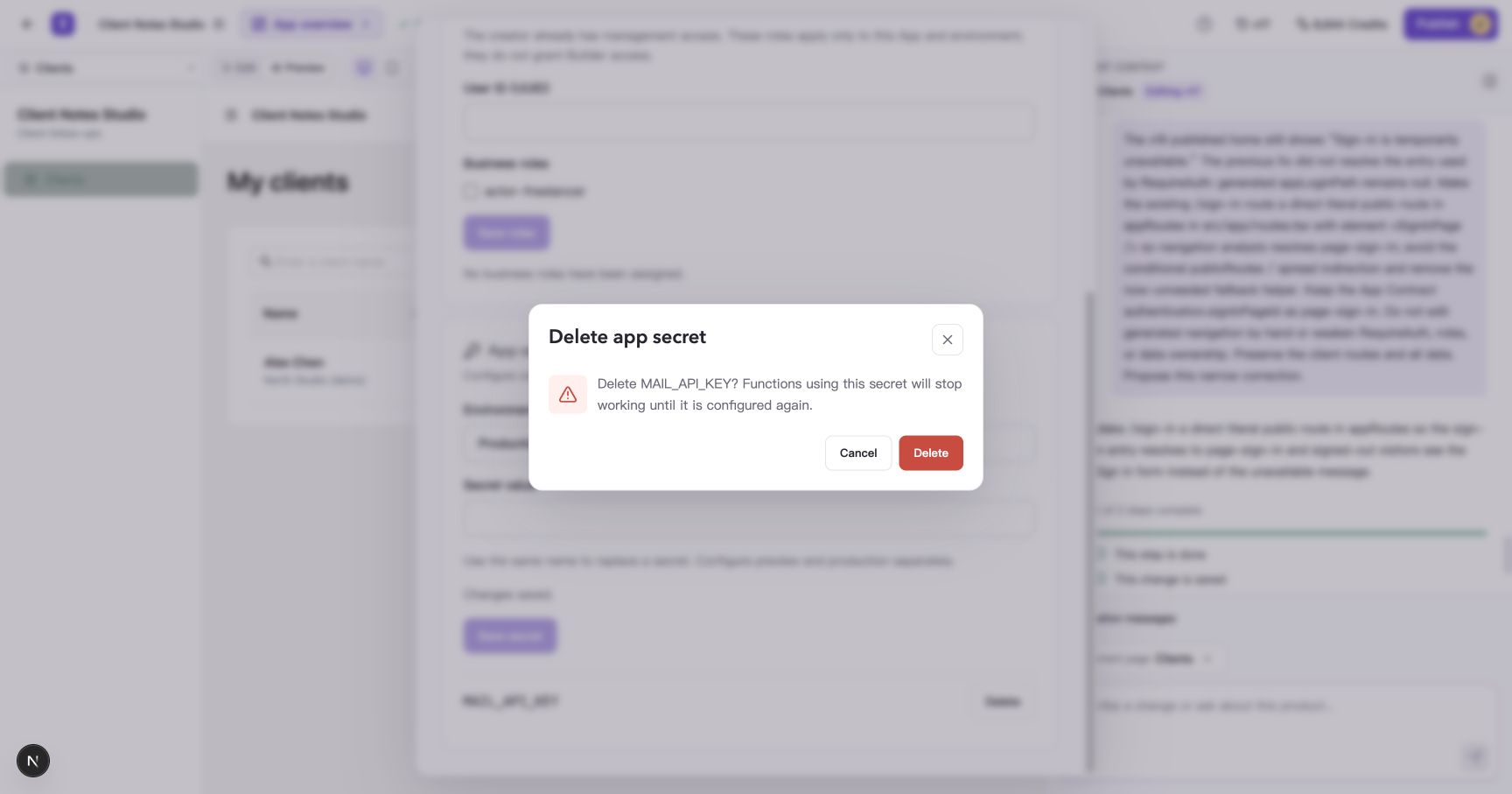
Features that depend on the deleted secret need a credential configured again before they can work.
To invalidate the old credential at the provider, also revoke it in the provider's console. If you suspect it has been exposed, revoke the old value promptly, create a replacement, and update the app's configuration.
Common questions
Where can I see the full value after saving?
App secrets lists names only, and stored values are encrypted. Check the service provider's console if you need the credential again. If the provider shows it only when it is created, generate a replacement and save it under the same name.
Why can't I read or update secrets?
Check that your account has project write access. If the error continues, contact support with the project name, selected environment, secret name, and error message.
The feature works in preview but fails after publishing. What should I check?
Switch App secrets to Production and check the required names, credential validity, service permissions, and available quota. Retry the feature from the published address and check its actual result.