Unpublish and republish your app
On this page
Unpublish your app when you need to pause user access. Production data and version history are retained, and Republish restores access when you are ready. This guide covers unpublishing, checking access, and republishing the current editing version.
Before starting, confirm that the app is published and that you can manage its releases. If people already use it, arrange a suitable time for the pause.
Check the current live version
Select Publish in the top-right corner of Builder. Confirm that the app is Live, then note the live version and production address.
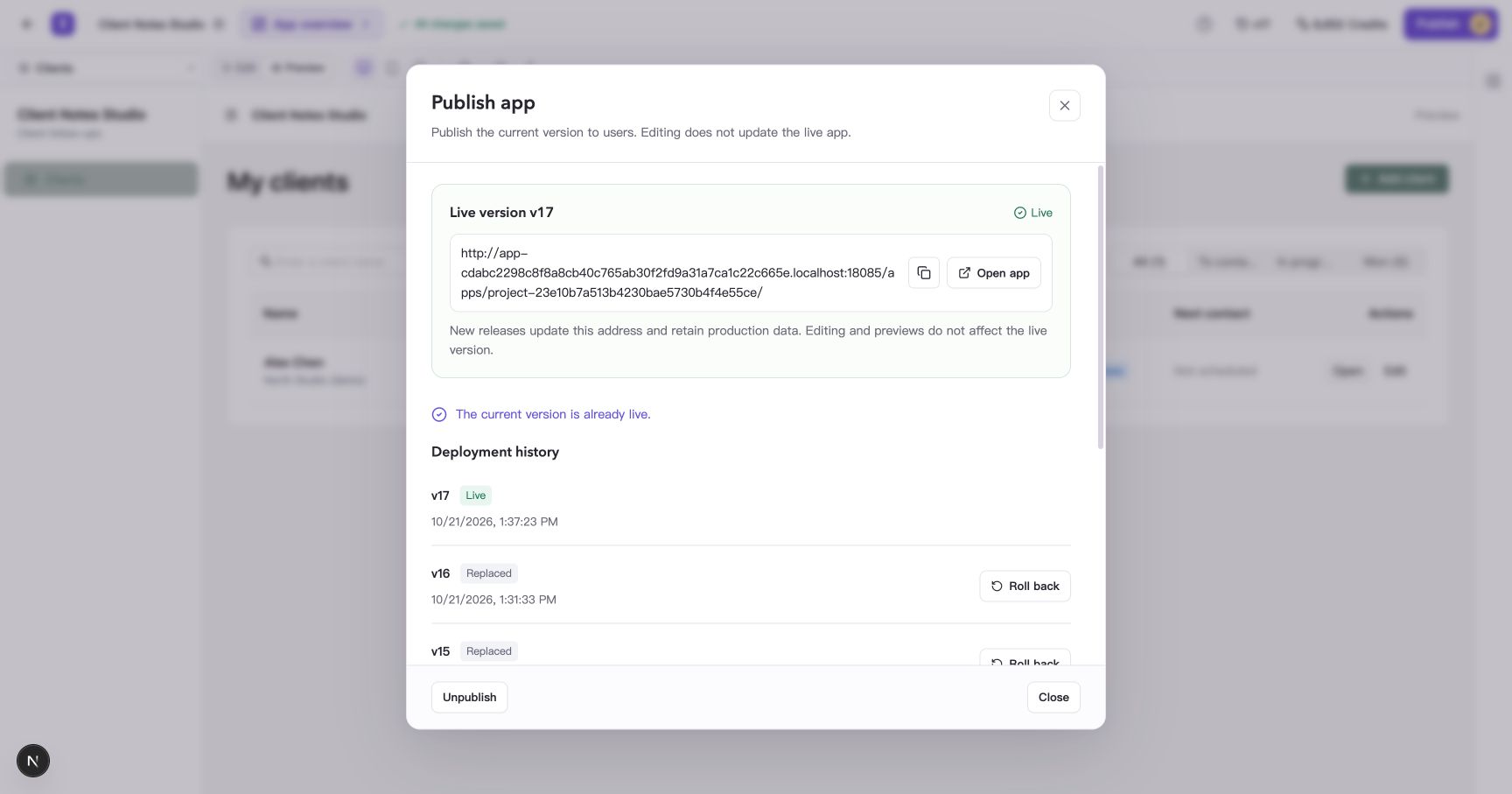
Figure: The Publish window shows the live version, production address, and Unpublish action.
Unpublish and review the confirmation
- Select Unpublish at the bottom of the window.
- Check the version number in the confirmation.
- Read the impact and select Unpublish to proceed, or Cancel to leave it live.
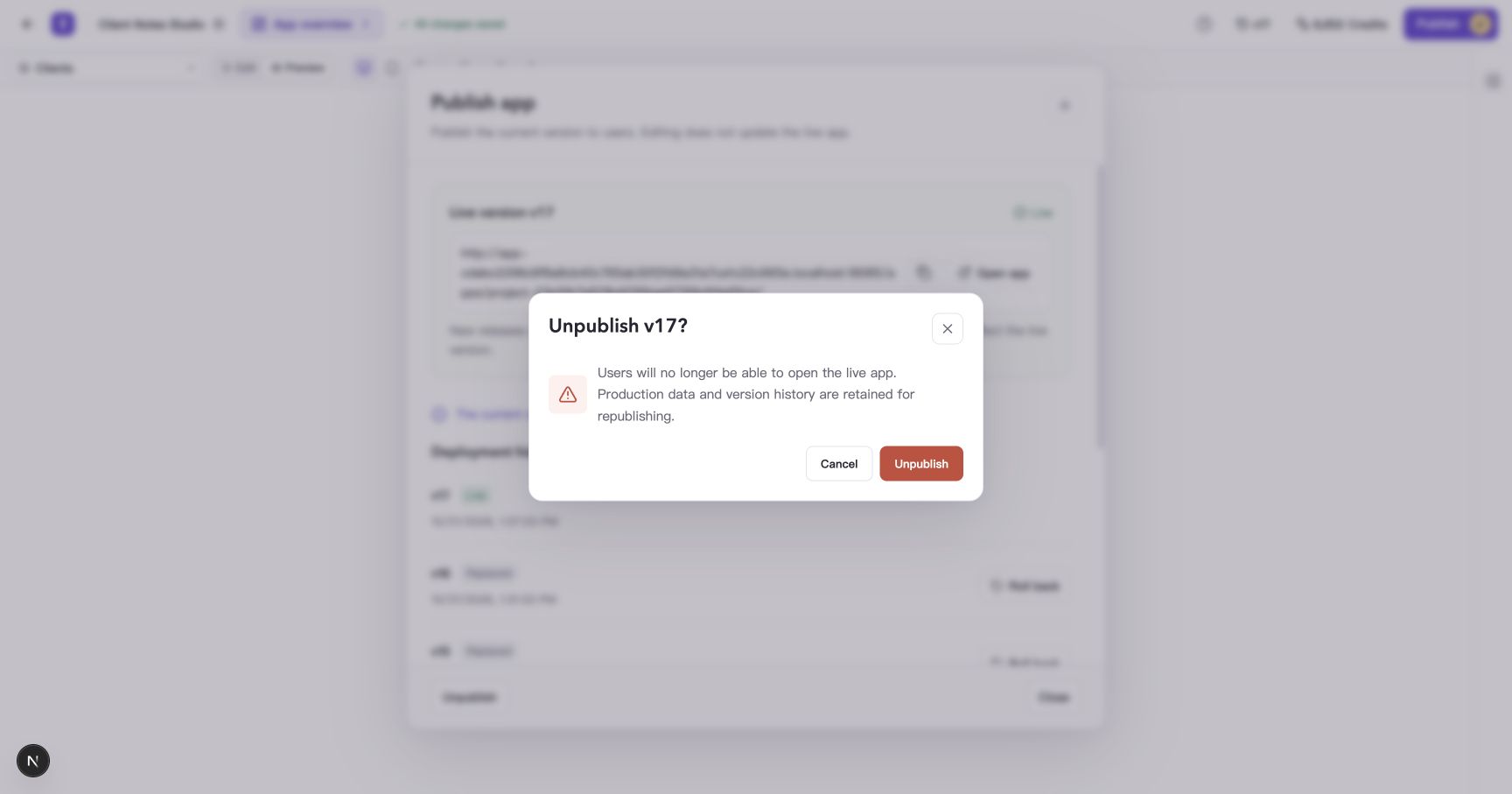
Figure: Confirming unpublishing pauses production access and retains business records.
After completion, the window shows App unpublished. The corresponding deployment is marked Unpublished, and Republish becomes available.
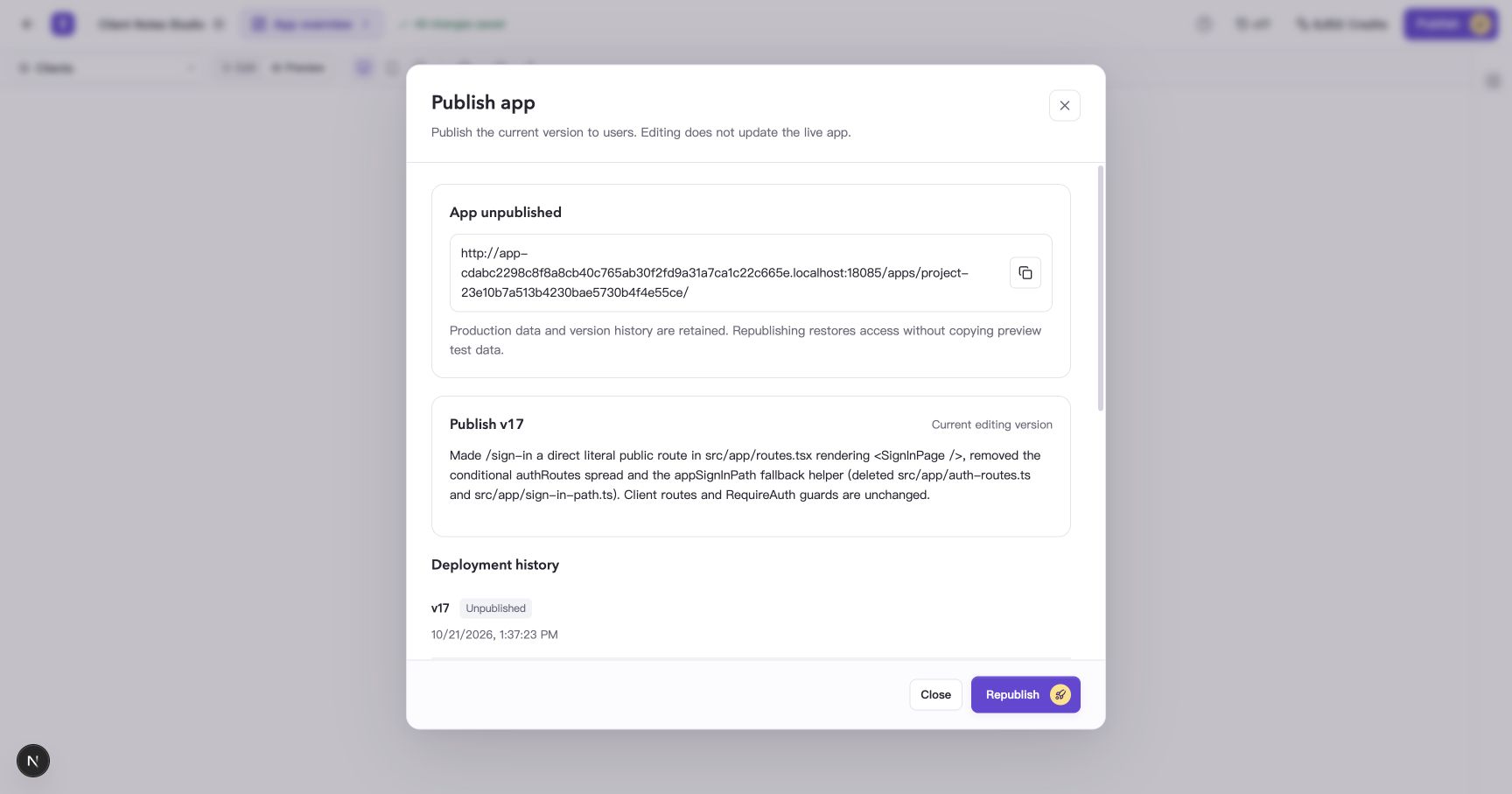
Figure: The current editing version and earlier deployment records remain available.
Confirm that the original address is offline
Refresh the production address you opened earlier, or open it again. The App is not live page confirms that production access is paused.
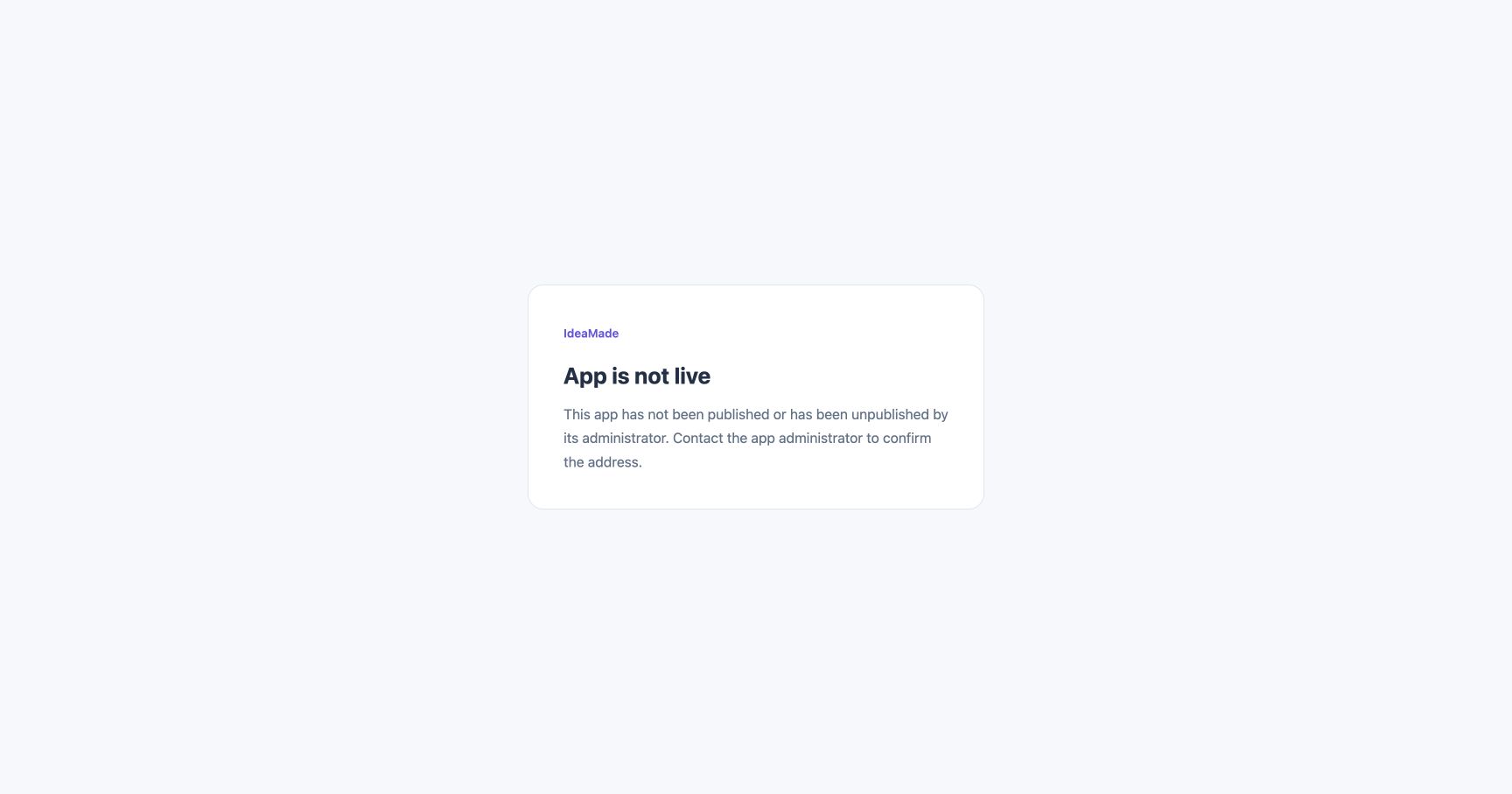
Figure: Refreshing the original address shows the app’s offline message.
Check the target and republish
- Return to the Publish window in Builder.
- Check the version under Publish, labeled Current editing version. It may have changed if you edited the app while it was offline.
- Once the intended content has been checked, select Republish.
- Wait for Live, confirm the live version number, and select Open app.
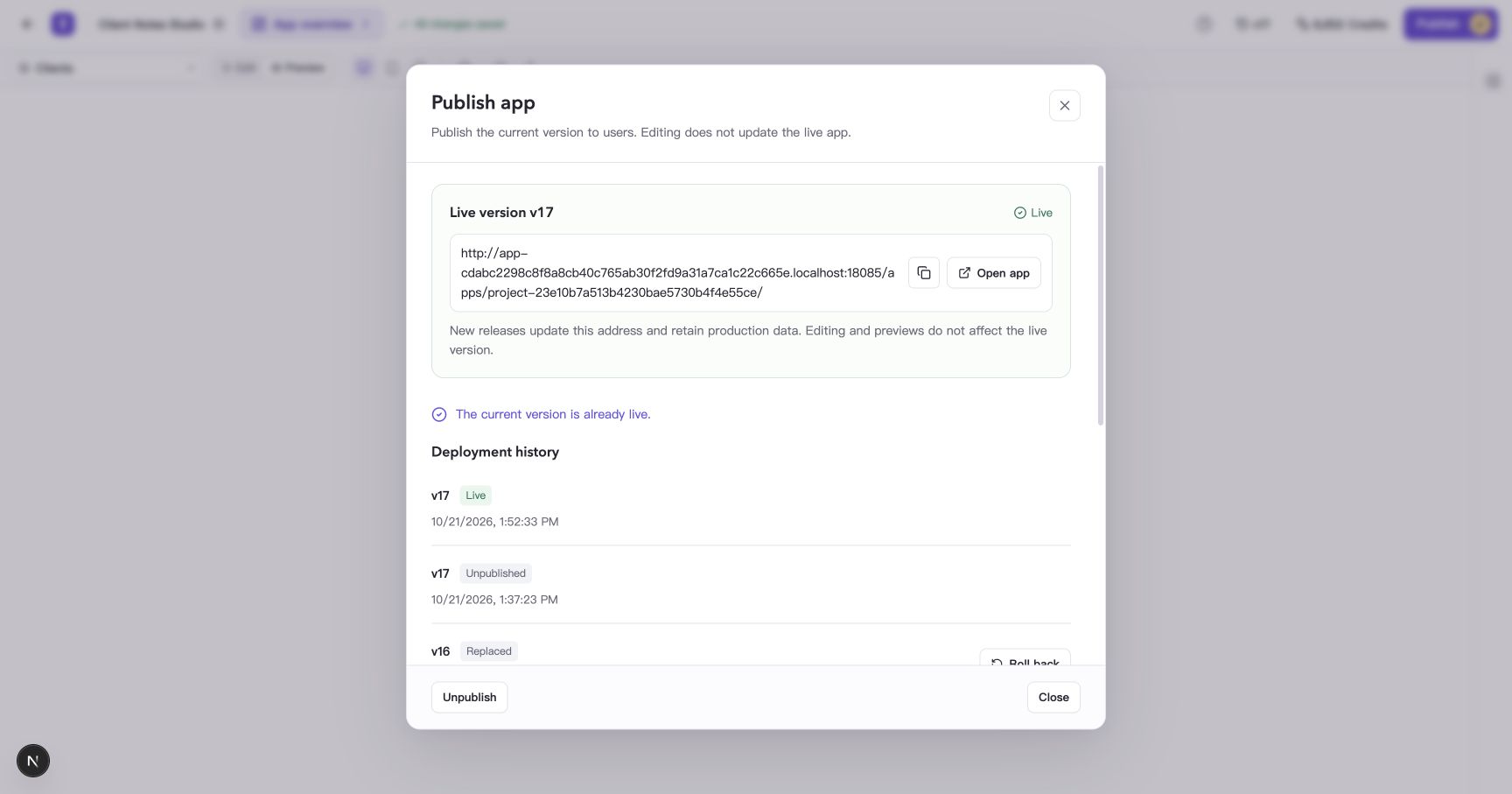
Figure: Republishing creates a new deployment record and keeps earlier records. The production address stays the same.
To bring back an older version, first follow Restore versions and publish your app to make it the current editing version. Then return to the Publish window, check the target, and republish.
Confirm production data is still usable
Open the production address, sign in if needed, find a record saved before unpublishing, and check the main actions again.
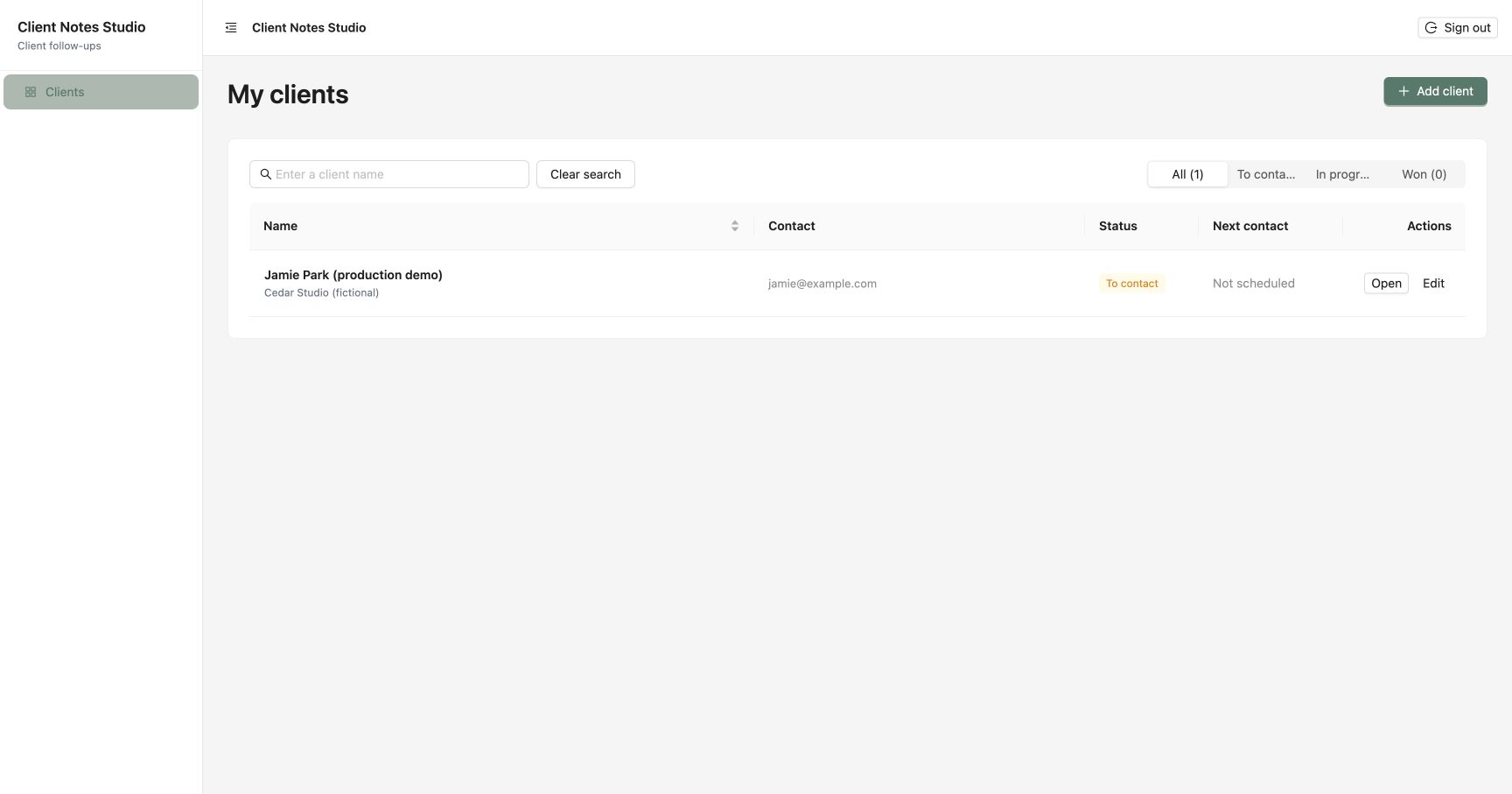
Figure: After republishing, the production list still contains the saved Jamie Park example record.
Frequently asked questions
Can I keep editing while the app is unpublished?
Yes. Unpublishing affects production access. The editing version and history remain available. Publish again when the prepared version should become accessible at the production address.
Does republishing change the address?
Republishing the same app uses its existing production address. Open it from the Publish window and check it after publication succeeds.
What if republishing fails?
Read the failure message and check results in the Publish window, address the issue, and try again. Once republishing succeeds, confirm Live and use the production address to check access and main actions.