
Review usage and handle a low balance
On this page
“Usage history” on the Credits page shows the Credits consumed by each project and your account balance after each charge.
Open usage history
- Click “Credits” at the top of the projects list or Builder.
- Click “View usage” in the panel.
- Scroll to “Usage history” to see the date, project, Credits consumed, and balance.
A negative number in “Credits consumed” indicates a deduction. For example, -3 means that entry used 3 Credits. “Balance” shows your account balance after the entry.
Filter by project and browse records
- Choose a project from the “All projects” dropdown.
- Use the page numbers or arrows below the table to browse other records.
- Change “Rows per page” to show more records at once.
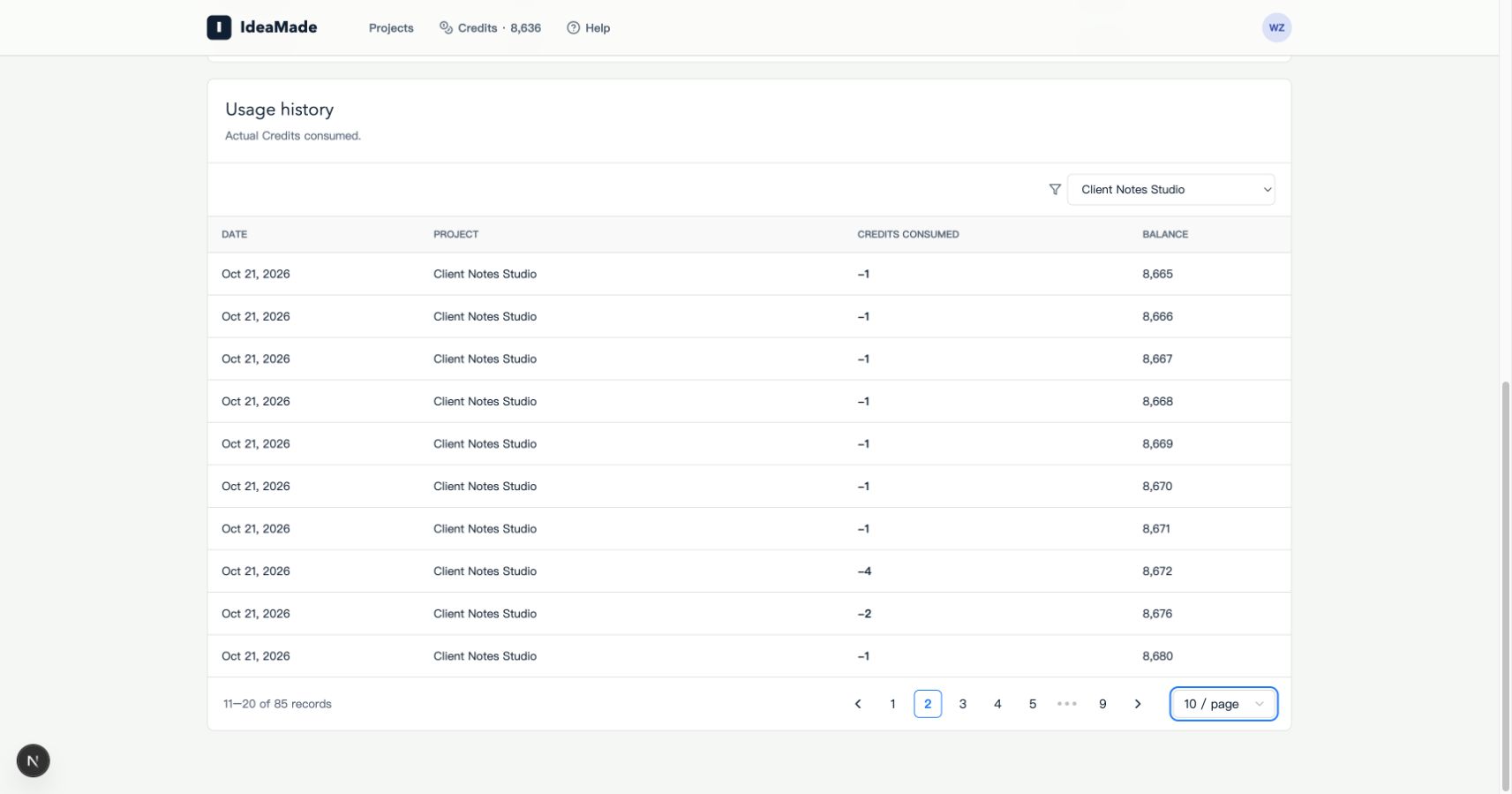
Image: Usage filtered by project. Select “All projects” to return to the account-wide history.
When Credits run low
When a low-balance notice appears, click “View plans,” or open the Credits panel and click “Upgrade plan.” After choosing a plan and completing payment, return to the Credits page to check your updated balance.
Generation or editing tasks stop when Credits run out. Once more Credits are available, return to the project and use the “Continue repair” or retry action offered on the task card. Further generation uses Credits.
Frequently asked questions
Why does a task say its cost is pending calculation?
The task’s cost is still being calculated. Check the record again later for the amount charged.
Why can’t I find records for a project?
Check the project filter, then browse to the relevant date. This table shows actual Credits consumed. Remaining consultation messages appear separately near the top of the page.