Request a refund and check its status
Paddle handles subscription refunds. Use the Credits page to request a refund and check its status under “Payment refunds.”
Open the refund request page
- Click “Credits” at the top of the projects list or Builder, then click “View usage.”
- Under “Payment refunds,” click “Request a refund” to open Paddle support.
- Select “Look up my purchase,” find your order using the email address used for the purchase, and follow the instructions to request a refund.
Have your receipt or transaction reference and a brief explanation ready. Use the “Refund policy” link to read the policy.
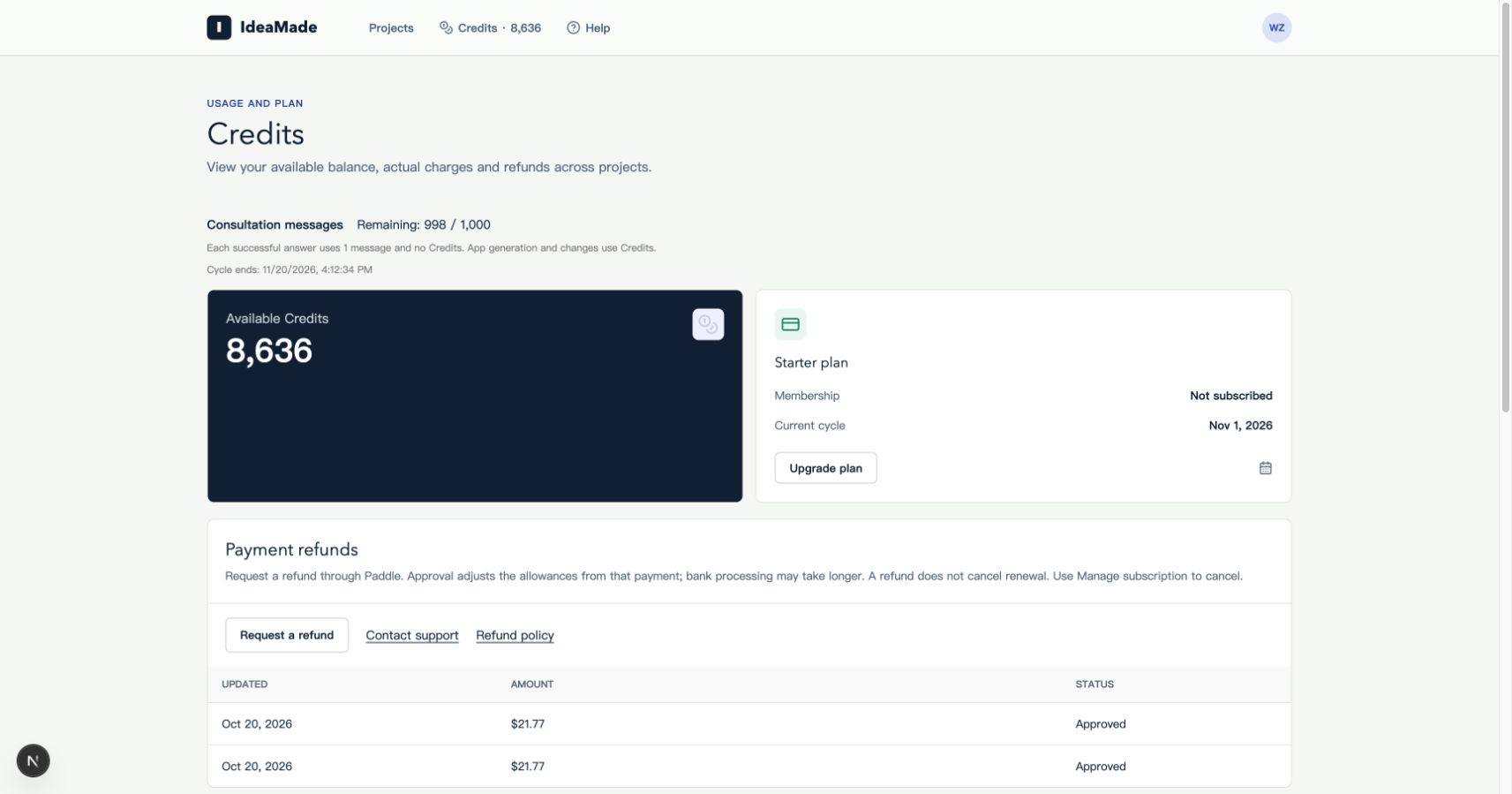
Image: “Payment refunds” provides the request link and refund records.
Check the status
Return to the Credits page. The “Payment refunds” table shows the update date, amount, and status:
| Status | Meaning |
|---|---|
| Pending review | Your request is being reviewed |
| Approved | The refund has been approved; arrival time depends on Paddle and your payment method |
| Rejected | The request was declined; check with Paddle for the reason or further assistance |
Once a refund is approved, the Credits and consultation allowance from that payment are adjusted accordingly. To stop future renewal charges, follow the subscription management instructions to cancel renewal.
Frequently asked questions
I requested a refund. Why is there no record here yet?
The record needs to sync to IdeaMade. Refresh the page later, and check Paddle or the emails about your request for updates.
What if I can’t find my order?
Click “Contact support” and include your account email, the transaction reference from your receipt, and a description of the issue so we can help investigate.