Check access and key workflows before publishing
On this page
Before publishing, use fictional data to complete the app’s key workflows and check access for its intended users. Focus on correct saving, actions that meet your requirements, and the content each identity should be able to access.
This article uses a client-management app. Your app may have different controls and business terms; choose its main workflow for these checks.
Confirm the version you intend to publish
Select Publish in the top-right corner of Builder and compare Live version with the version marked Current editing version. Publishing will make that editing version available to users, so first confirm that it contains the changes you intend to release.
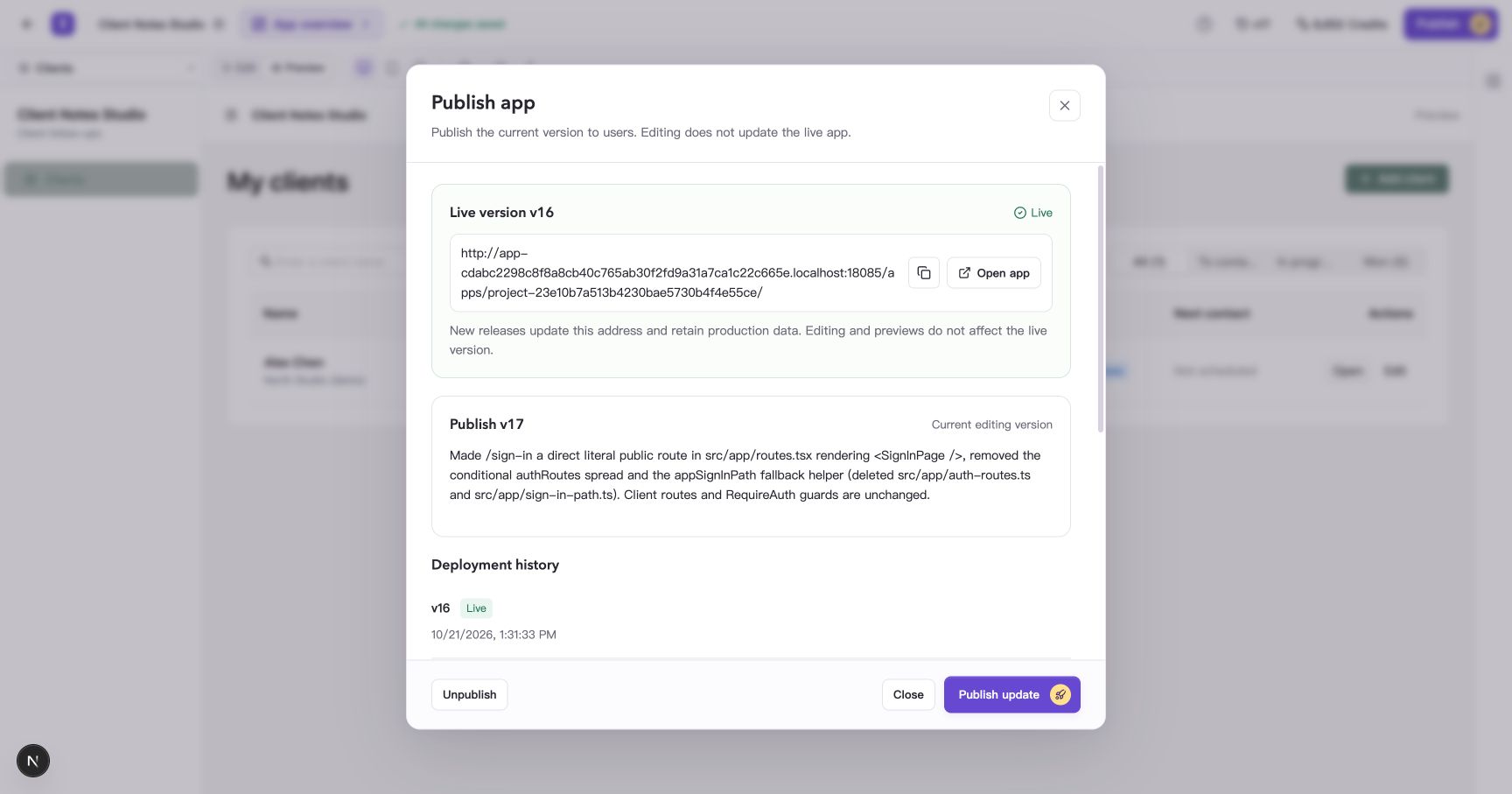
Figure: Compare the live version with the version you are preparing to publish.
If the result is a draft or has outstanding checks, follow Understand drafts, check results, and unverified items to read the details and address the relevant items.
Follow a main action through to its result
Select Preview and use fictional data to follow a complete path from input to saving and reading the result. For the client-management example:
- Open a client from the list and choose Edit client.
- Change a field, such as Notes, and select Save changes.
- Close the details, refresh the preview, and open the same client again.
- Confirm the new value remains and that other fields and records did not change unexpectedly.
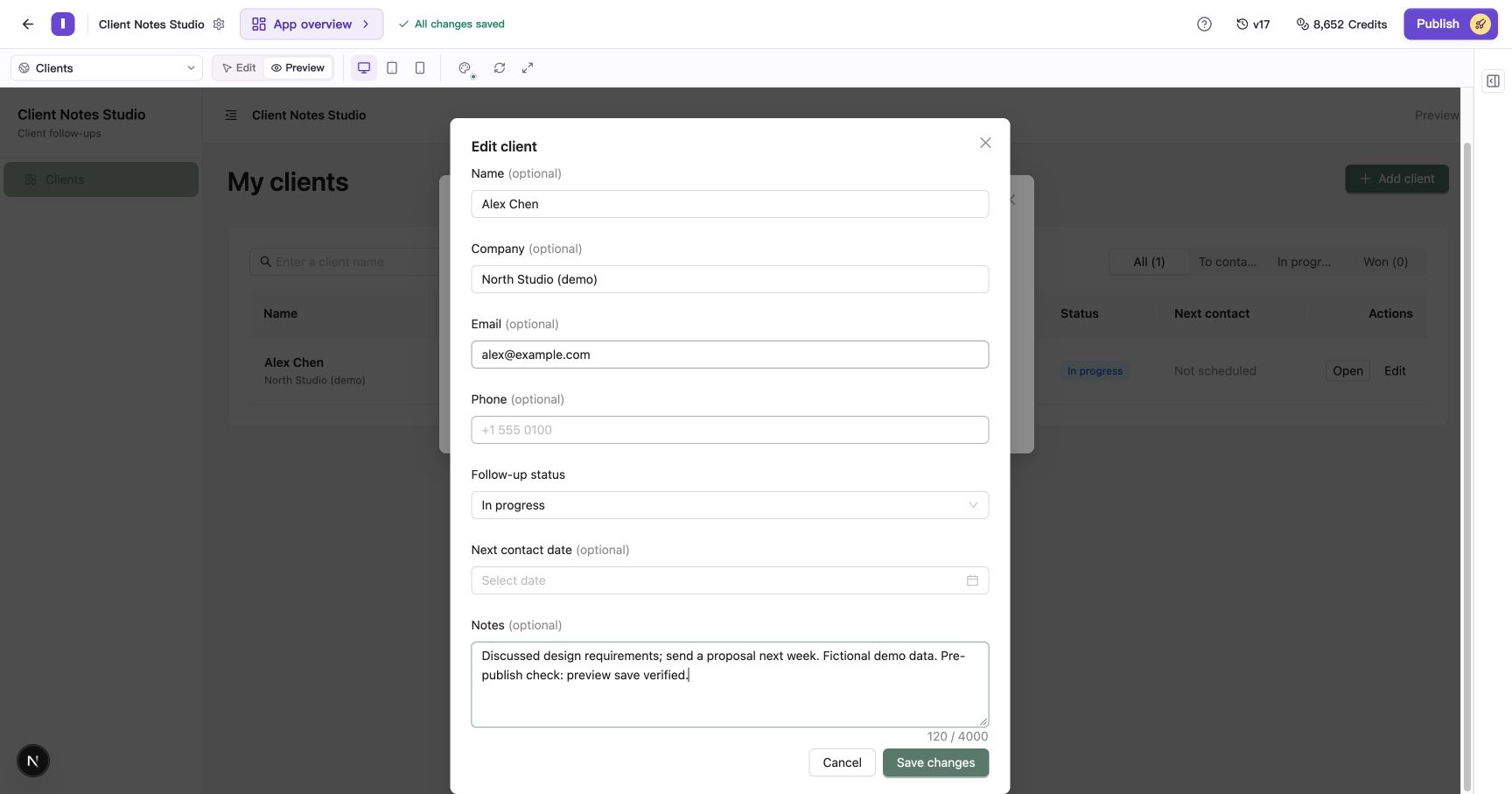
Figure: Save an updated note, then reopen the client’s details.
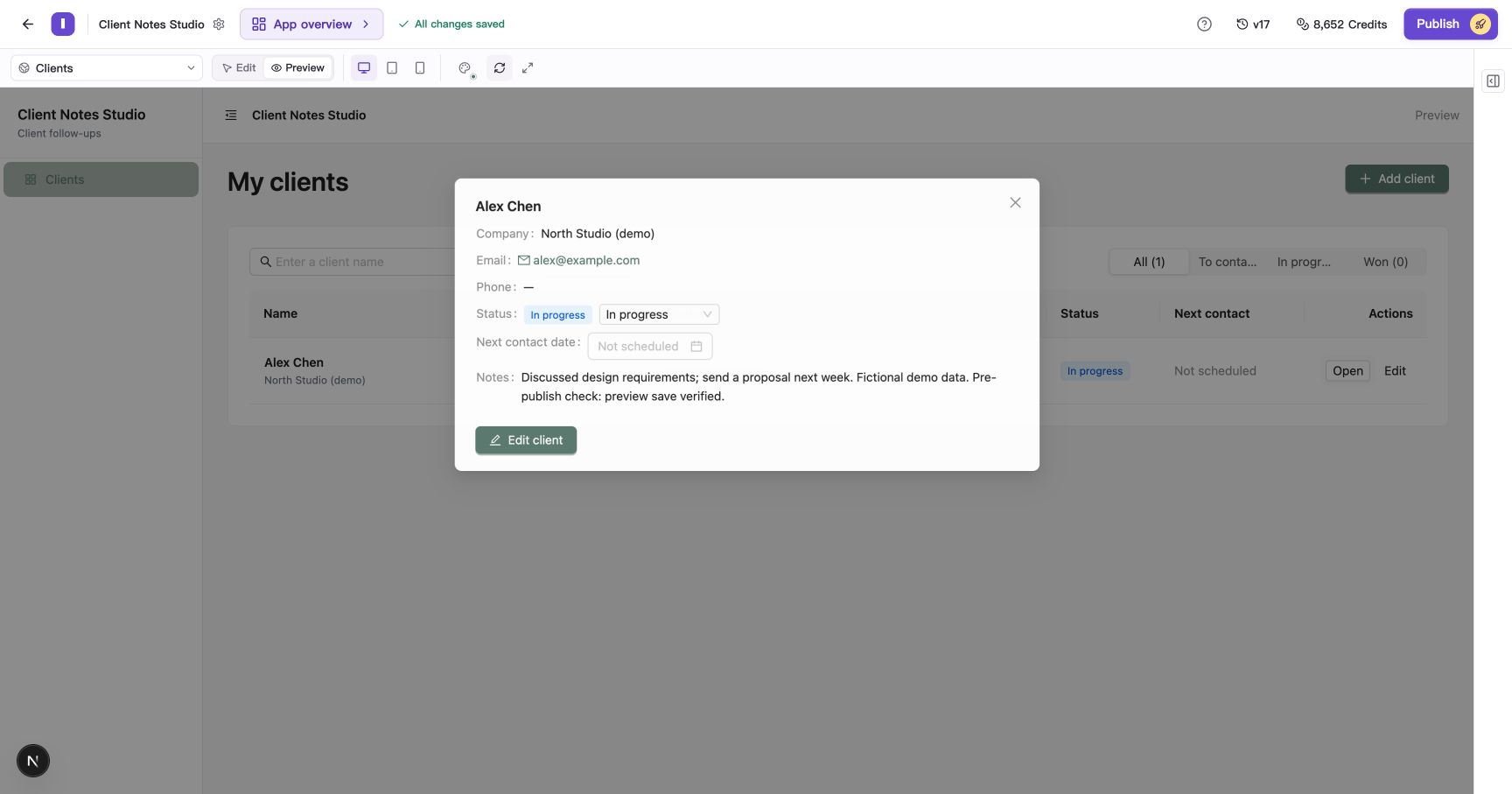
Figure: After refreshing, read the client again and check the saved note. All example details are fictional.
Check other common actions such as search, filters, and returning to the list. For phone use, also check different screen sizes. If the form has required fields or input limits, try an incomplete input and confirm the message and final result match your requirements.
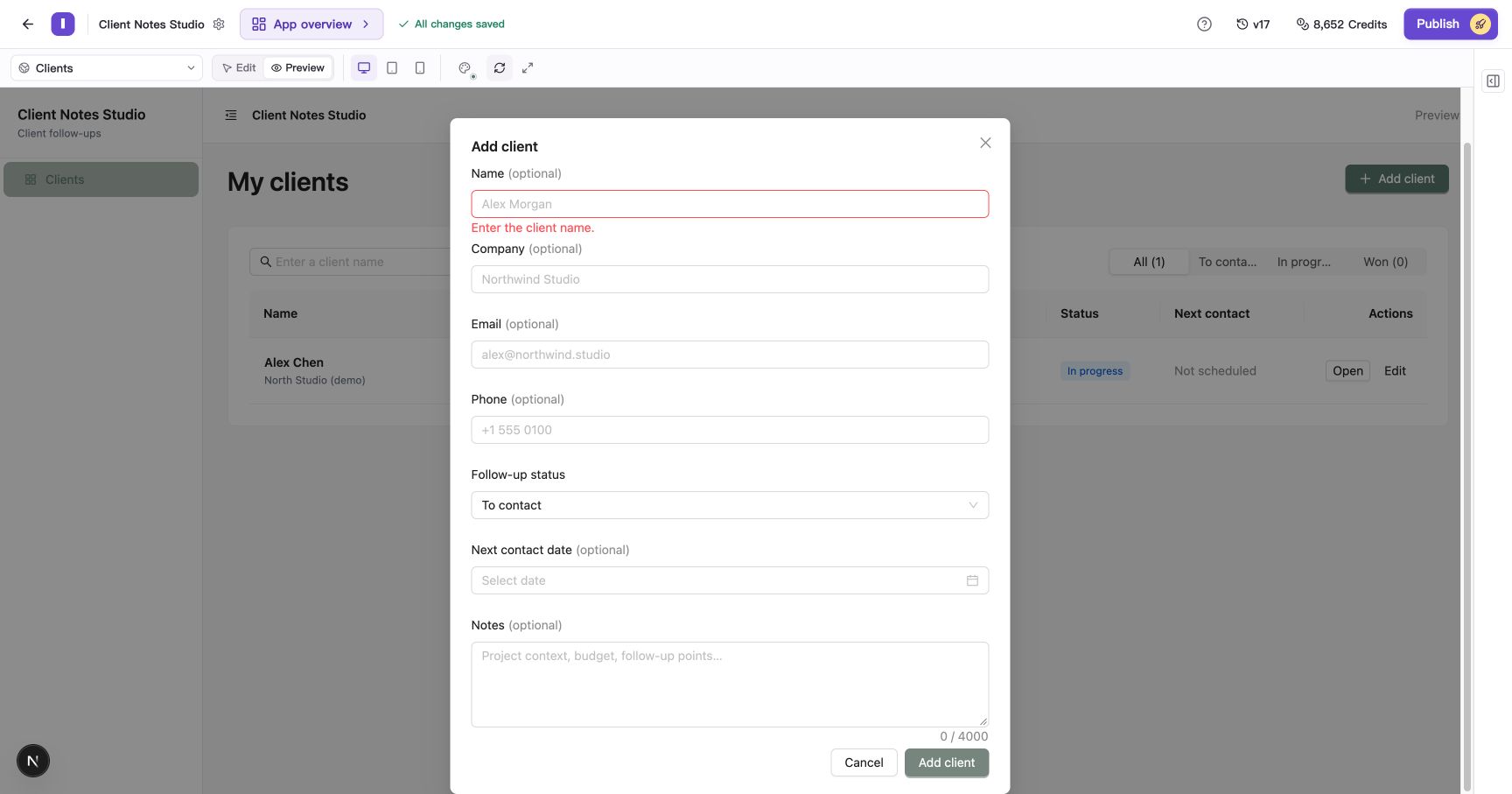
Figure: Submitting an empty name keeps the form open and asks for a name. This example labels the field “optional” even though validation requires it; include that inconsistency in a change request before sharing the app.
Check access identities and environment settings
Open Project settings beside the project name and find App members and roles. Creators manage Published App and Preview memberships separately. Choose Published App to review the role configuration intended for users.
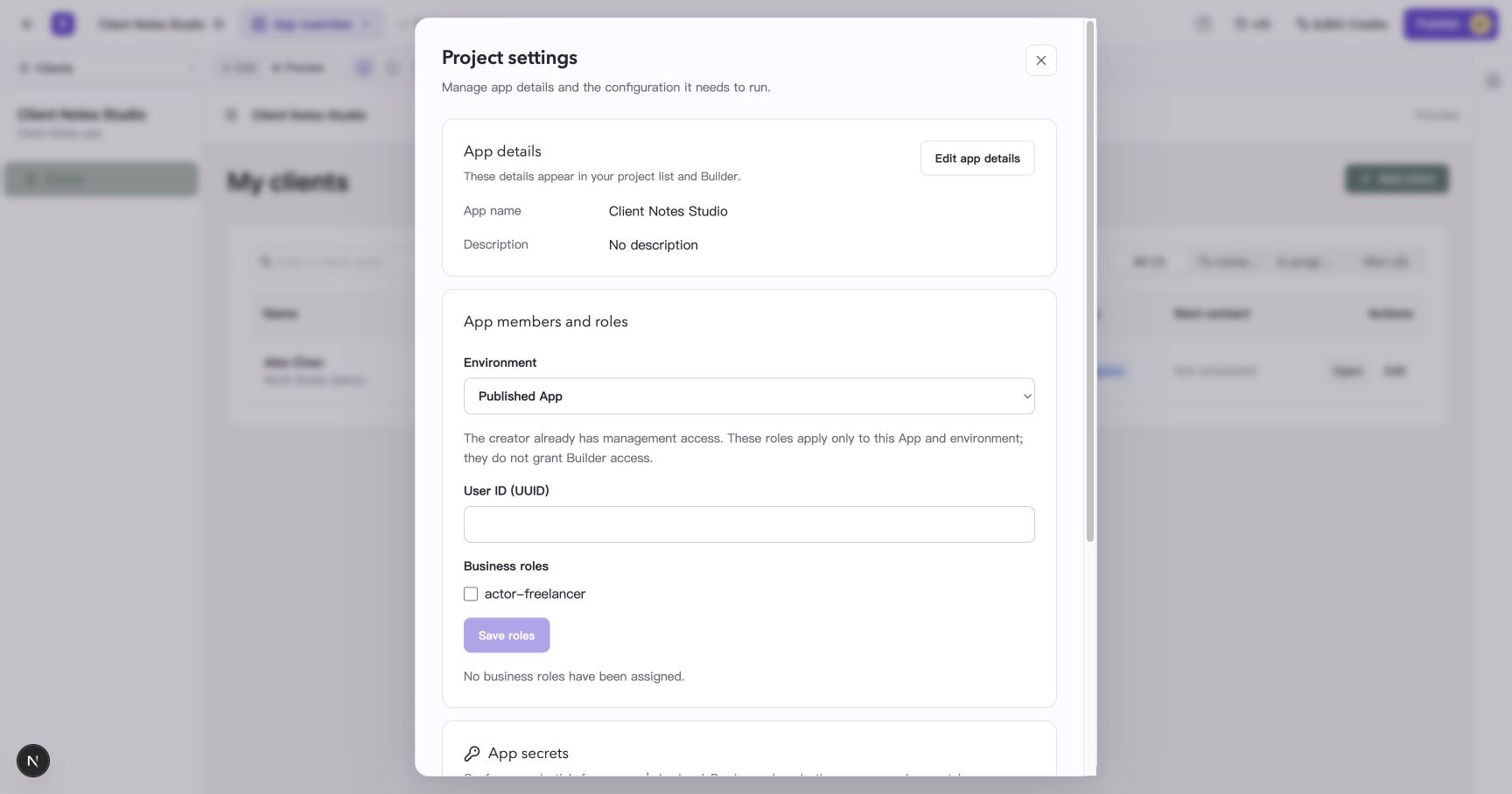
Figure: Review members and roles in the Published App environment.
Creators have app management access, while members use the business roles assigned to them. Prepare accounts for the identities your app serves and check these results:
| Identity | Result to check |
|---|---|
| Signed-out visitor | Public content opens; protected content has the correct sign-in entry or restriction |
| Member with a business role | Can perform the viewing, saving, and other actions intended for that role |
| Account with limited permissions | Restricted content is hidden and restricted actions are rejected as intended |
If the app uses an external service, also configure its secret in the production environment.
Check the production entry after publishing
When your checks are complete, reopen Publish, confirm the target, and publish it. Once the window shows Live, select Open app and check sign-in, the home page, key records, and saving from the production address.
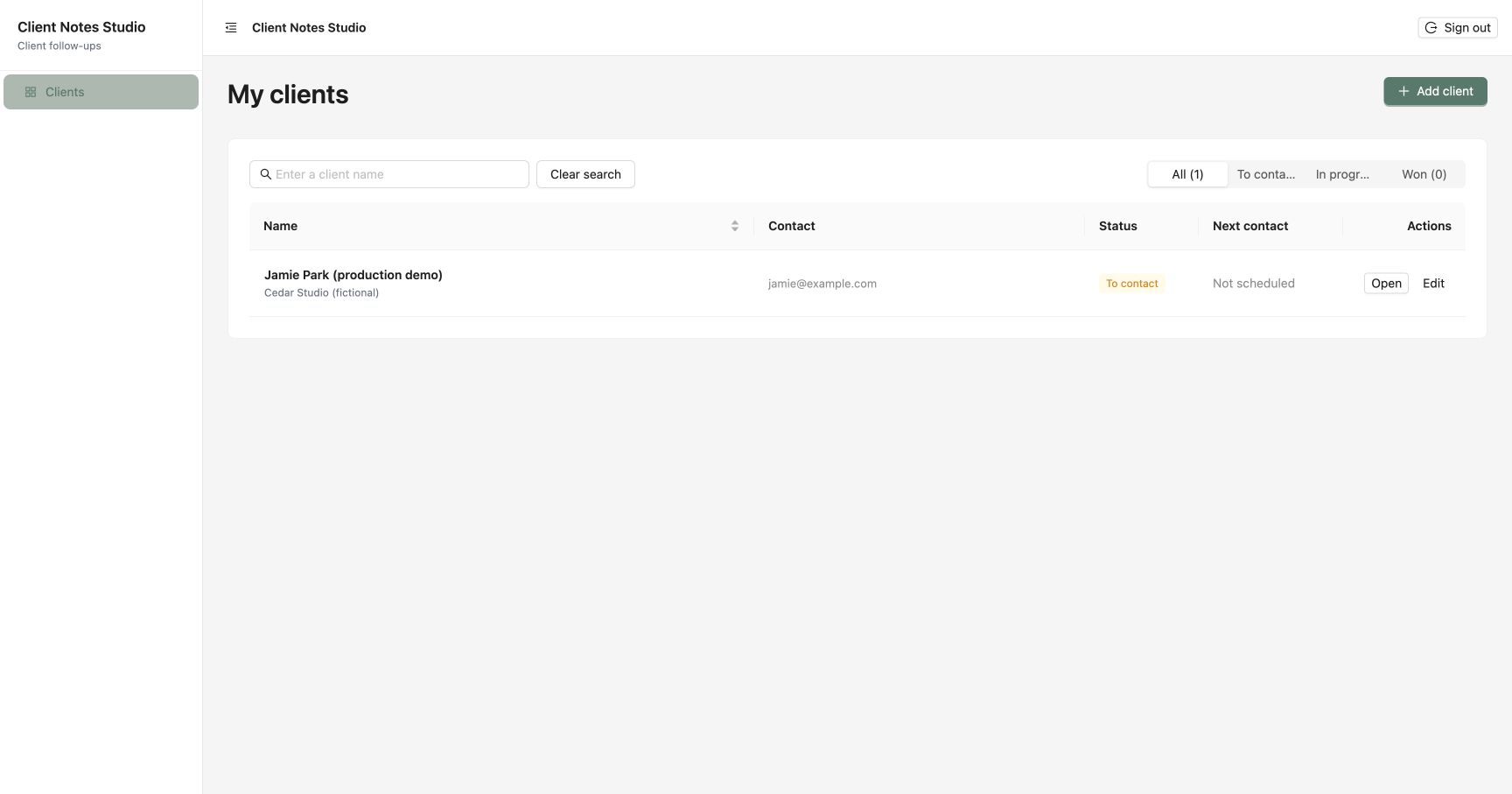
Figure: A production example record remains visible after saving and refreshing.
Production uses separate sign-in state, member roles, secrets, and data. If you encounter a sign-in, permission, or saving problem, note the message and use the next section to request a change.
Handle an issue you find
Tell the AI the entry point, account type, action, actual result, and expected result. For example:
The production address cannot open the sign-in page, although the preview works. Fix the sign-in entry while preserving client records and existing permissions. After the fix, users should be able to sign in and return to the client list.
After the change is saved, repeat the relevant checks and publish the version that needs to go live. You can unpublish the app to pause access. For the difference between editing-version restoration and a live rollback, read Restore versions and publish your app.
Frequently asked questions
If I am signed in to Builder, am I signed in to the published app?
The published app has its own sign-in state. If it asks you to sign in when you open the production address, follow the page’s instructions.