Find your way around Builder
On this page
Builder is where you generate, try, and change your app. Most work happens in the app canvas and the conversation on the right. The top bar provides app overview, version, Credits, and publishing controls.
Open a project
After signing in, select a project name from the projects list to open its workspace. If you do not have a project, select New Project and follow Create your first app to prepare the Blueprint and start building.
Use a desktop computer for the workspace. You can browse projects and Credits on a phone. The mobile preview inside Builder lets you check the generated app’s layout at a narrower screen size.
Identify the main areas
| Area | What you can do |
|---|---|
| Top bar | Return to projects, see the project name, open project settings and app overview, check versions and Credits, and open publishing. |
| Canvas toolbar | Choose a page, switch between Edit and Preview, choose a screen size, set the theme color, refresh, or open fullscreen preview. |
| App canvas | View Blueprint page sketches or the generated app; interact in Preview mode or select components in Edit mode. |
| Conversation on the right | Check the current context, ask questions or request changes, review plans, and follow tasks and results. |
Drag the divider between the canvas and conversation to adjust the width. Collapse or expand the conversation panel to give the preview more room.
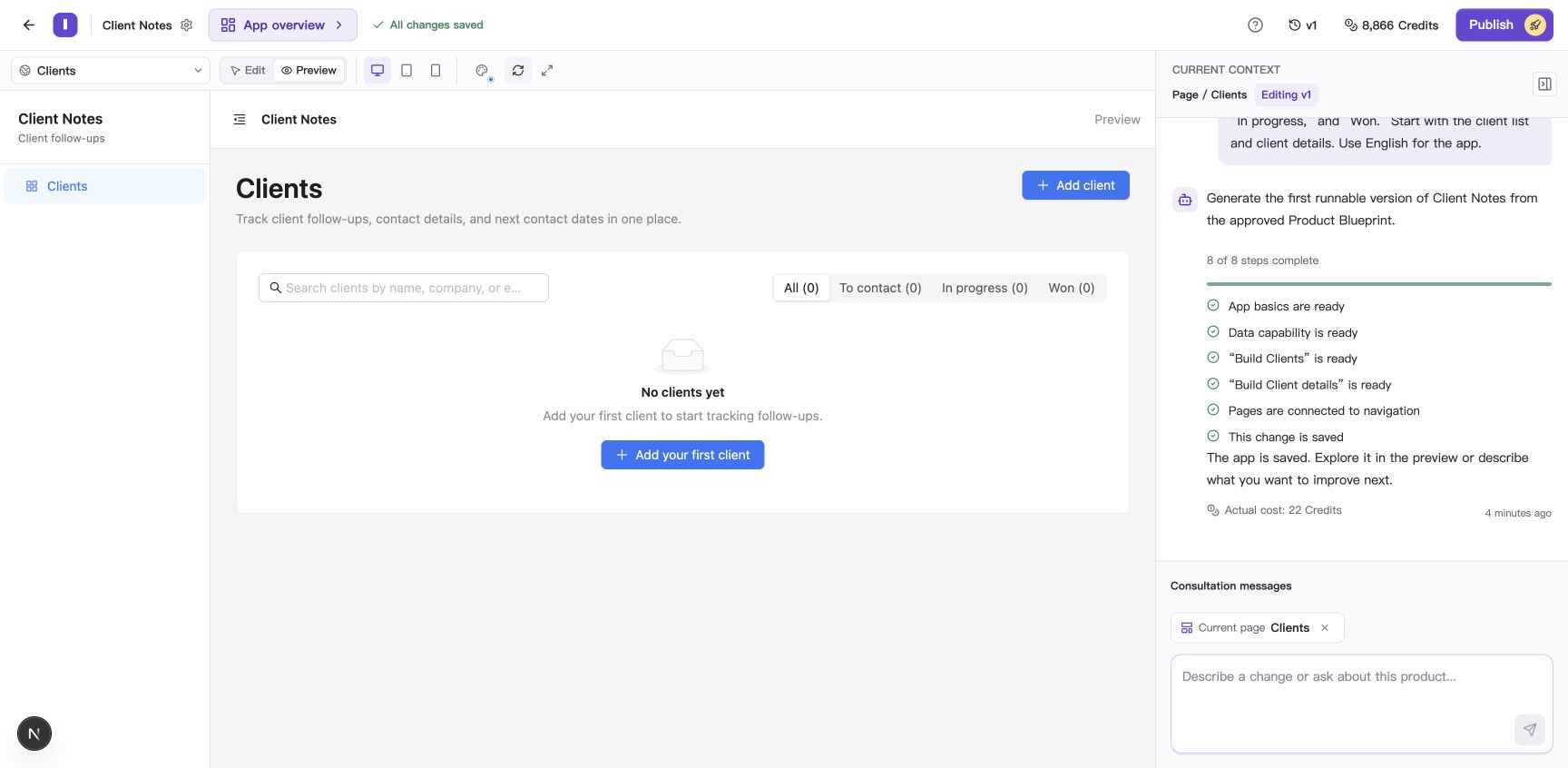
The first version is saved: v1 appears at the top, the result is on the right, and the app preview is on the left.
Explore App overview
Select App overview at the top and switch between these sections in the window:
| Section | Purpose |
|---|---|
| Overview | Review the product goal, version state, and recent versions. |
| User guide | Read instructions for the app version you are previewing, or generate its guide when prompted. |
| Blueprint | Review the app’s goals, users, and requirements. |
| Launch Guide | Review publishing preparation and live status, and open the related version or publishing controls. |
For example, the User guide explains how to add a client in Client Notes. See Generate and read your app’s user guide for details.
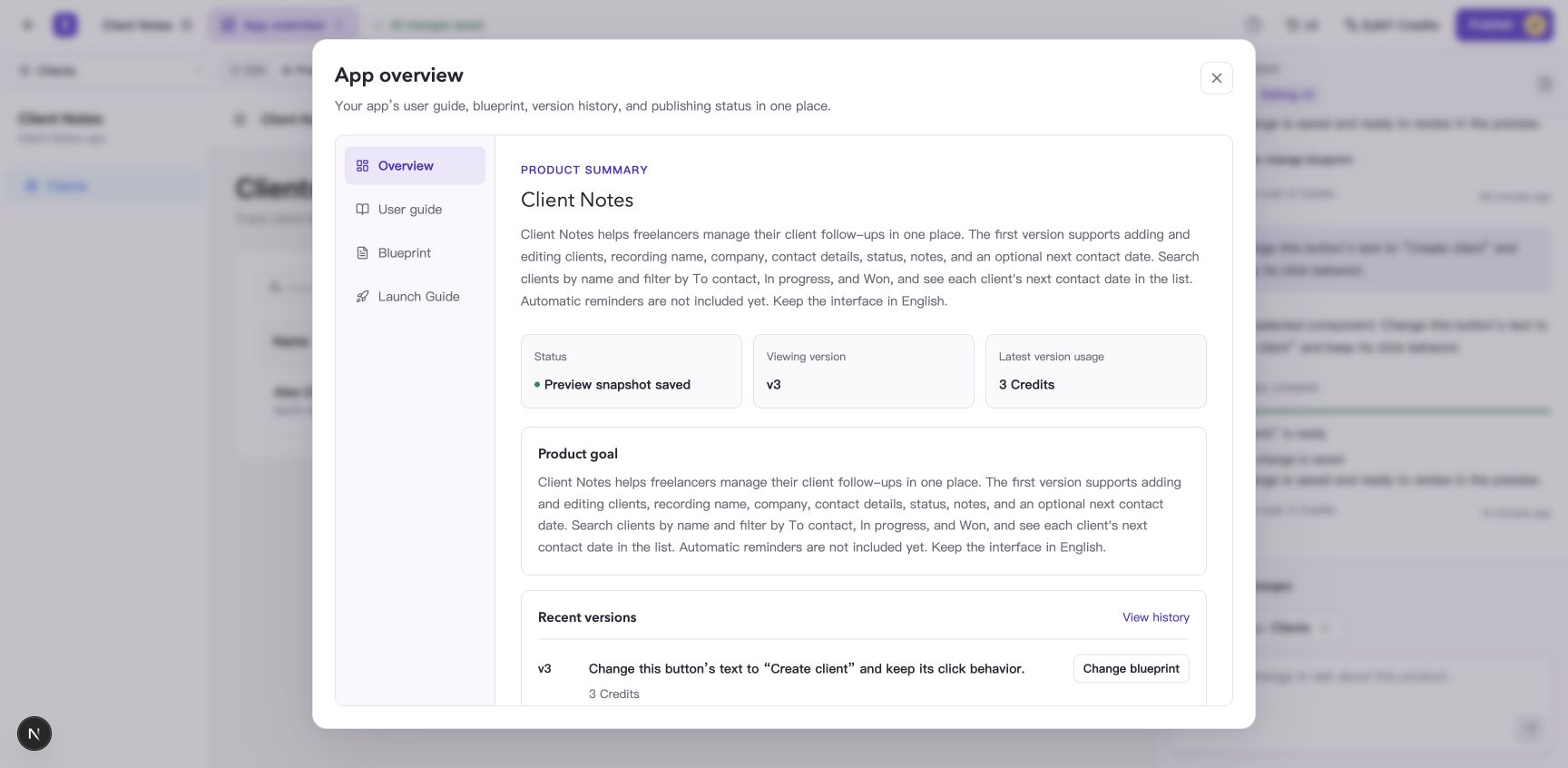
App overview contains Overview, User guide, Blueprint, and Launch Guide.
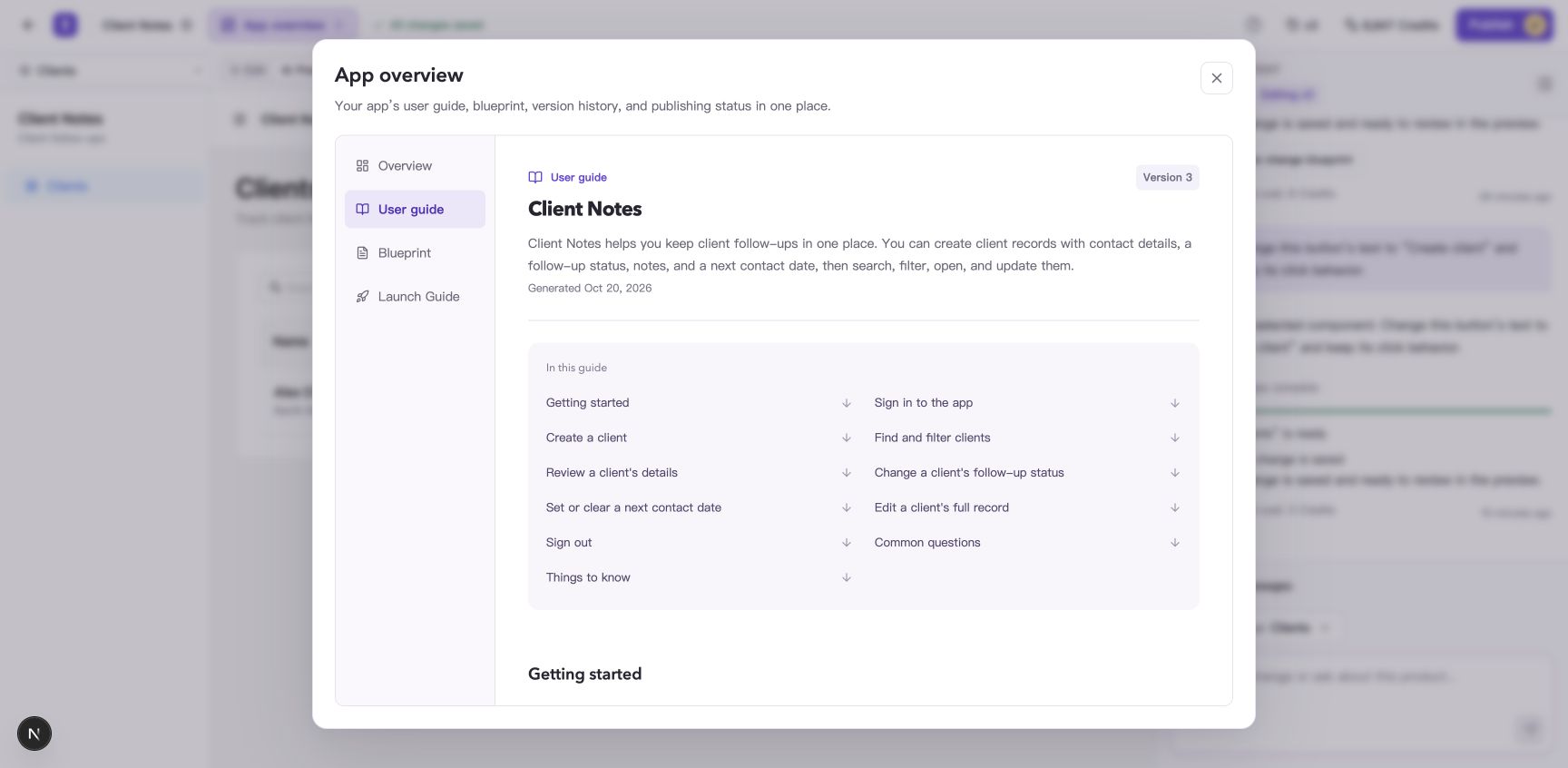
The user guide belongs to the previewed version and describes how to use that app.
Choose a page and canvas mode
- Use the Select page dropdown in the canvas toolbar to open a page, or use the app’s own navigation in Preview.
- Select Preview to use buttons, fill in forms, and check results as an app user would.
- To target a component for a change, switch to Edit and select it. Check that the conversation identifies the right component before describing the change.
- Use the Desktop, Tablet, and Mobile icons to change the canvas size and check readability and usability.
- Select Open fullscreen preview for more room, then Close fullscreen preview when finished.
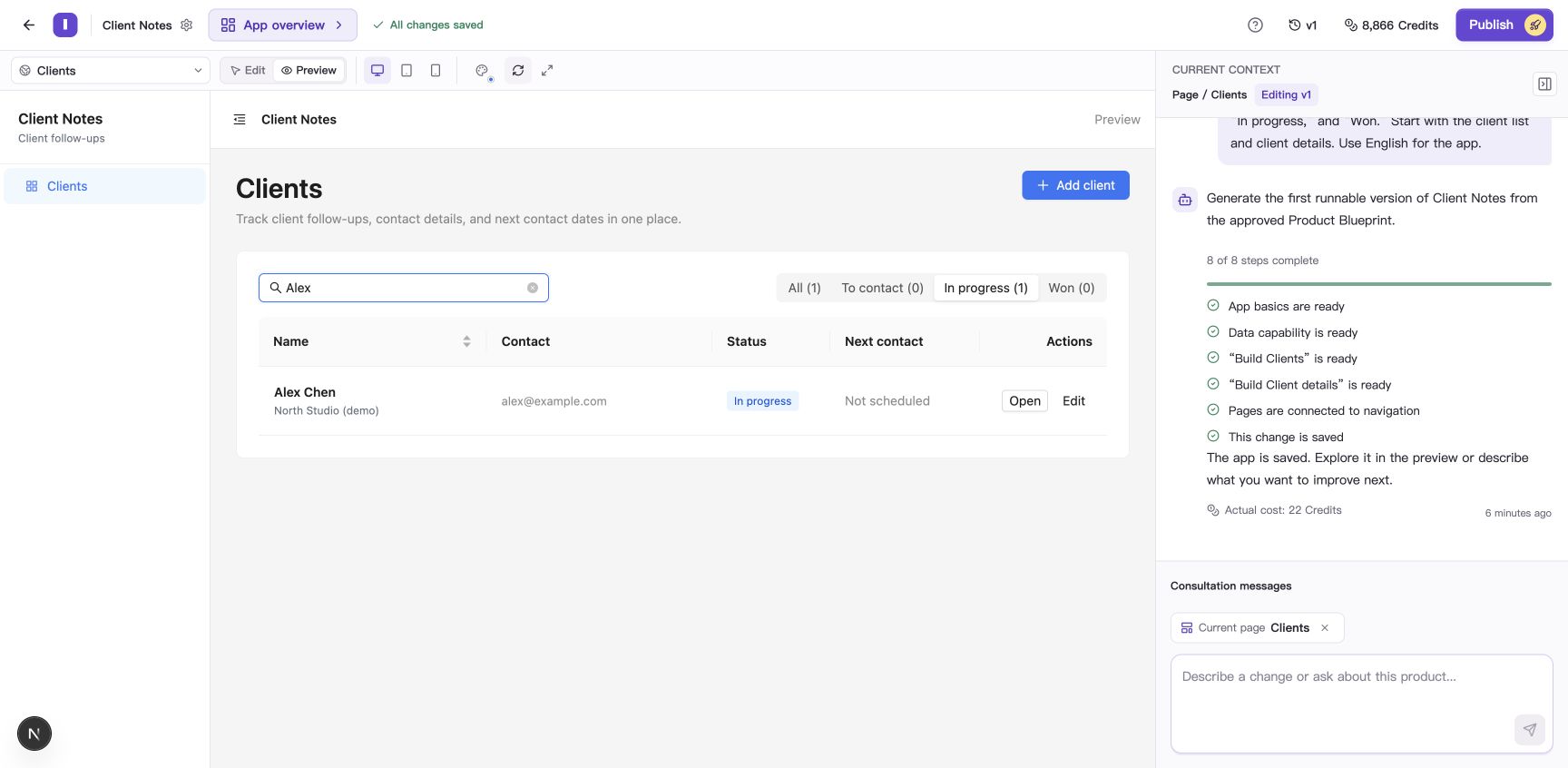
Search by name and select In progress to check the saved client appears.
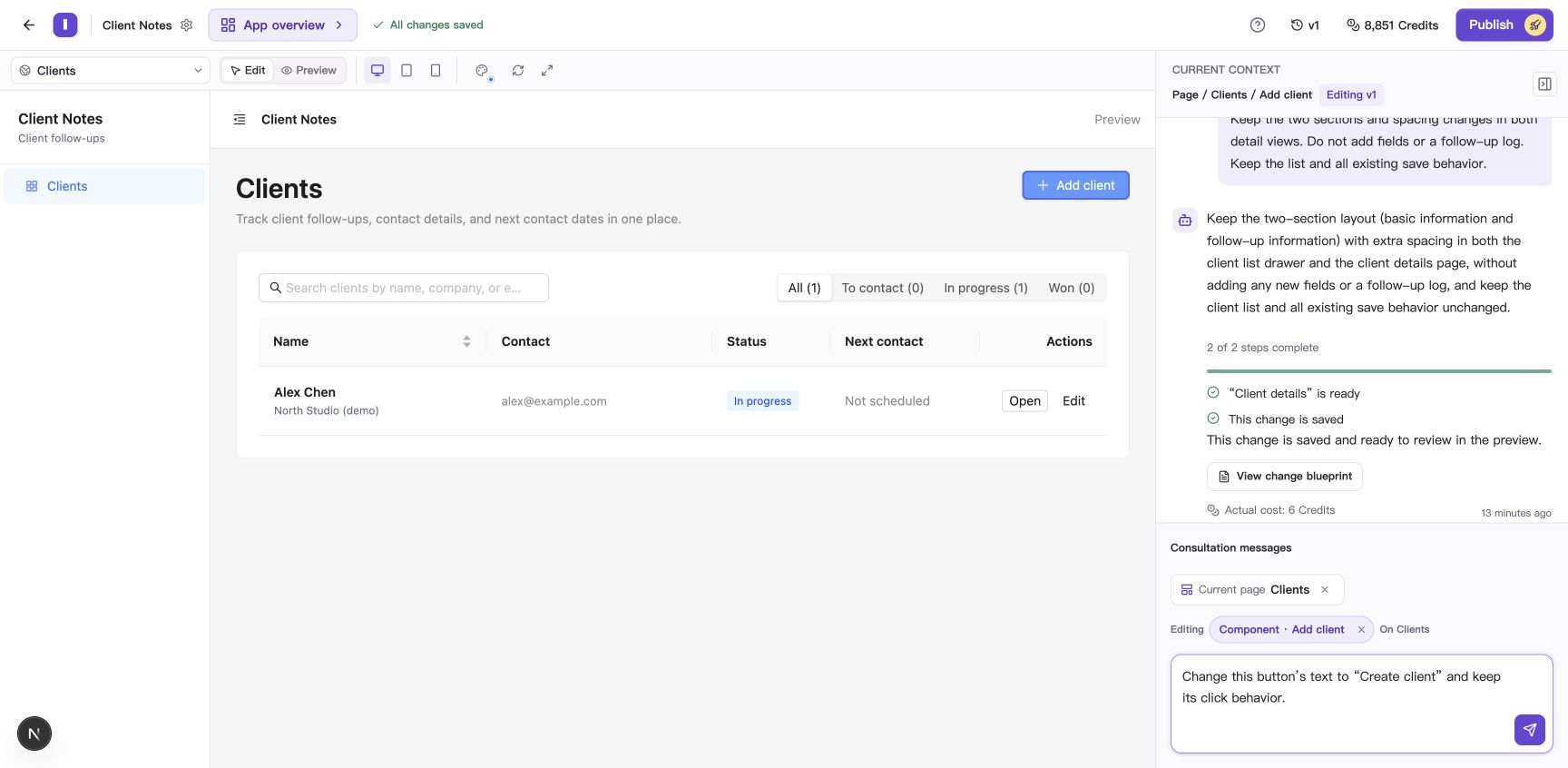
The selected button appears in the conversation context in Edit mode. Check the target before sending.
Use Refresh in the toolbar to reload the preview. Select Set app theme color to try different colors and save your choice. See Change your app name and theme color for the steps.
Work through changes in the conversation
Before sending, check Current context, Current page, and any selected component. For a page-wide or app-wide change, clear unrelated component selections and state the intended scope.
Ask about the current app or describe a specific change. For example:
Separate basic details and follow-up records into two areas on the client details page, with more space between them. Keep all fields and existing actions.
Select Send request, then read the response or change plan. Review a regular change plan before applying it. An edit to a selected component can run directly. See Request changes to your app for more examples.
Press Enter to send or Shift+Enter for a new line. You can also paste or drag in reference images, wait for them to finish preparing, and send them with your description.
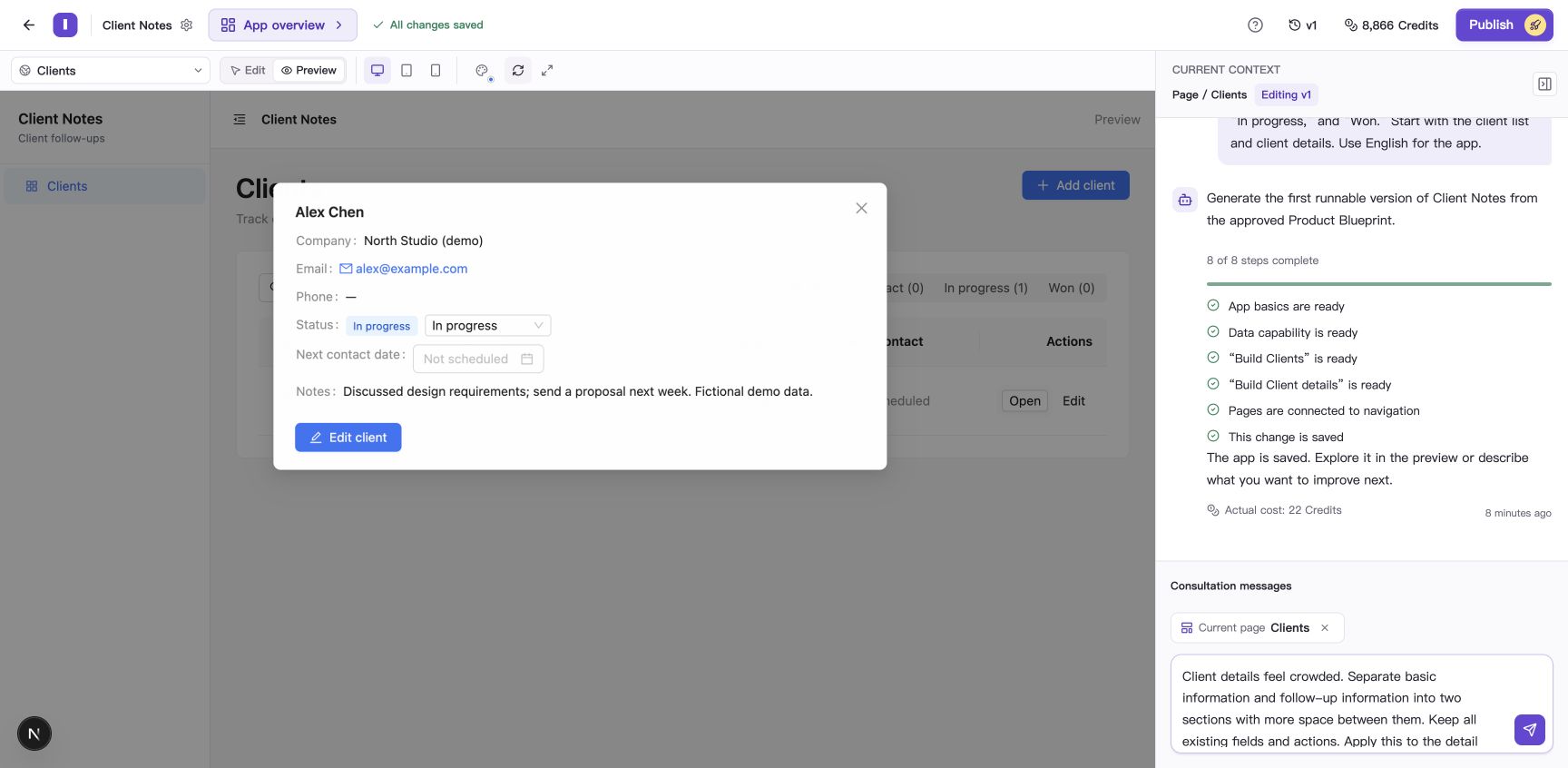
Before sending, check the page context, intended change, and what should stay the same.
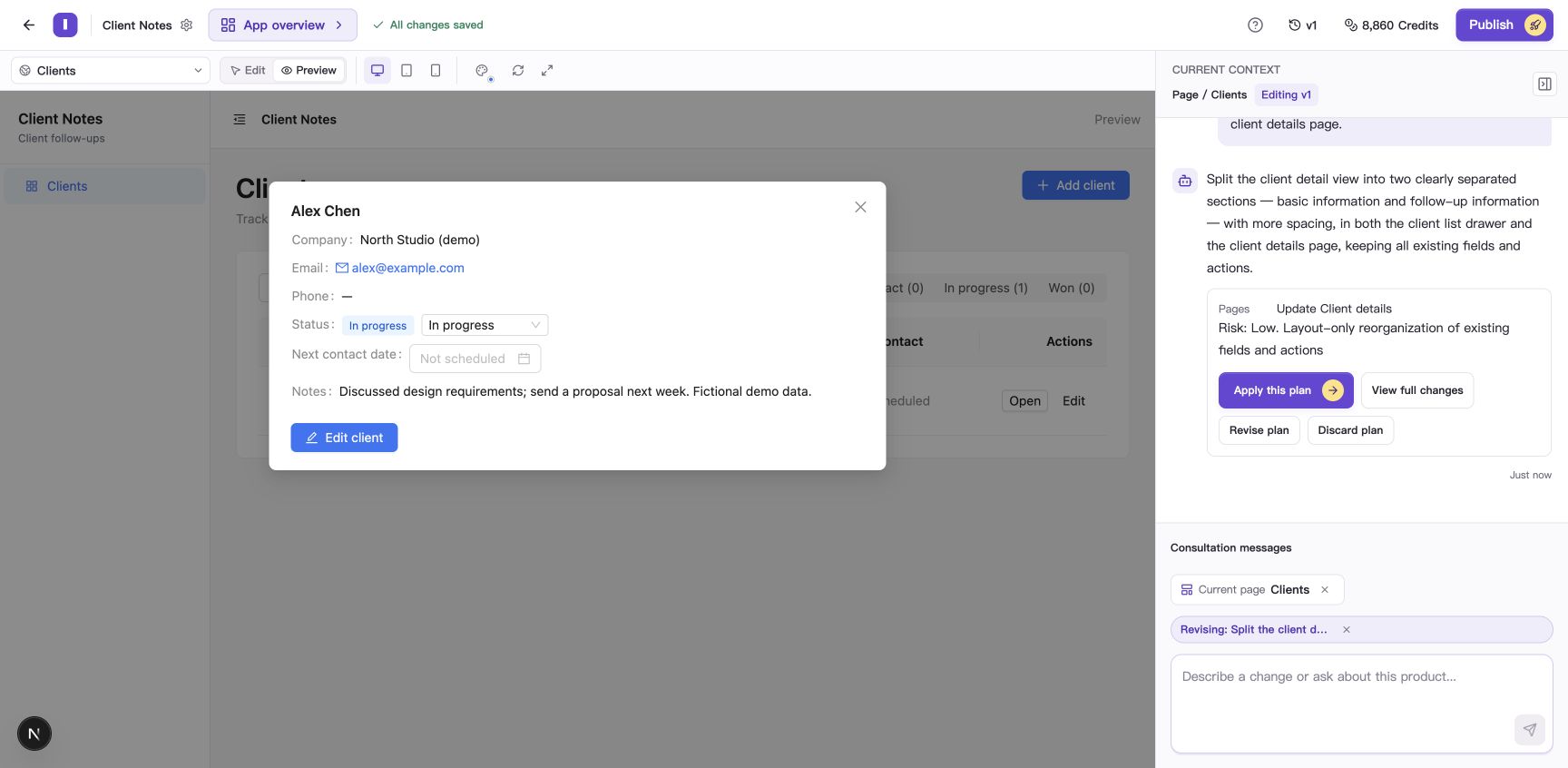
The plan card provides controls to view details, revise, apply, or discard the plan.
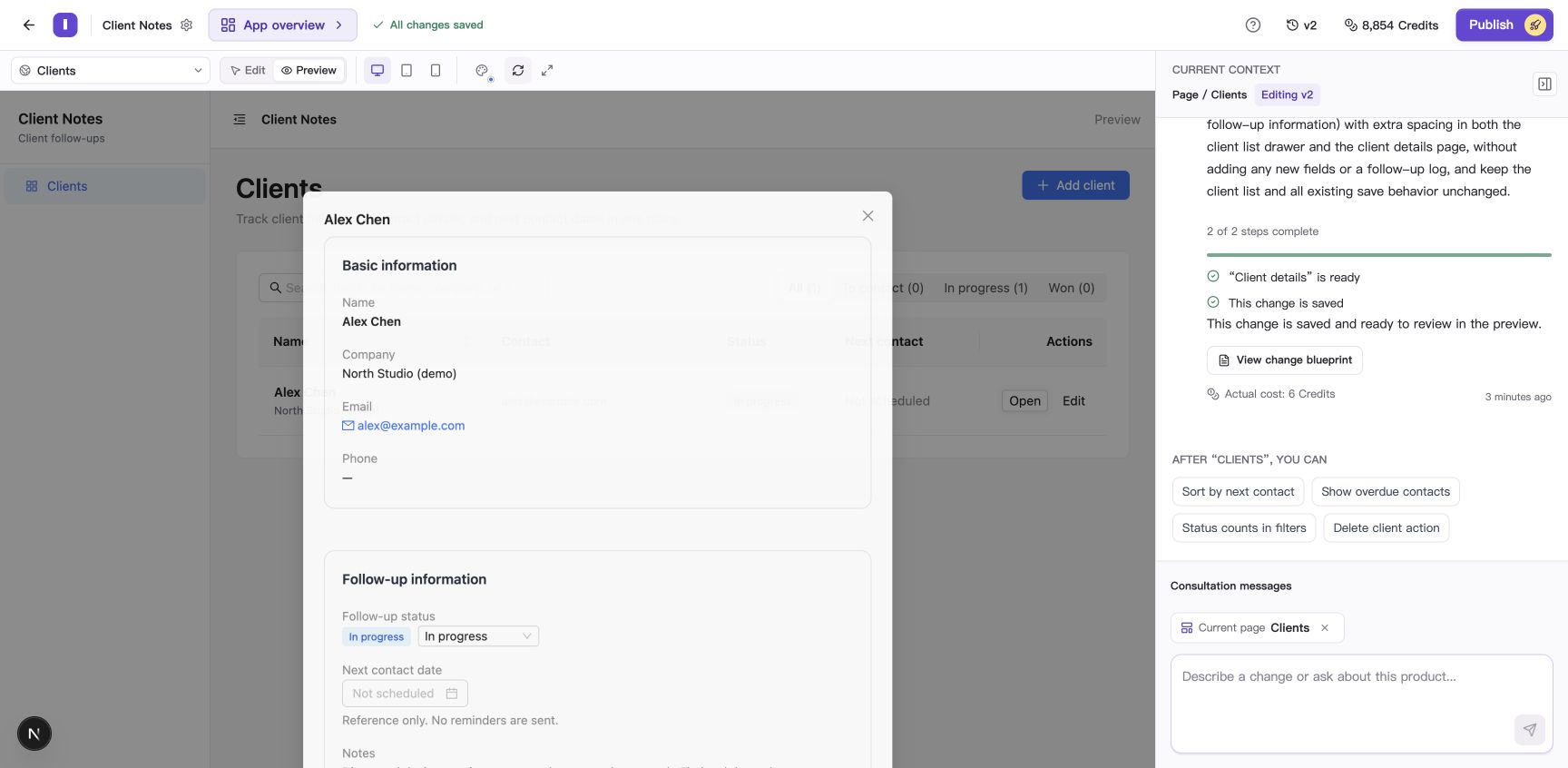
After: information is separated into two sections, with the existing client data retained.
While a task runs, its card in the conversation shows progress and any prompts. When it finishes, read the result on that card. For a draft, failure, or stopped task, follow the explanation and available actions there.
Recognize what you are viewing
| State | What it means and what to do |
|---|---|
| Blueprint saved, with no generated app yet | Use the page sketches to review the design. When ready, continue from the Blueprint into Builder to generate the app. |
| Generation or a change is running | Pages may appear progressively. Follow the current task and wait for the saved result before checking the complete version. |
| The result is saved and has a version number | You can preview the saved work. Read the result message to see whether anything still needs attention. |
| Historical preview | A banner identifies the historical and current editing versions. Select Return to current version, or restore the target from version history, before editing. |
Find versions, Credits, and publishing
Select the version number at the top to open Version history. Preview an older version first; if you want to continue editing from it, restore it as the current editing version.
Select Credits at the top to see your available balance, current plan, and the usage-records entry. Generation and changes use Credits.
Select Publish to review the current editing version and live status. Saving changes still requires a publication update before live users receive them. See Restore versions and publish your app for the full procedure.
Common questions
Why can’t I switch to Edit mode?
Edit mode works with the current editing version’s app preview. If the project only has a Blueprint, generate the app first. If you are viewing history, return to the current version or restore the version you want to edit.
What if preview expires or will not open?
Select “Open a new preview.” If it still fails, follow Resolve preview loading problems and page errors.
What can I check in mobile preview?
Use mobile preview to check text, layout, and controls at a narrow width. Before publishing, also try the key workflows on the devices and browsers your users will use.
When can I generate the app’s user guide?
Once a saved version is ready to preview, generate its guide from App overview → User guide. Before the first build, this area shows a preparation message.