Restore versions and publish your app
On this page
Use version history to view and restore saved work. Use the publishing window to manage the app your users access. This guide explains which action to choose and how it affects your current work, live app, and data.
Choose the action you need
| Your goal | Action | Result |
|---|---|---|
| See what an older version looks like | Preview in version history | Displays the selected version; the editing and live versions stay as they are. |
| Continue editing from an older version | Restore in version history | Switches the current editing version and its associated Blueprint; the live app stays unchanged. |
| Make the current editing version available to users | Publish or Publish update in the publishing window | Checks and deploys the current version, then switches the live app after success. |
| Return the live app to a previously published version | Roll back in deployment history | Checks compatibility and switches the live version; the editing version stays as it is. |
| Temporarily stop access to the live app | Unpublish in the publishing window | Removes public access while retaining production data and version history. |
Version actions manage app code and configuration, while business records remain in their current state. See Understand preview data and production data for data environments and record retention.
View a historical version
- Open the project and select the version-number button at the top of Builder, such as v5, to open Version history.
- Find the version and review its change description, creation time, and automated check results.
- Select Preview for that version.
- When you are finished, select Return to current version.
A historical preview shows the older version’s interface and features using your existing preview data.
“Published before” records a version’s publication history. The Publish window shows which version is currently live.
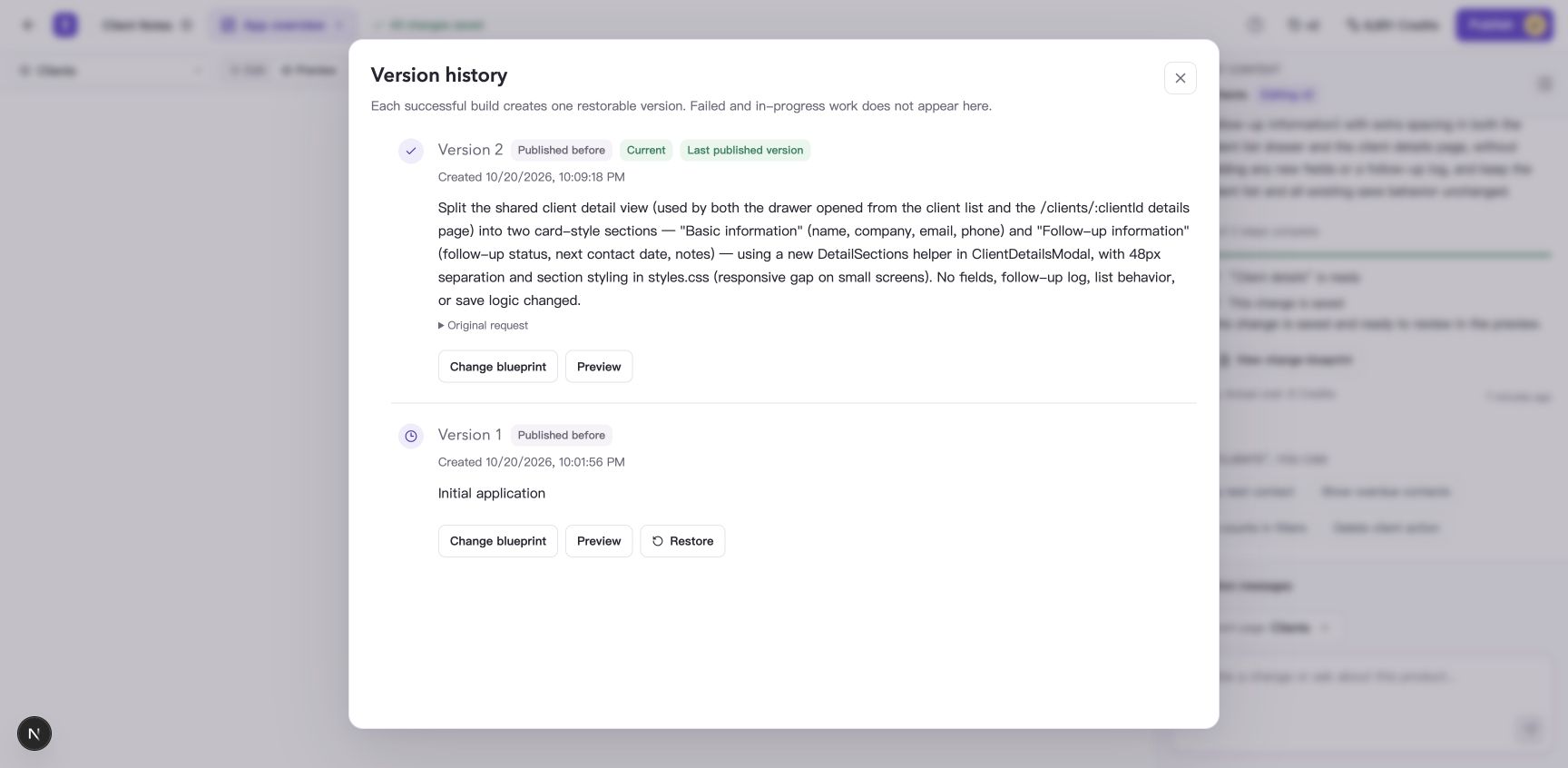
Version history retains the current and earlier versions. Preview a version before deciding to restore it.
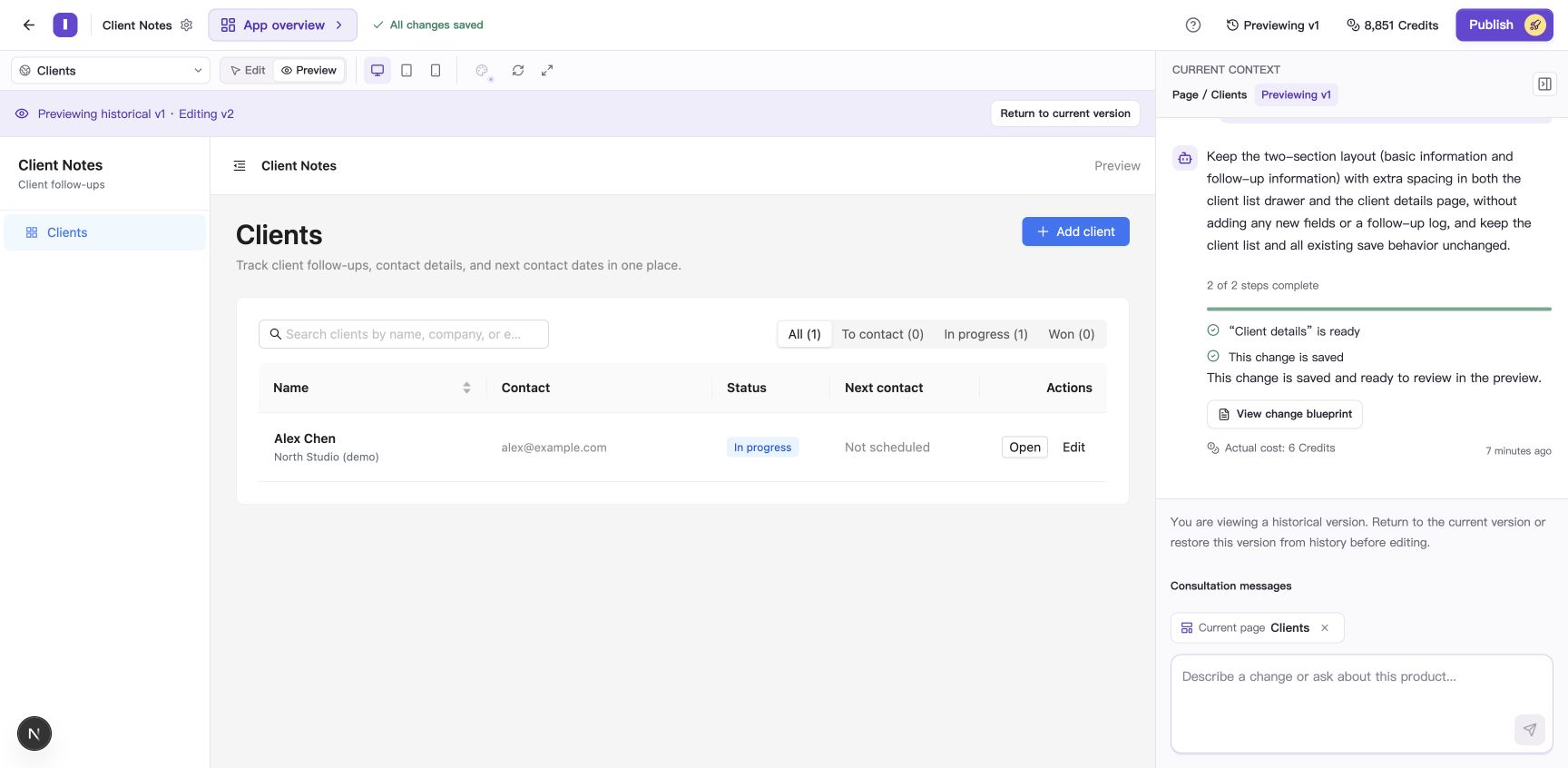
Historical preview shows v1 while the editing version remains v2. Return to the current version to continue editing.
Restore a version and continue editing
Wait for the current task to finish or stop before restoring a version.
- Open Version history and preview the version you want.
- Select Restore.
- Read the explanation, check the target version, and select Restore version.
- Check the version number and preview after the restoration completes.
- Continue requesting changes from this version, or open the publishing window to publish it.
Restoring makes the selected version and its associated Blueprint the current editing content, while retaining other saved versions. The live app keeps its existing version until you publish an update.
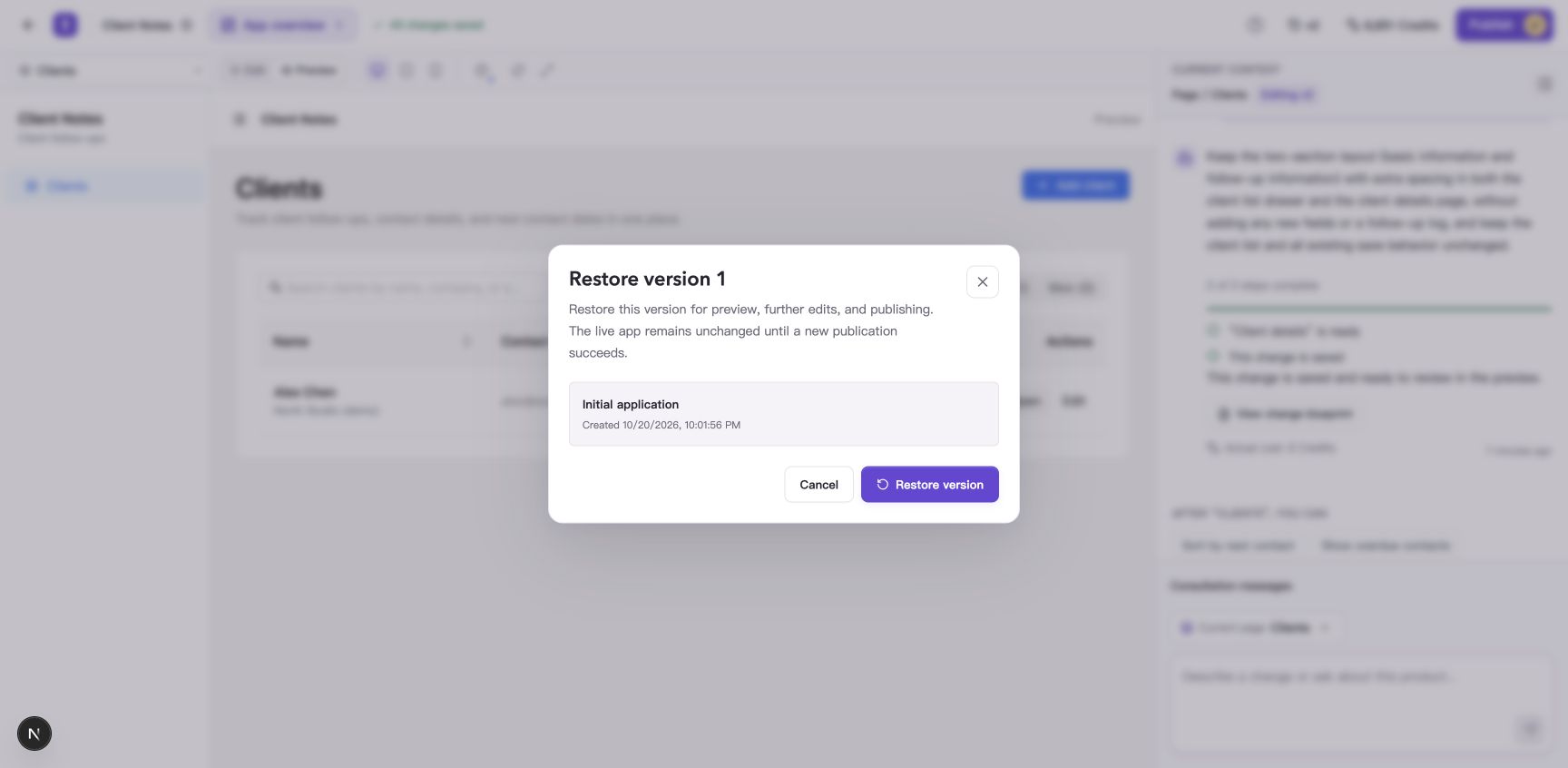
Check the restore target and its effect on preview, future edits, and publishing before confirming.
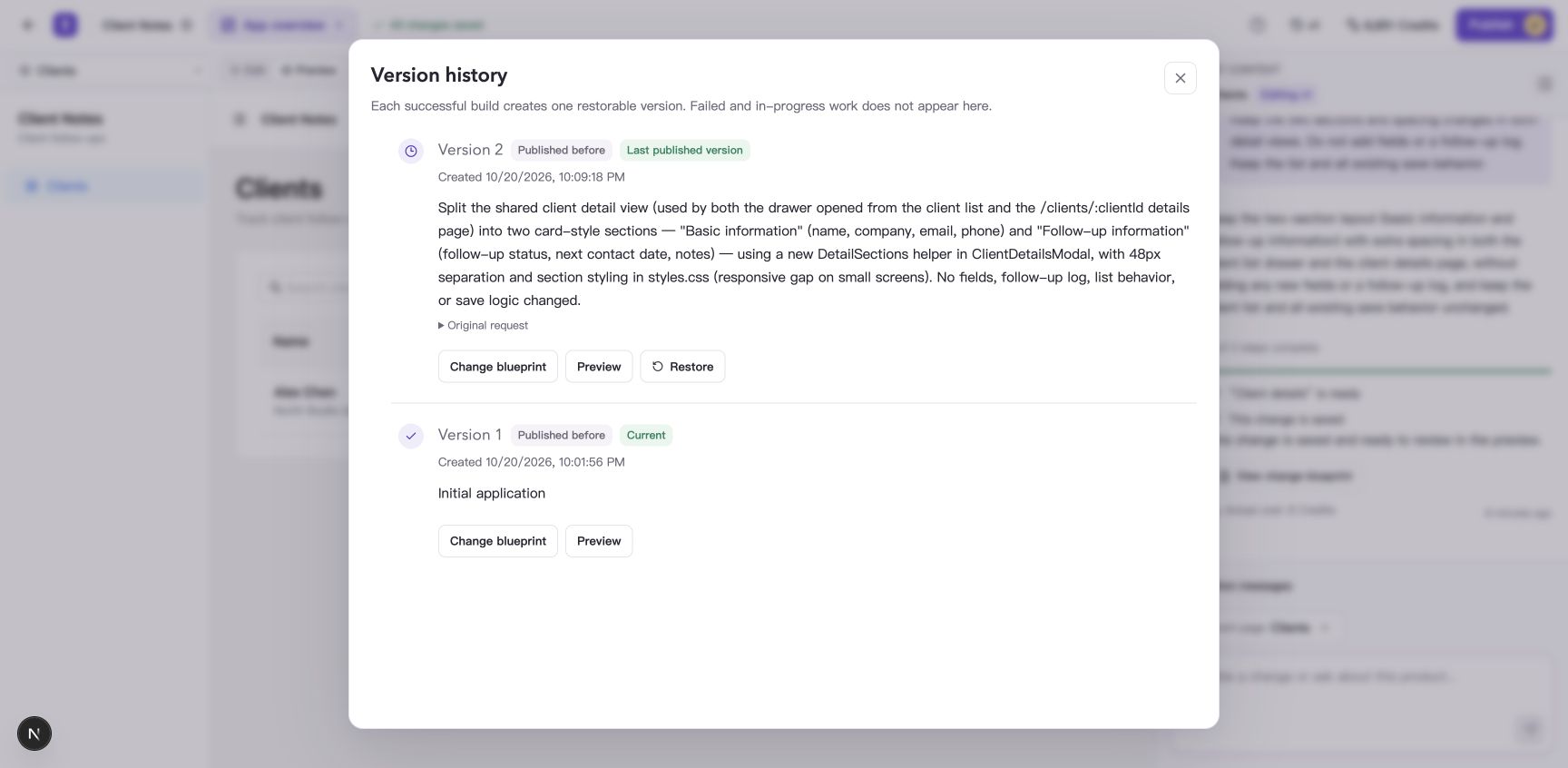
After restoration, v1 is current and v2 remains in the history.
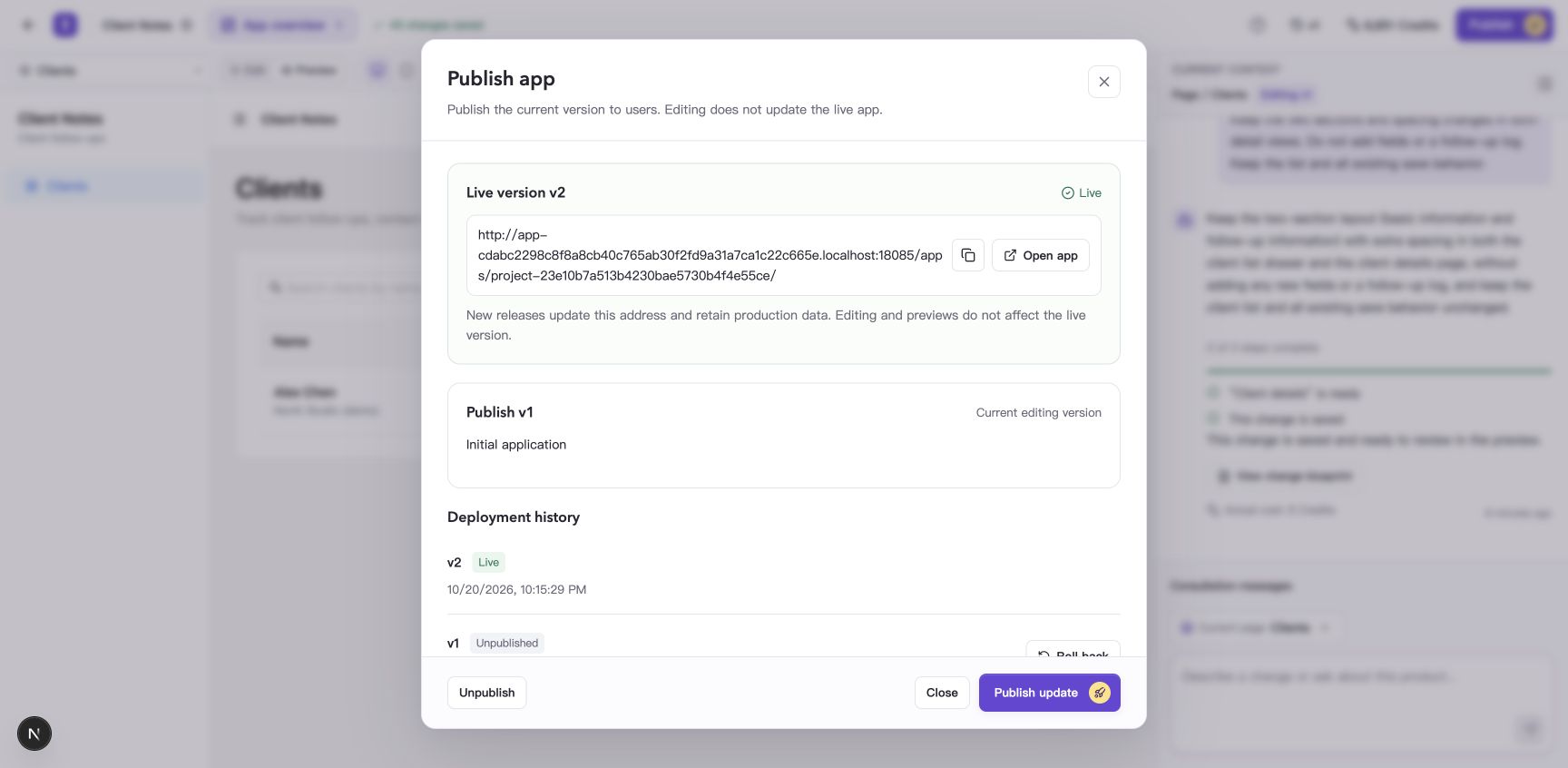
After restoration, v1 is the editing version and the Publish window still shows live v2.
Publish the current version
Before publishing, use preview to check the actions your users will need, such as adding and editing records, submitting forms, and any sign-in or access controls the app requires.
Preview and production data are stored separately. The first publication uses its own production storage, with test records staying in preview. Later publications continue using existing production data.
- Confirm that Current editing version is the version you want to publish. To publish a historical version, restore it as the current editing version first.
- Select Publish at the top of Builder.
- Check the target version number and current live status in the publishing window.
- Select Publish for the first publication, Publish update for an existing live app, or Republish if the app is unpublished.
- Wait for the release checks and deployment to finish. Confirm that the target version is shown as Live.
- Select Open app to check access and key actions at the public address.
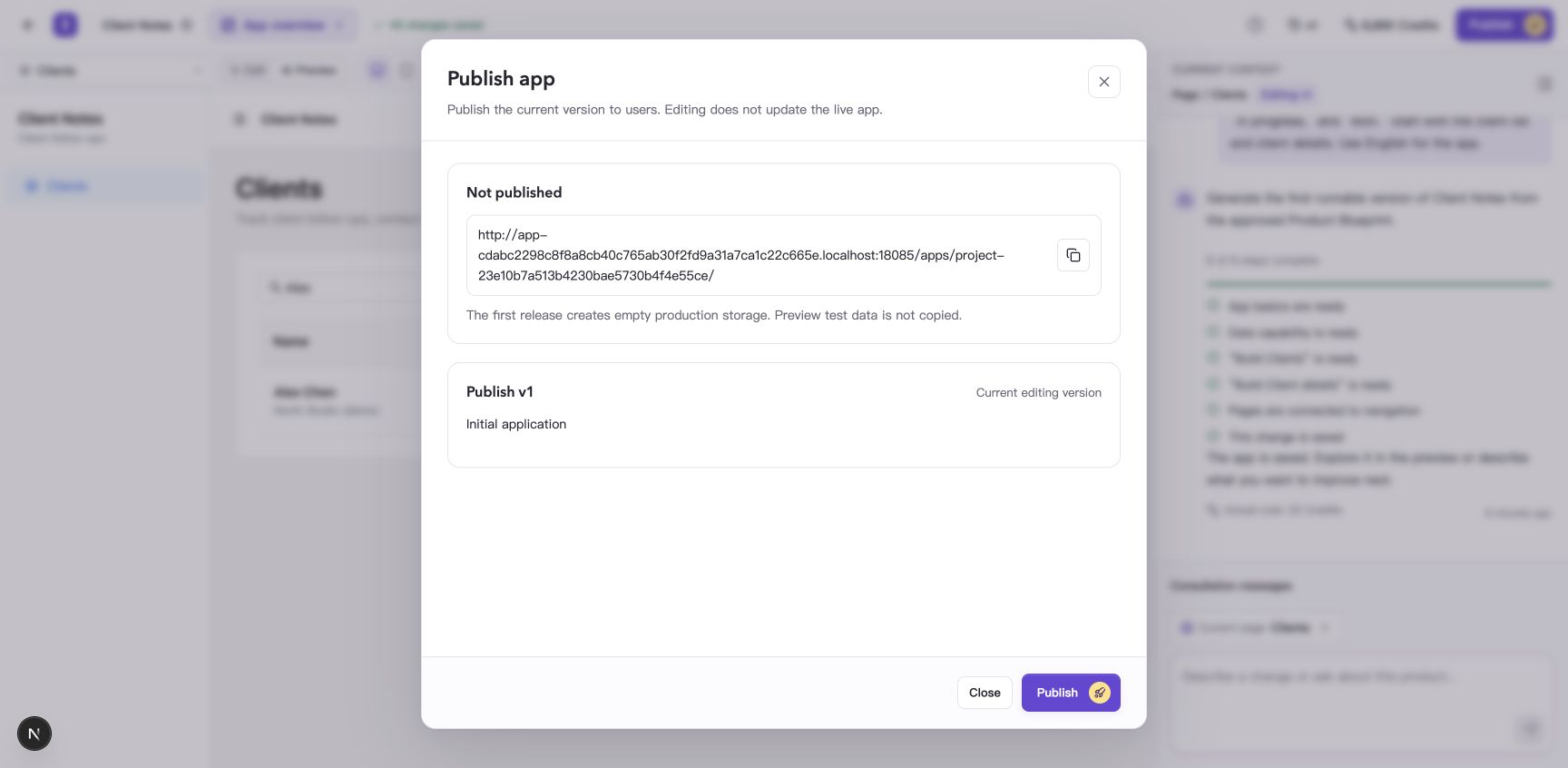
The first-publication window shows the target version and production address.
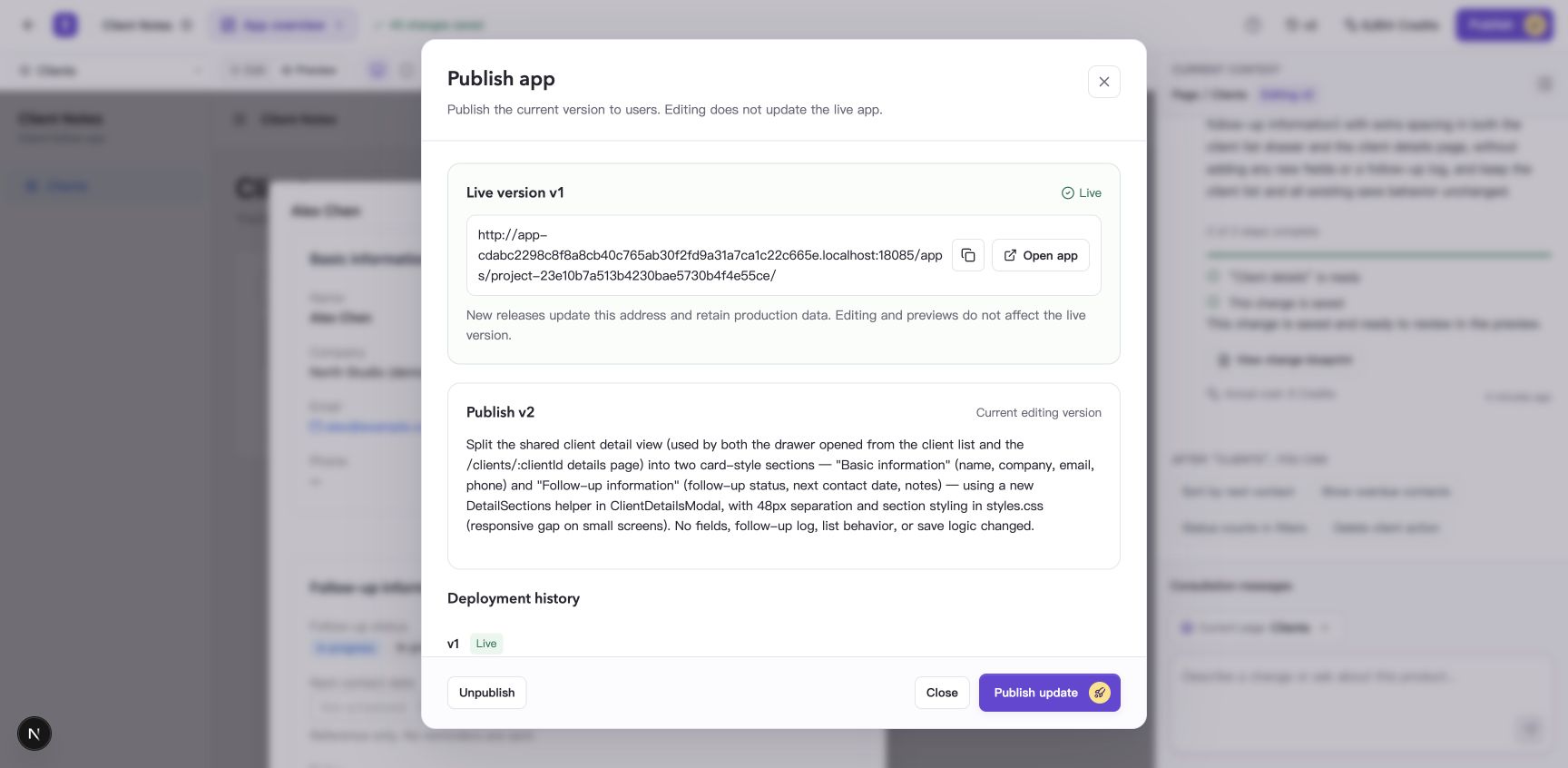
When preparing to publish v2, the dialog also shows v1 still live.
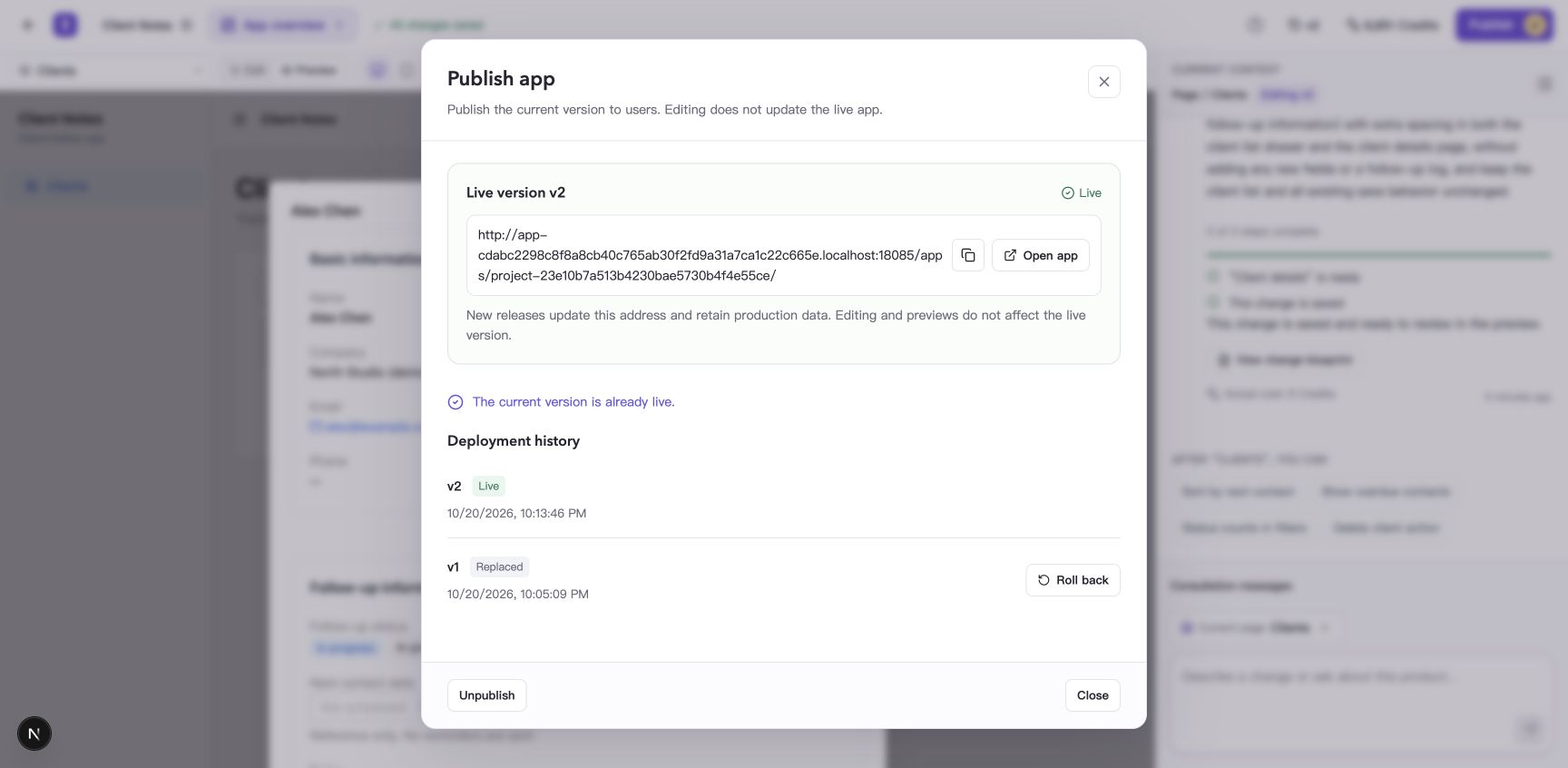
After publishing completes, the dialog shows live v2 and the app link.
If the window reports a check problem, address it and try again. For suggestions on trying the app, see Check access and key workflows before publishing.
If publication does not finish, read the message and deployment history. An existing live version remains active. If the first publication fails, there is no live version yet.
Roll back the live app
Live rollback is available when an app has an active deployment and the target version has been published successfully before.
- Open the Publish window.
- Find the target version in Deployment history and select Roll back.
- Check the version number, read how rollback affects the app and its data, and select Roll back to confirm.
- Wait for compatibility checks and deployment to finish, then select Open app to check the live result.
Rollback changes only the live version. Builder keeps the current editing version so you can continue working on a fix.
The historical version must be compatible with the current production data structure. If rollback is blocked, read the cause, then choose to fix the current version or roll back to another compatible version.
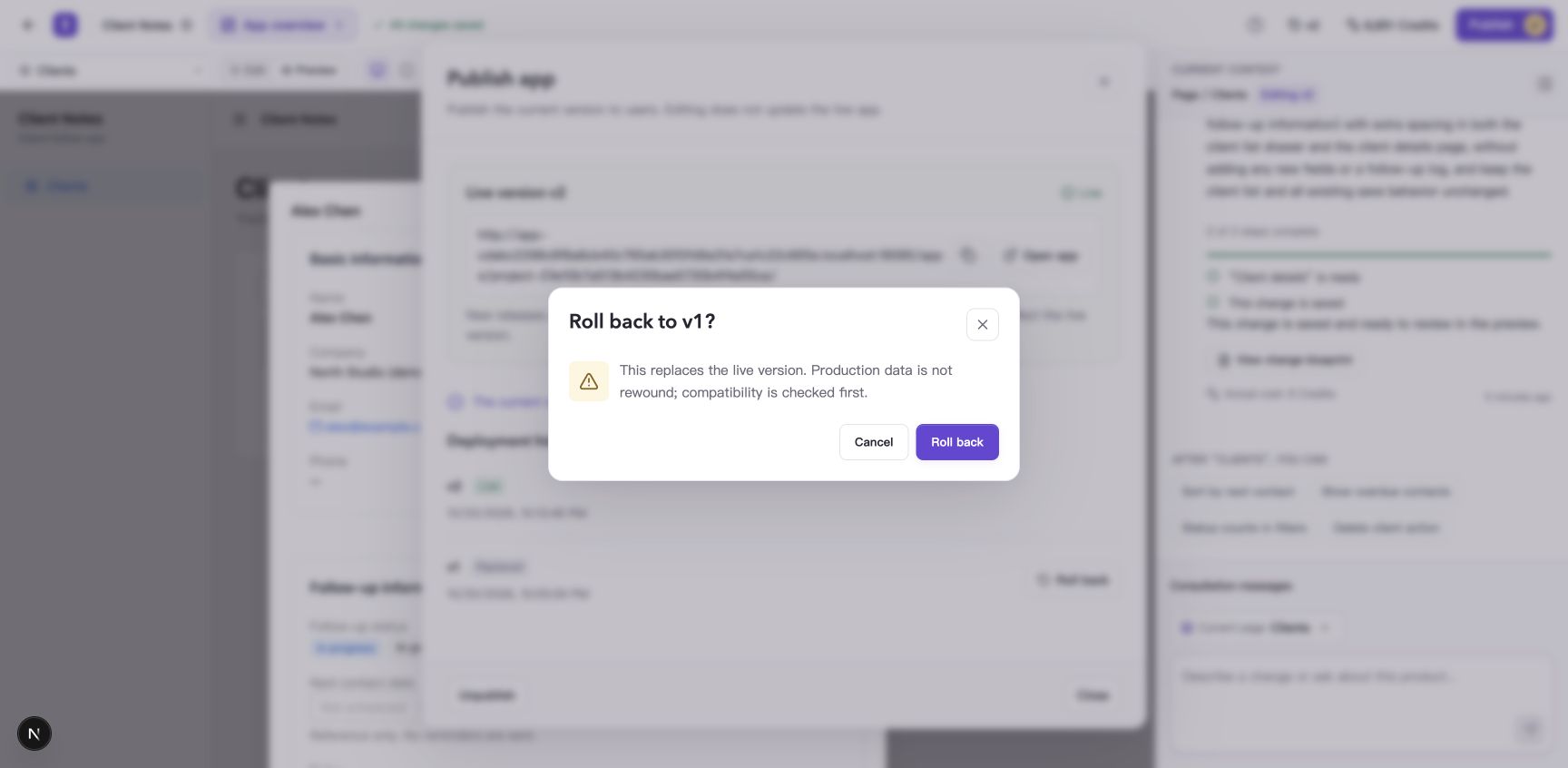
The rollback confirmation explains the target version, app changes, and production data retention.
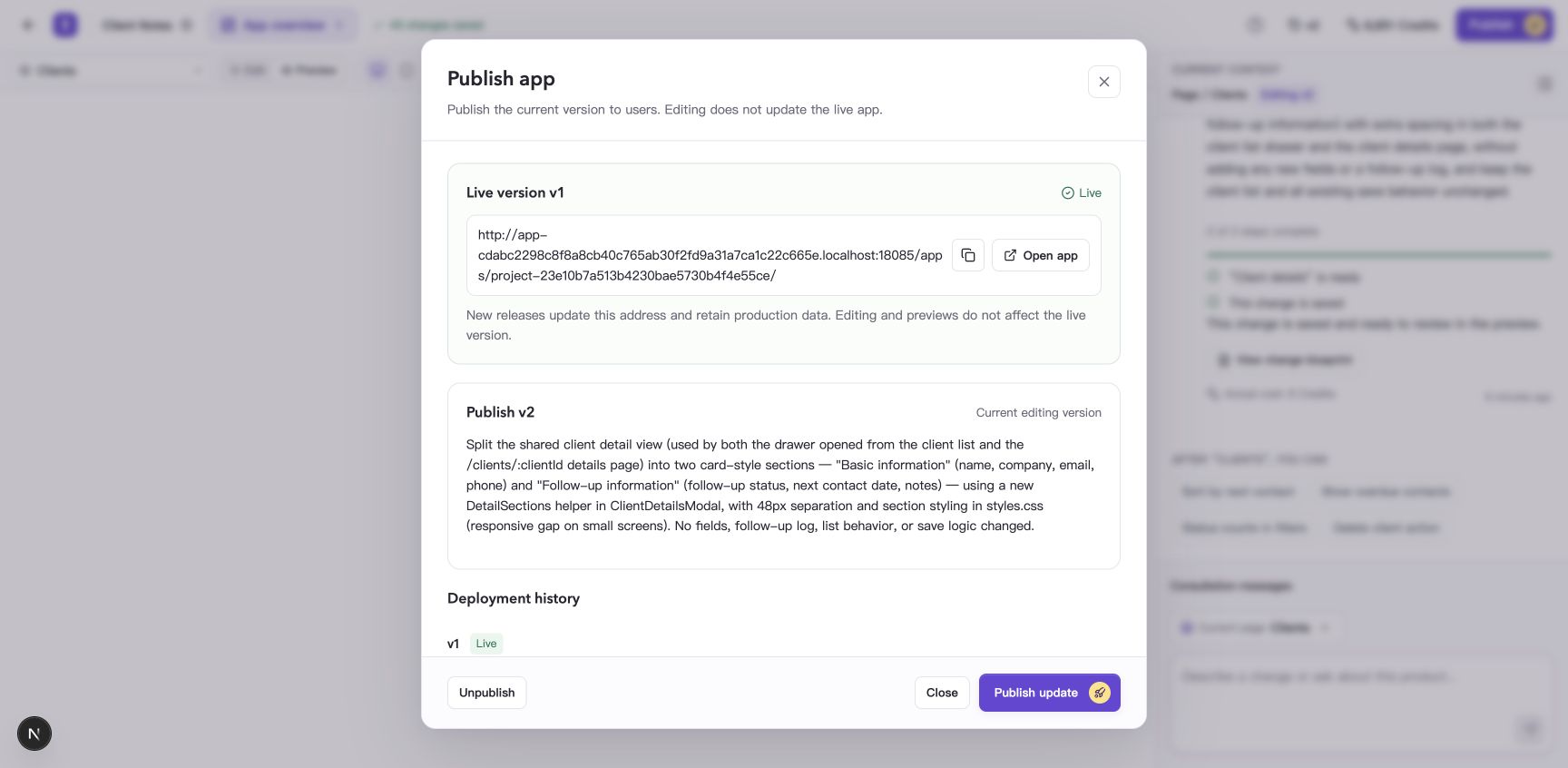
The live app has rolled back to v1 while the editing version remains v2.
Unpublish and republish
To stop access temporarily, select Unpublish in the publishing window. Check the current live version and select Unpublish in the confirmation dialog.
Unpublishing pauses production access and retains production data and version history. To restore access, check the current editing version, select Republish, and wait for publication to succeed.
Republishing uses the current editing version. To bring a historical version back online, restore it as the current editing version first.
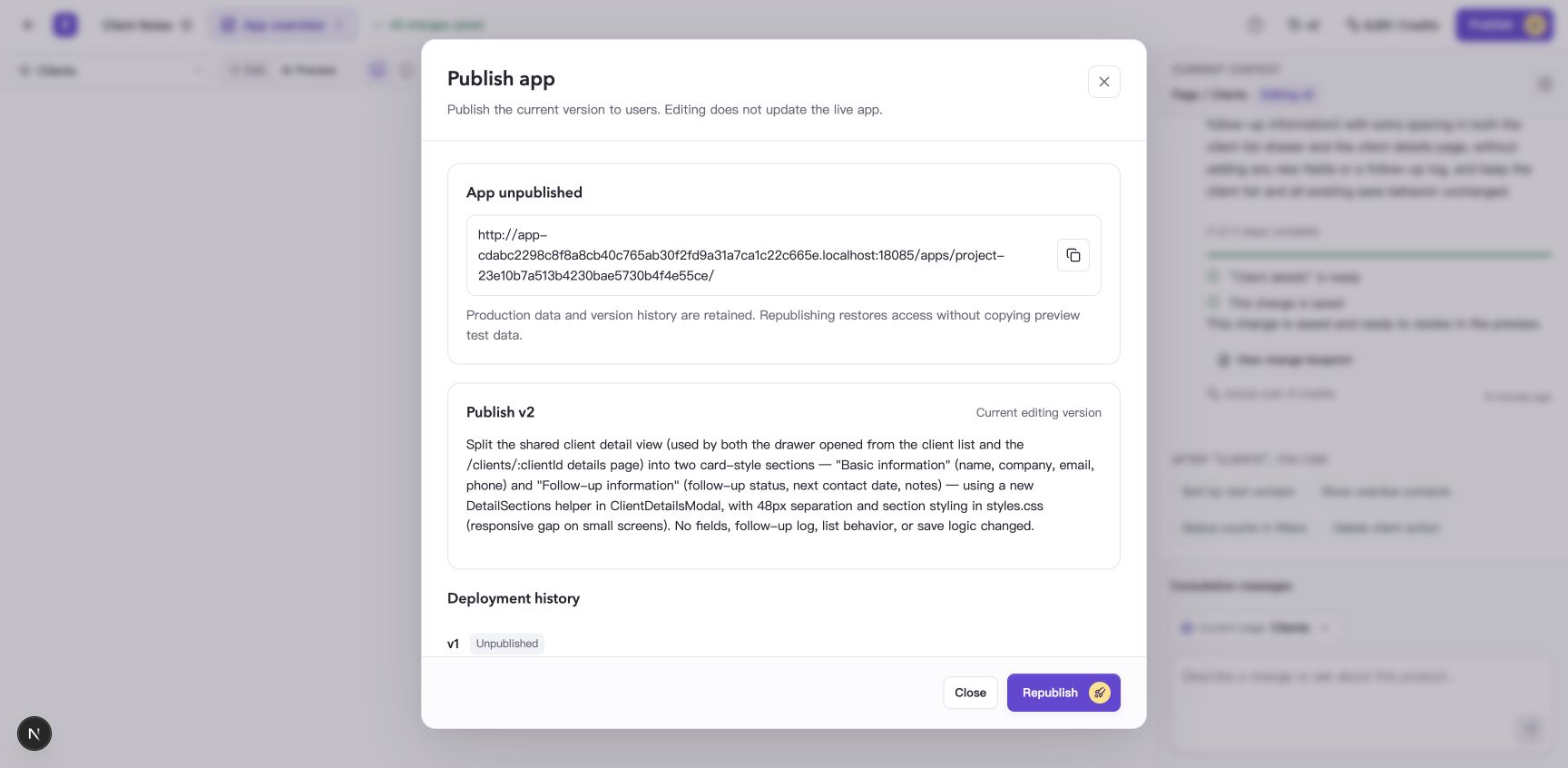
After unpublishing, republish the current editing version to restore access.
Common questions
Why can I see the new page while users still see the old content?
Builder preview and the live app can use different versions. After saving changes, publish an update. Check the live version in the publishing window, then open the public address.
Why is the publish button unavailable?
There may be no saved version, check results may still be loading or may have failed, the public address may not be configured, or another publication operation may be running. Follow the message in the window. Contact support for platform configuration issues.