Understand drafts, check results, and unverified items
On this page
“Draft saved” means the current work has been retained as an app version, with some items still to address. Preview the draft, read the task message and check details, then use the card to retry when ready.
Read the task result and version number
| Result | Meaning | Next step |
|---|---|---|
| Change saved | A version was saved | Check the actual requirement in Preview |
| Draft saved | Work was retained with outstanding issues | Read the message, try the result, and decide whether to retry |
| Generation failed with no new version | No new version was saved | Read the failure and look for Continue repair |
| Unverified | The item still needs to be checked | Try the workflow in Preview or another suitable environment |
The task card shows both the saved result and outstanding steps. Read the result and expand the relevant steps to understand what this draft contains.
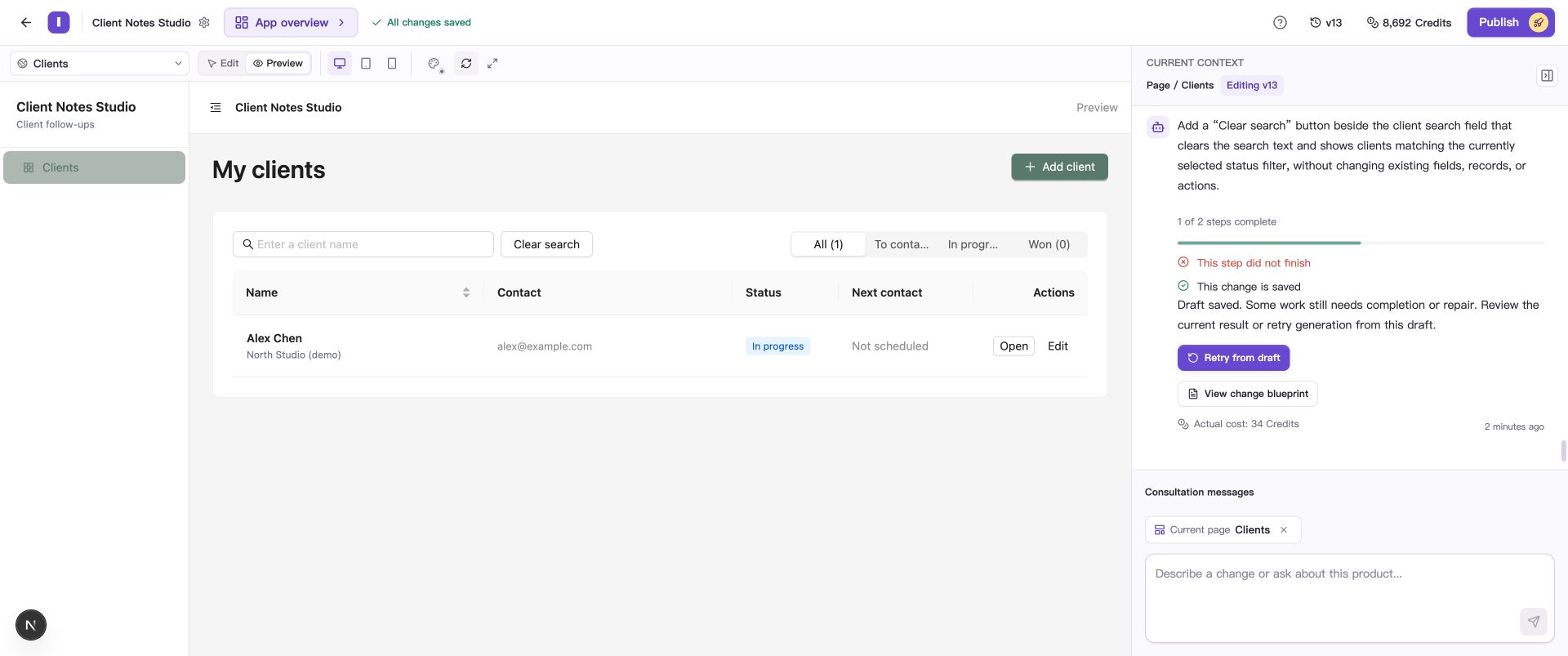
The draft is saved, and its card lists the check that still needs attention.
Inspect what the draft already contains
- Confirm that the current editing version has updated.
- Choose Preview and inspect the available pages and new content.
- Repeat the actions directly related to the request, noting what works and what remains unresolved.
For example, after adding Clear search, enter a name that matches no records, select In progress, and choose Clear search to try the new button.
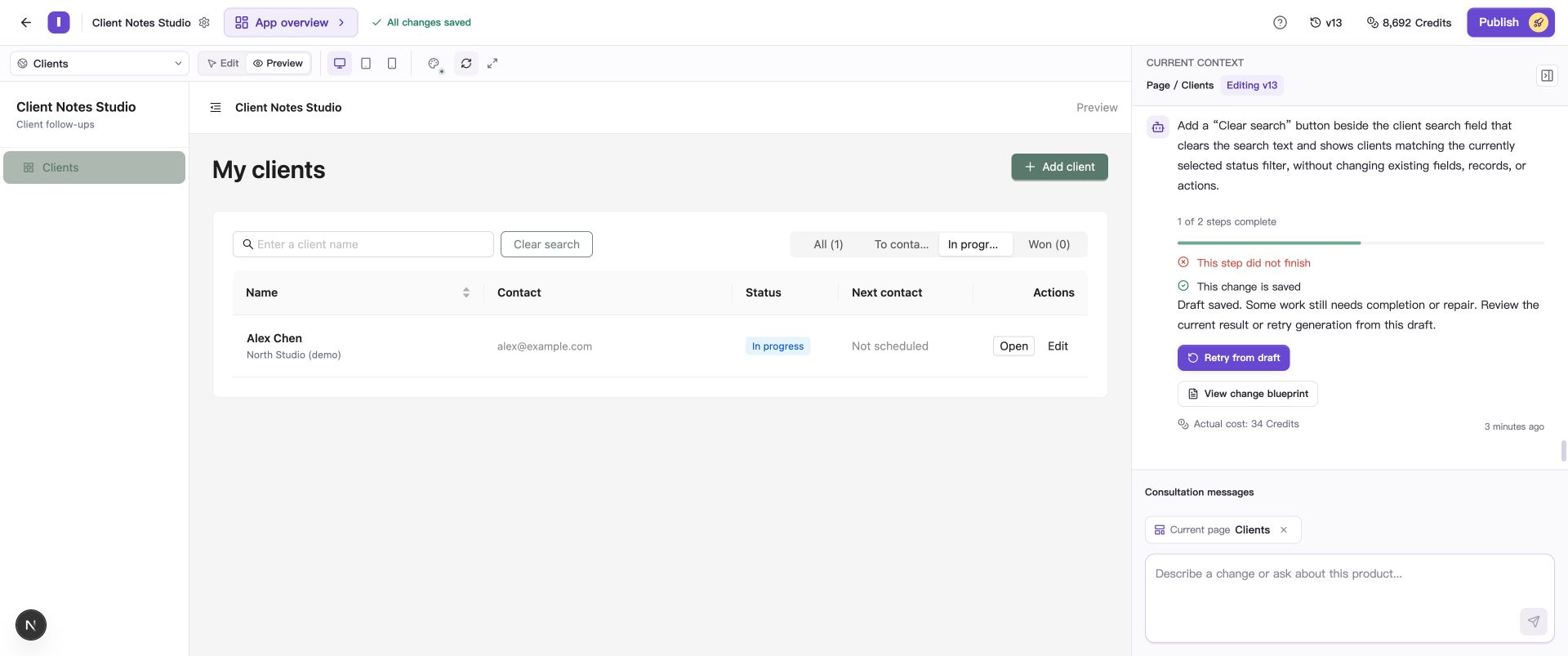
Clear search removes the search text, keeps the selected status filter, and brings the existing client back into view.
Read the check details
Open Version history using the version number at the top. Expand a record that offers check details to see the items and results for that change. The information reflects the type of change made.
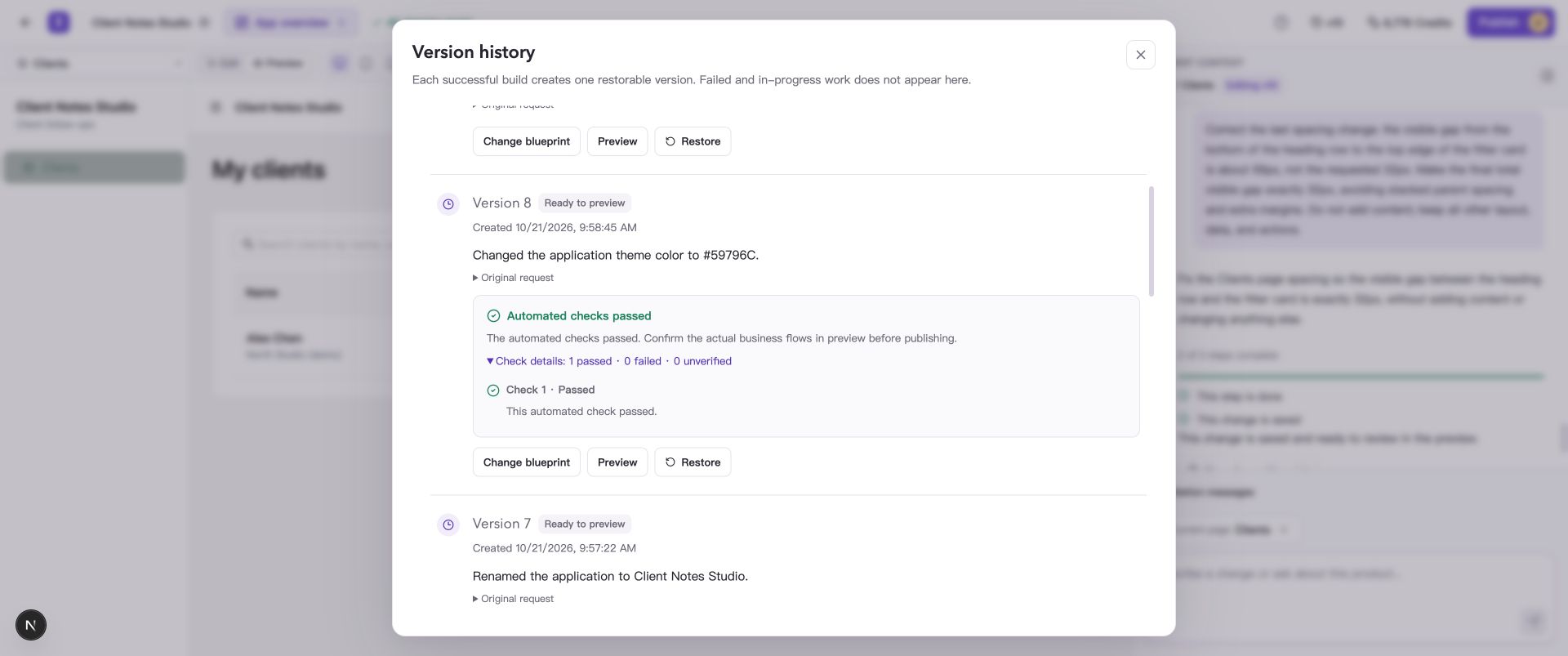
The version 8 record shows the checks for that theme save.
Automated checks mainly confirm that the app can build and start its preview. Try features such as input rules, saving records, and role permissions against your own requirements.
Try items marked Unverified in Preview. If you find a problem, tell the AI what you did and what you expected to happen.
Retry from the current draft
- Read the draft’s outstanding issues and confirm that you still want to complete the request.
- Choose Retry from draft on the card.
- Wait for the new execution to save, then check its result.
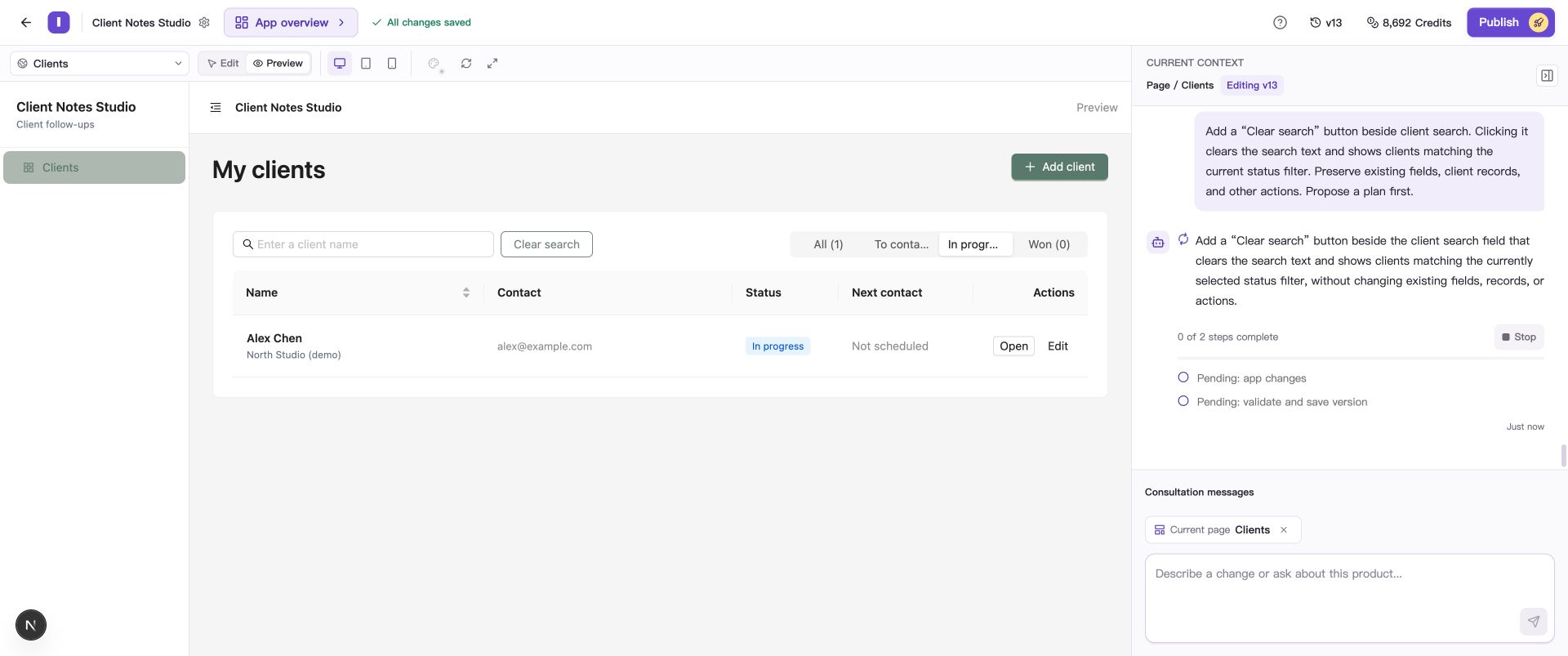
Retry continues from the current draft and uses Credits.
Retry uses the current draft as its starting point. If you have switched versions or see a version-changed message, make a new request based on the app you now have.
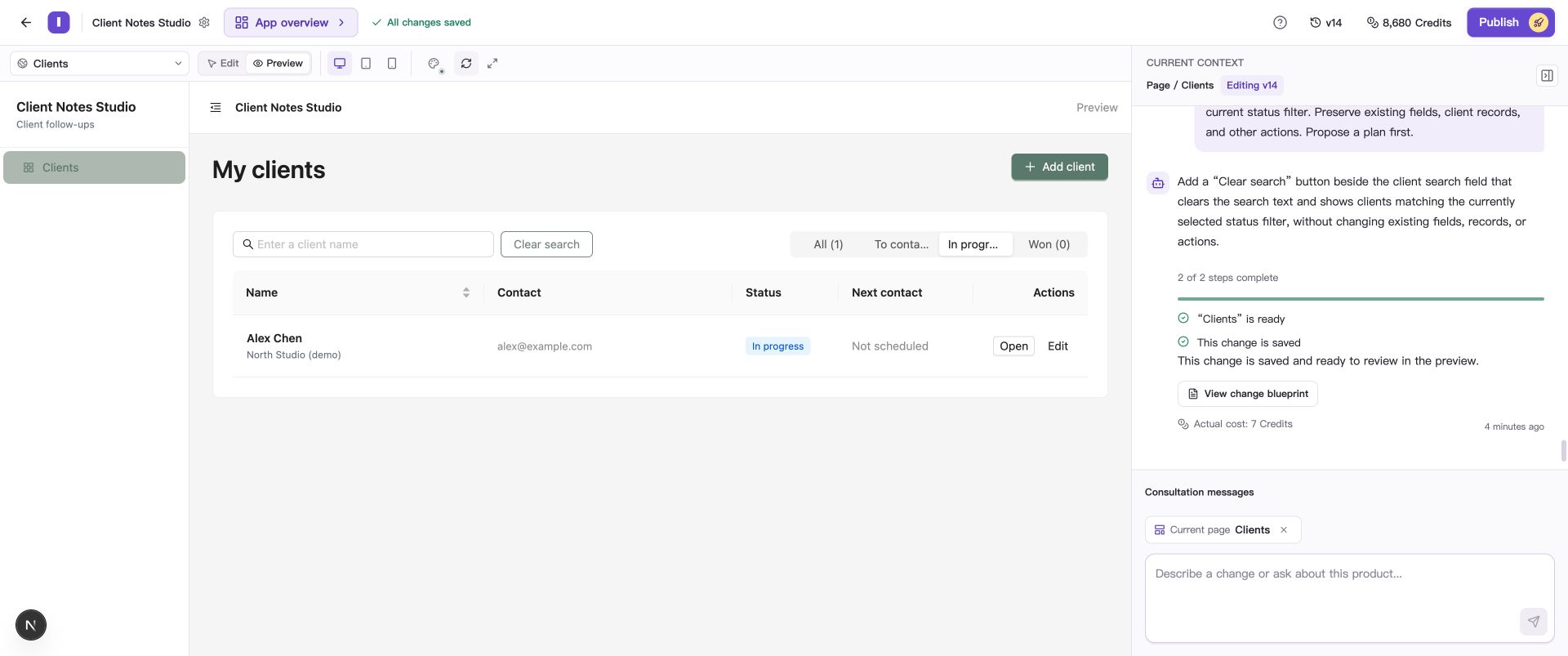
Check search, filters, and related actions again. The earlier draft remains in version history.
If retry still returns a draft, read its current message and consider narrowing the request. If no new version is saved, follow Continue after a failed generation.
Publish the update when ready
Drafts and retry results are saved as editing versions while the existing live version continues serving users. After checking the preview, follow Restore versions and publish your app to publish the prepared version. The Publish window lists any checks that need attention.
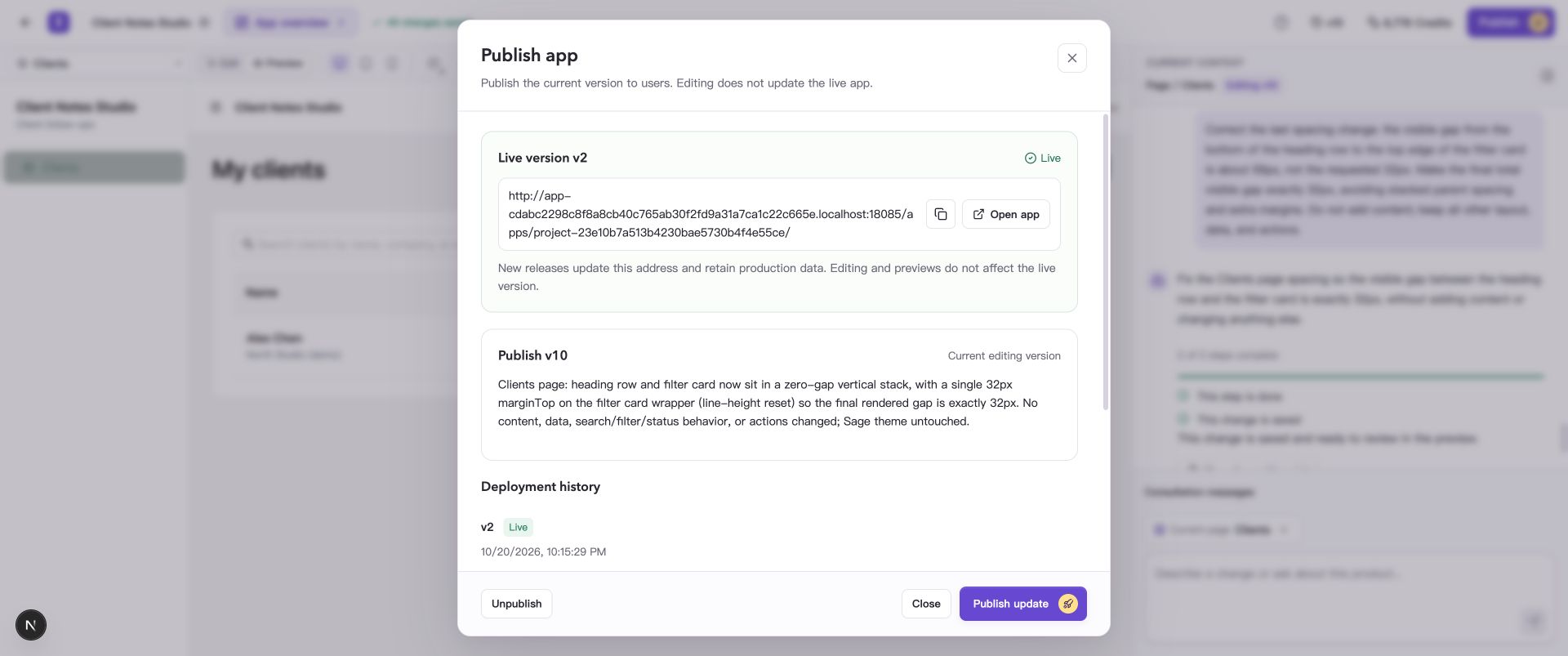
The Publish window shows live version v2. Subsequent draft and retry results are retained as editing versions.
Common questions
Why are there outstanding issues when the draft page is interactive?
A draft can contain usable pages while some generation steps, code checks, or runtime checks still need attention. Expand the task message, find the relevant item, and use the preview result to decide whether to request changes or retry.