
Resolve preview loading problems and page errors
On this page
When the preview has a problem, check its page, mode, and version first. Try refreshing a blank view, open details from a specific record, or ask the AI to adjust a layout or interaction. The sections below walk through each situation.
Check the page, mode, and version
- Check the version number and canvas context to identify the version you are reviewing.
- Choose Preview before testing buttons and forms. Edit mode uses clicks to select components.
- Check that Select page points to the page you intended to open.
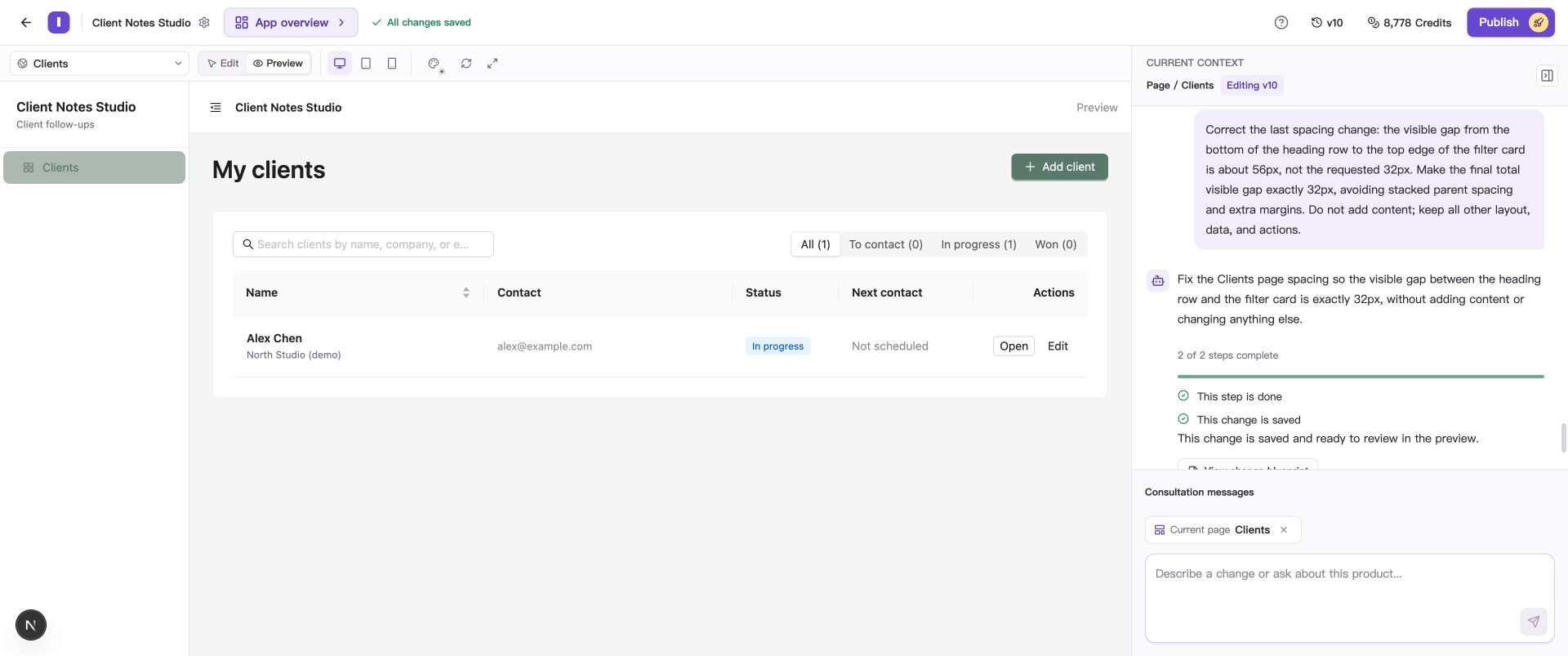
Check the version number, Preview mode, and selected page to locate the problem.
A historical preview shows an earlier result. To make changes, return to the current version or follow Restore versions and publish your app to restore it first.
If the preview is blank or out of date
- If generation is still running, wait for the task to finish and save.
- For a saved version, choose Refresh in the canvas toolbar and wait for the app to load.
- Let the page finish loading, then repeat the original action to see whether the problem remains.
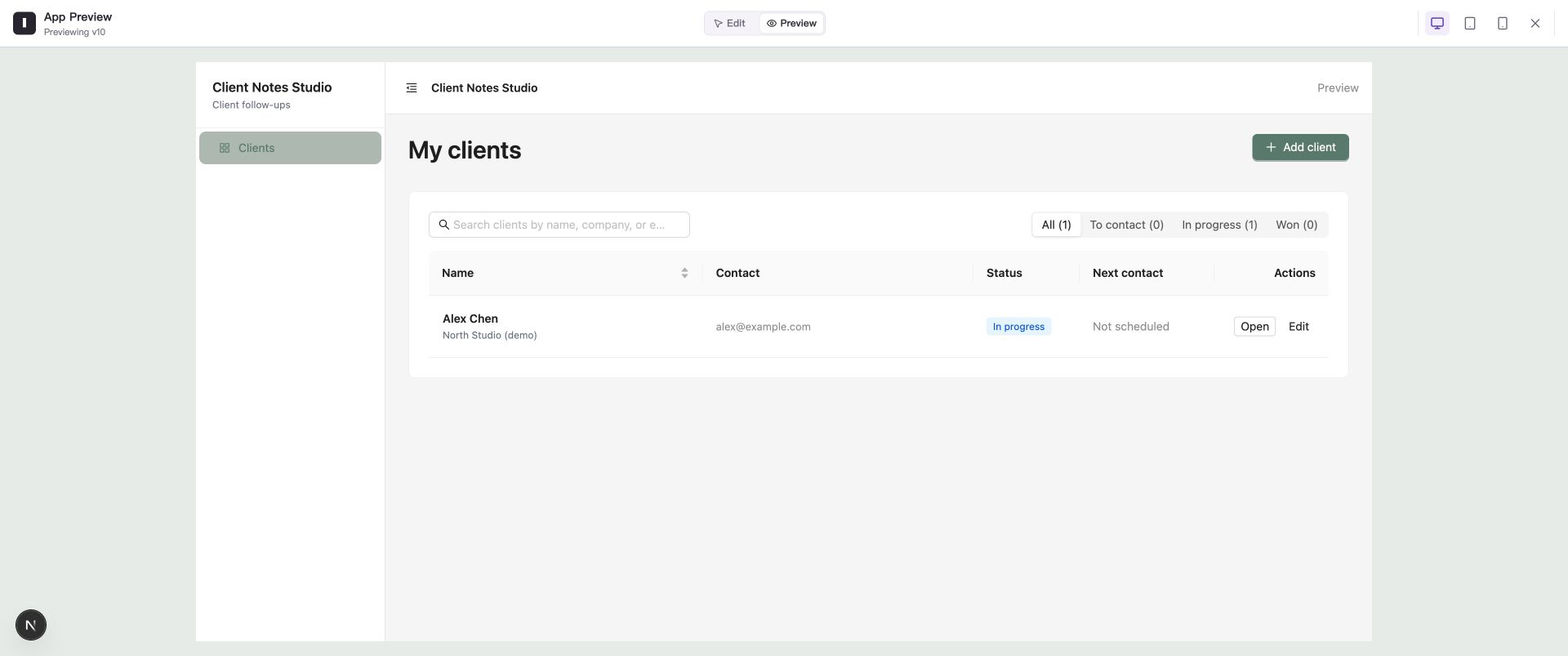
After reloading, confirm that the intended page and records actually appear.
If the refreshed page still reports an expired preview, unavailable network, or another error, record the exact message and use the information checklist below when asking the AI or support for help.
If a details page says the record does not exist
A details page needs to know which client you want to view. Opening it through Select page can leave the record unspecified and show “Record does not exist.” Open a client from the list to see that record’s details.
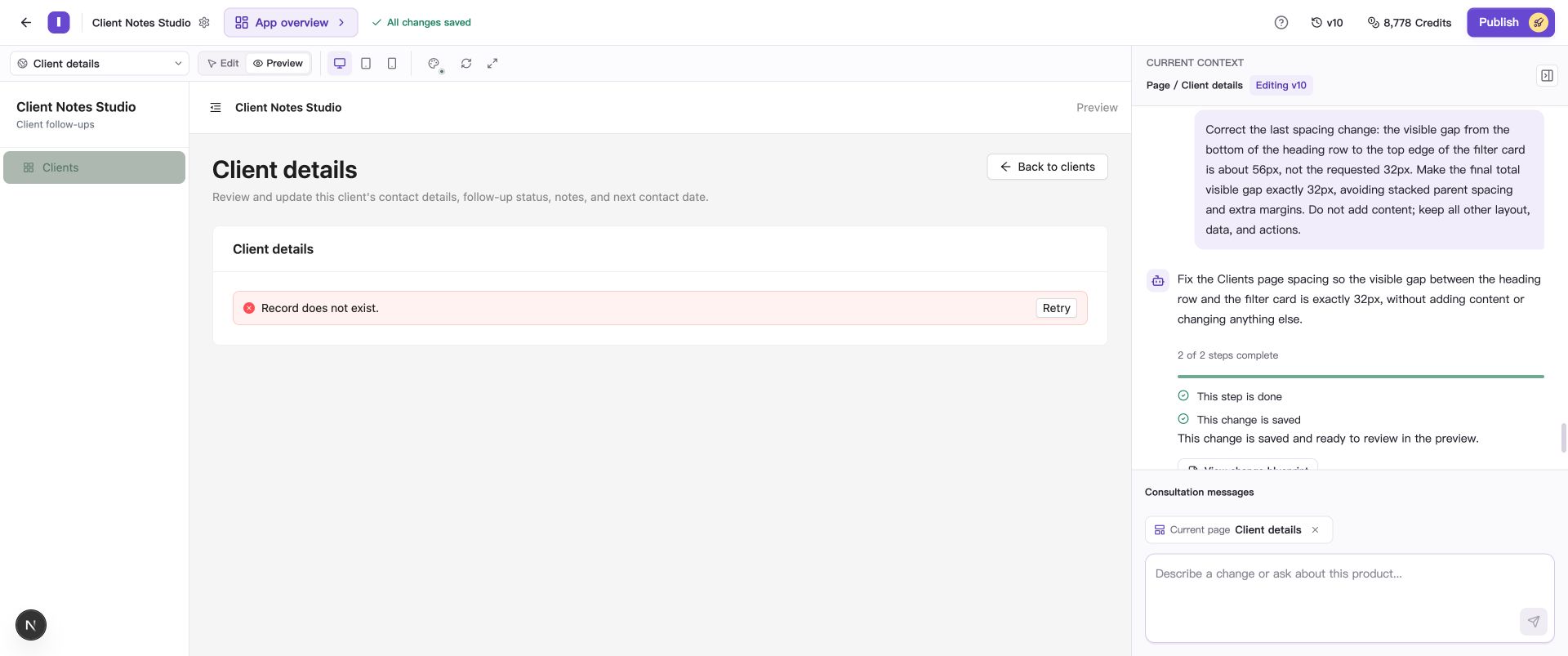
Opening details through Select page shows “Record does not exist” in this example. Return to the list and choose an existing client.
- Return to Clients using Select page.
- Find an existing test record and use its own details action.
- Check that the name, status, and other fields belong to that record.
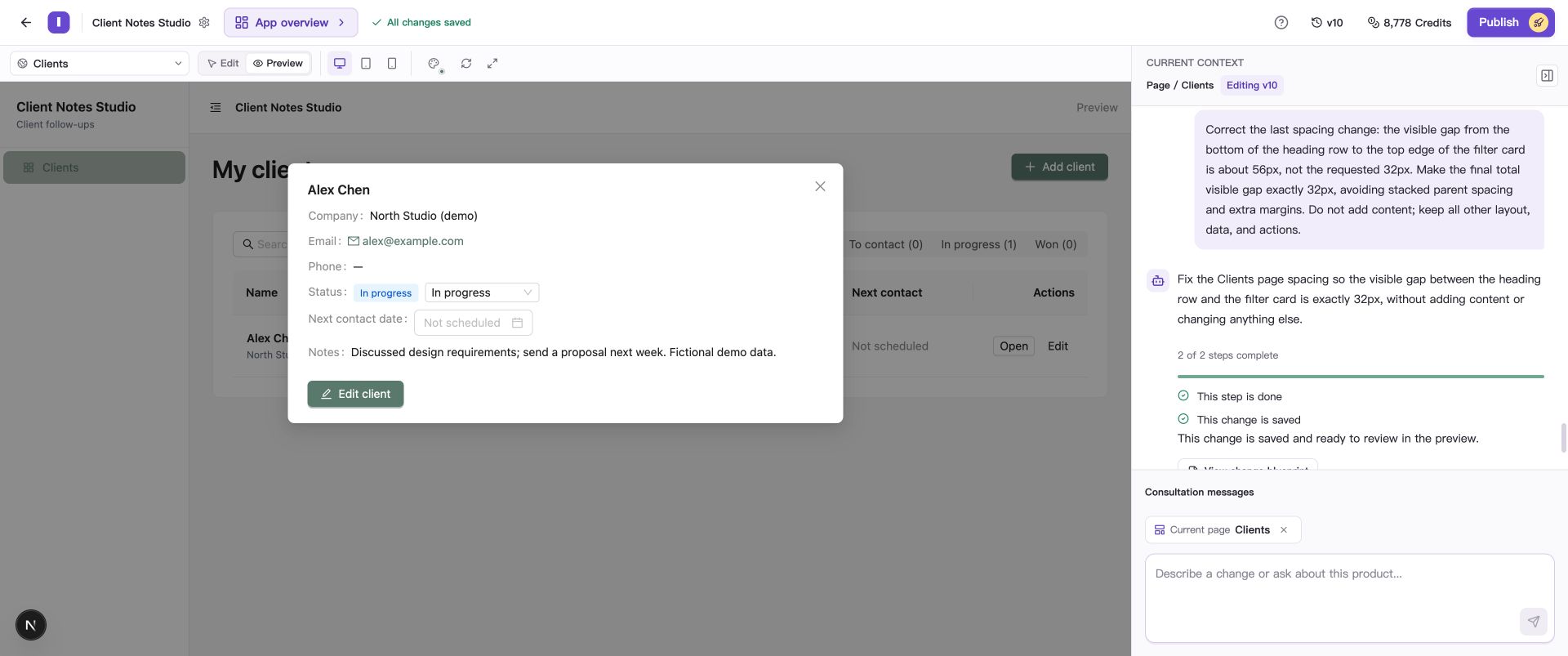
This example opens a details panel from the record. If the record’s own action also fails, report that specific sequence.
To create a test record, use a fictional name and example email address, save it through the app’s normal form, and then open its details.
If the page loads but looks or behaves incorrectly
Describe the short sequence that produces the problem and the result you want. For clipped filter choices, include the page, canvas size, and how you want the options displayed.
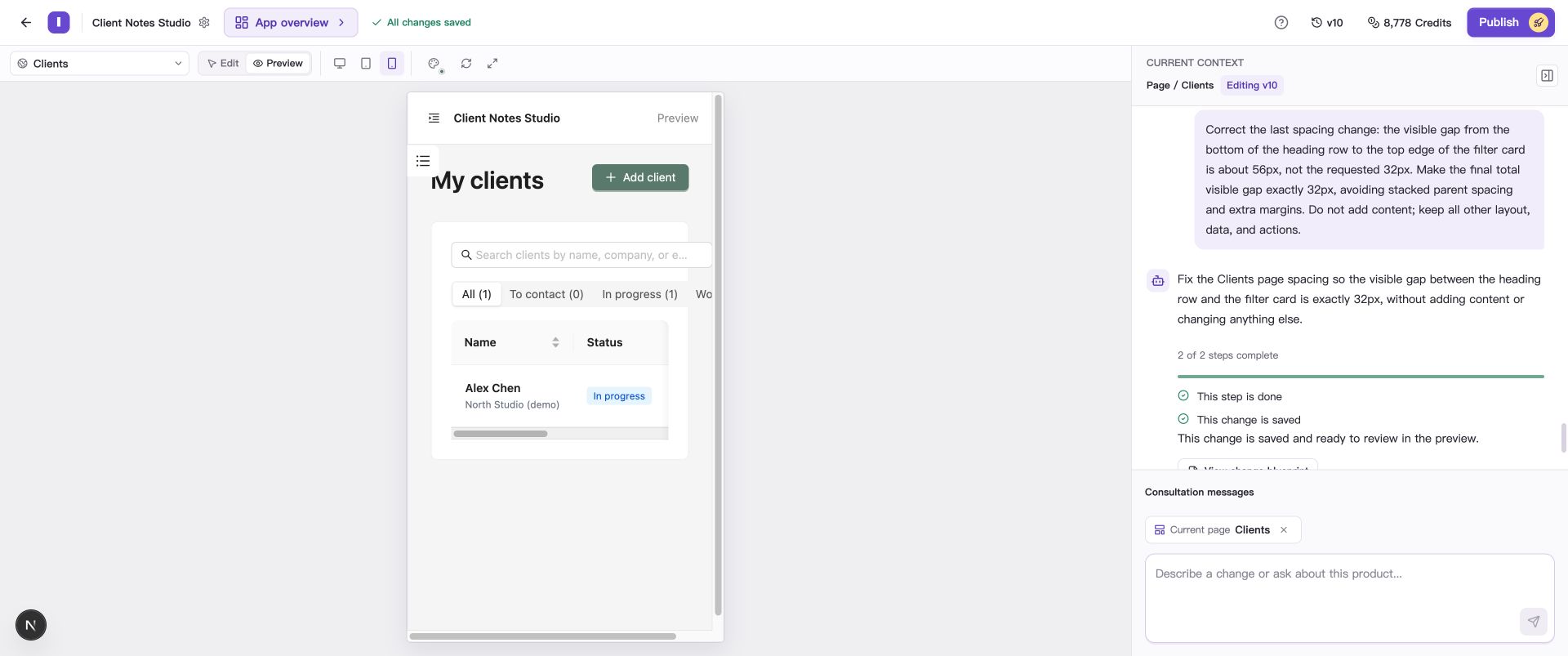
The screenshot shows clipped filter labels at phone width. Use it to request wrapping or spacing changes.
Submit the request in the AI conversation, follow Request changes to your app, and repeat the original action after saving.
If you need repair or support
If the problem remains, provide these details in your request or support message:
- Project name, current version, and affected page.
- The shortest reproduction steps, expected result, and actual result.
- The visible error text and a screenshot; include the canvas size for layout issues.
- Whether refreshing changes the result and whether other pages work.
Before sharing text or screenshots, conceal passwords, service secrets, and temporary access credentials in addresses. If generation itself failed, see Continue after a failed generation.
Common questions
How is refreshing the preview charged?
Refreshing the preview is free. AI changes and continued repairs use Credits.