Manage project details and delete a project
On this page
Use Project settings to update a project's name and description from the project list or Builder. Project owners can also delete a project. Deleting removes it from the list and takes its published app offline.
Open Project settings
In the Projects list, find the project and open the three-dot menu at the top-right of its card. Choose “Project settings.” In Builder, you can also use the settings button beside the app name.
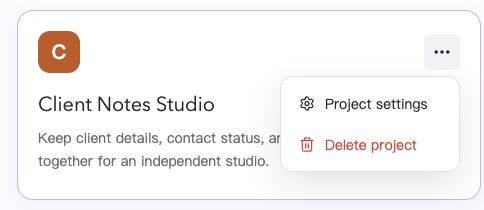
The project card's action menu. Delete project is available to the project owner.
Edit the name and description
- Under “App details,” select “Edit app details.”
- Update “App name” or “Description” as needed. A description can explain the app's purpose, audience, or current focus.
- Select “Save” and wait for the details view to return. To leave your existing details in place, select “Cancel.”
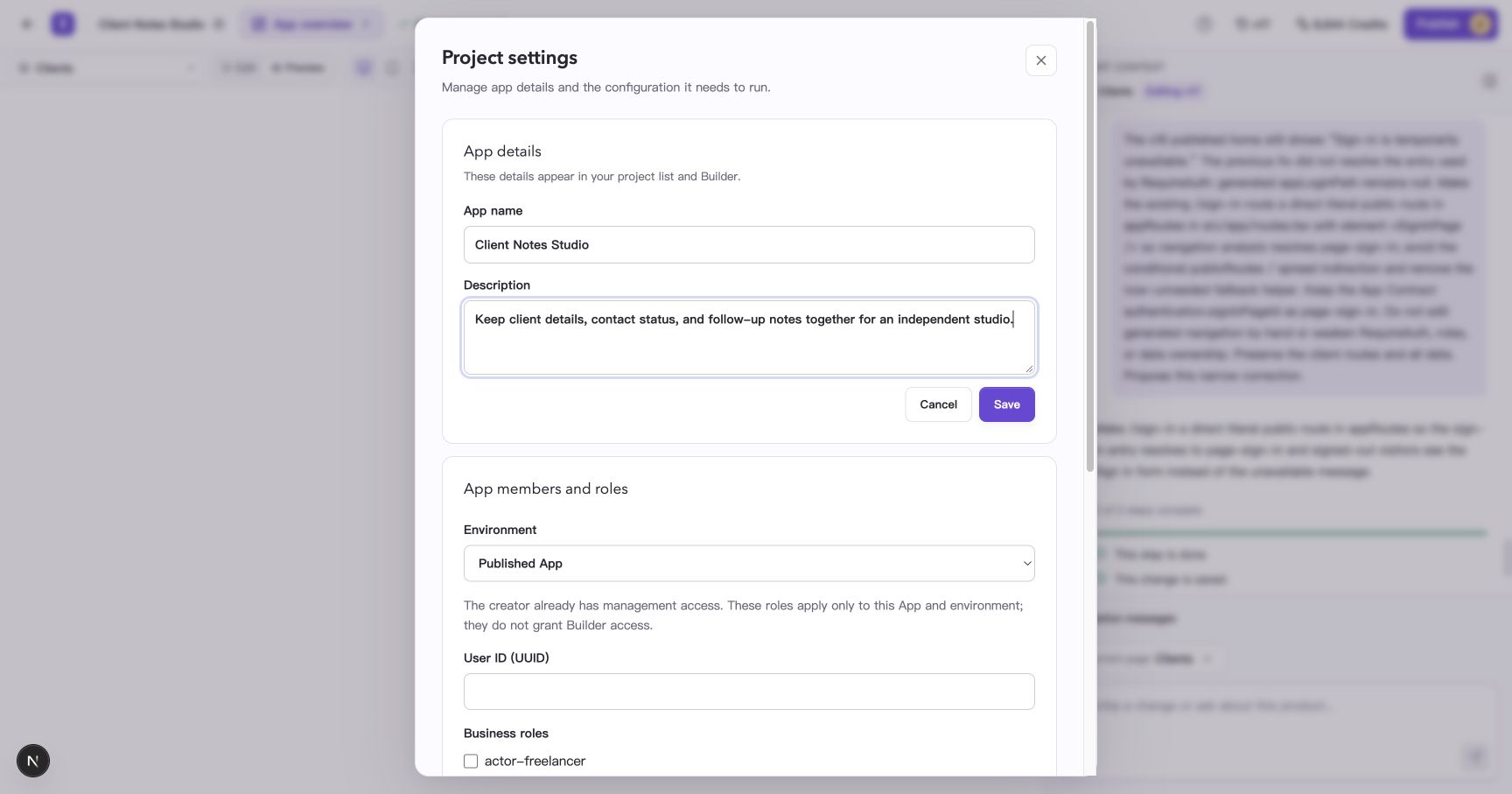
This example adds a description to make the project easier to identify.
Reopen Project settings or refresh the page to check the saved details. The project list also displays the updated name and description.
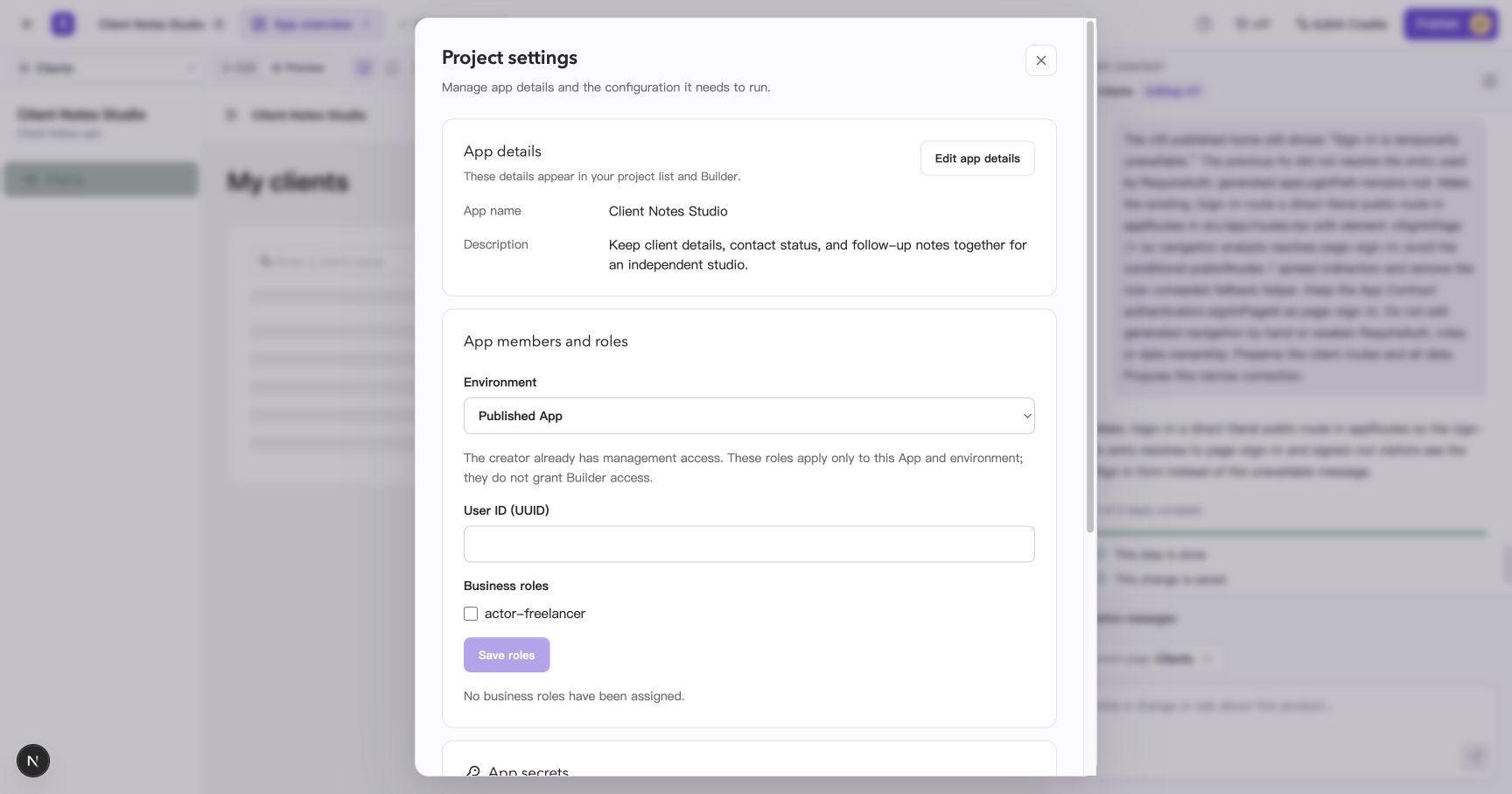
The description remains available after refreshing the page.
Renaming an app that already has a saved version also updates its app name and saves the corresponding version. Wait for saving to finish, check the name in the preview, and publish the update when you want it to appear online. See Change your app name and theme color for the full workflow.
Delete a project
Use deletion when you have finished with a project. To pause public access while keeping the project available for further work, you can unpublish the app.
- Open the project's three-dot menu in the Projects list.
- Select “Delete project.”
- Check the project name and the effects listed in the confirmation dialog.
- Select “Delete and take offline” to finish. The project is removed from the list.
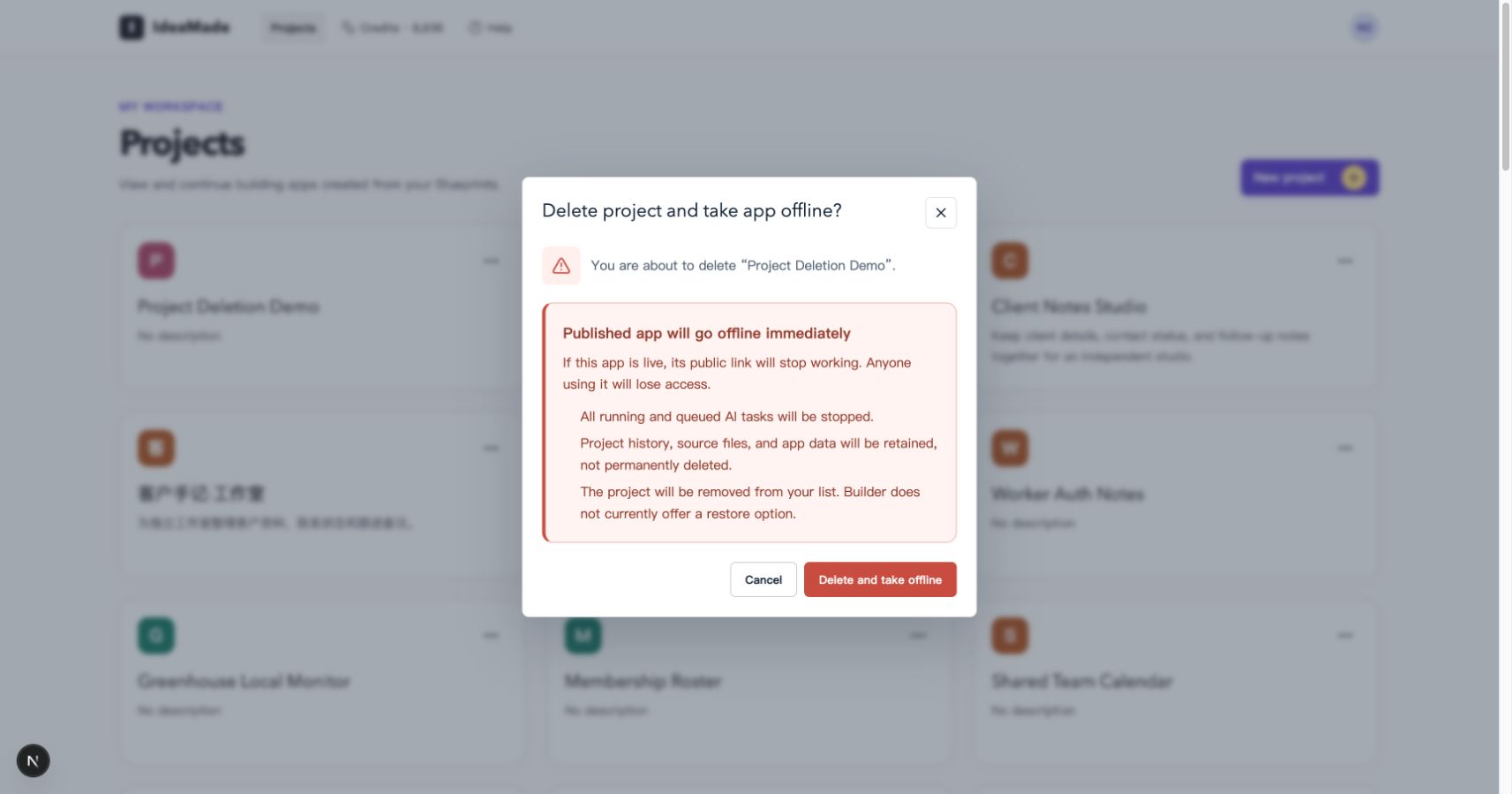
The confirmation shows the project name and the effects of deletion.
Deletion stops the project's running and queued AI tasks and ends public access to its published app. Project history, source files, and app data are retained. Builder currently has no option to restore a deleted project.
Common questions
Why can't I find the edit or delete action?
Members with project write access can edit the details. Deletion is available to the project owner. If you have read-only access, ask the owner to make the change or arrange the appropriate access.